108 Scan
Scan to E-mail Attachment Using ControlCenter (Macintosh)
Send a scanned document as an email attachment.
• The Scan to E-mail feature does not support Webmail services. Use the Scan to Image or Scan to File feature
to scan a document or a picture, and then attach the file of the scanned data to an email message.
NOTE: The machine scans to your default email client.
1. Load your document.
2. In the Finder menu bar, click Go > Applications > Dell Printers, and then double-click the
(ControlCenter)
icon.
The ControlCenter screen appears.
3. Click the SCAN tab.
4. Click the E-mail button.
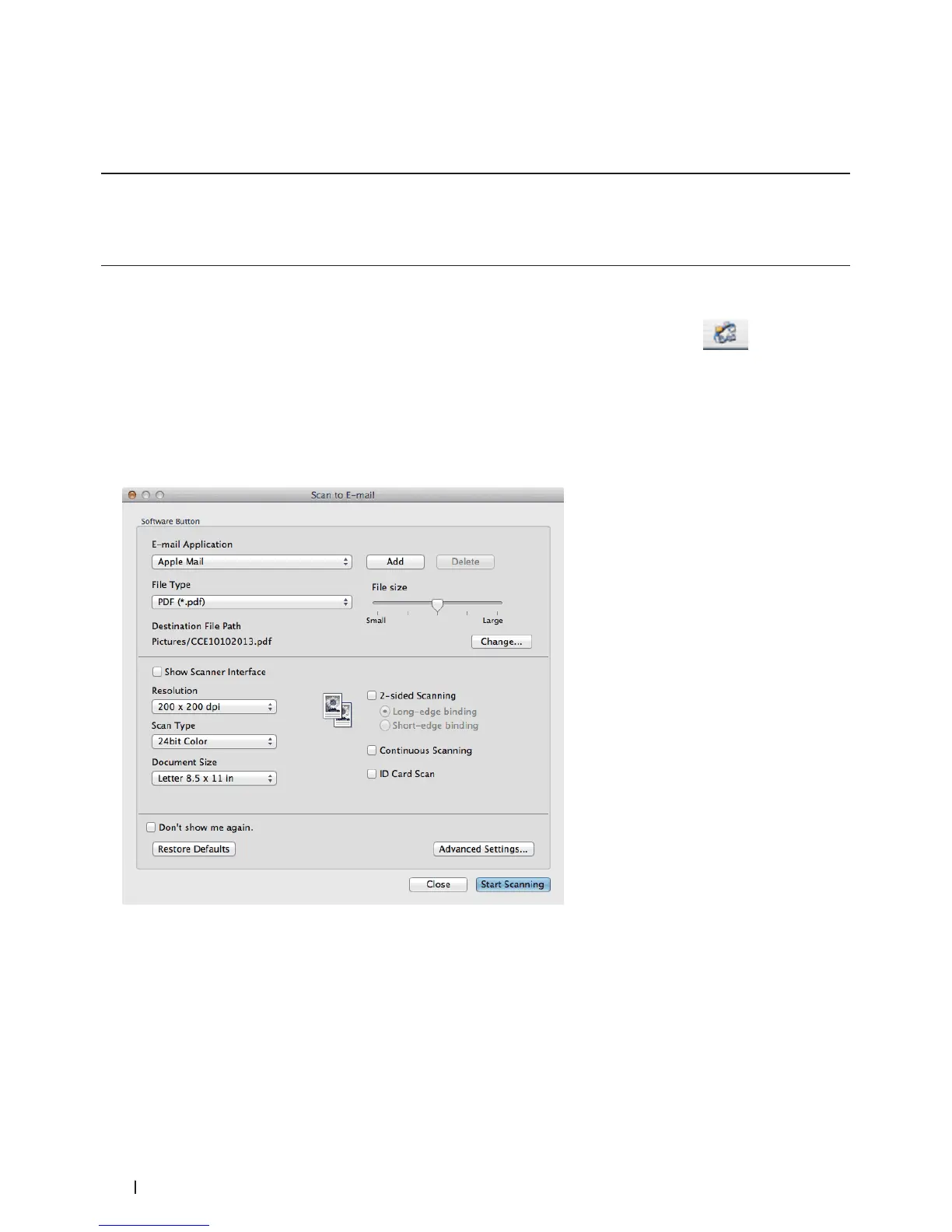
The scan settings dialog box appears.
5. Change the scan settings, such as file format, file name, destination file path, resolution, or color, if needed.
NOTE: To change the file name or destination file path, click Change.
6. Click the Start Scanning button.
The machine starts scanning. Your default email application will open and the scanned image is attached to a
new, blank email.










 To Next Page