219Network
may cause the system to take a longer time than usual to send an error mail.
• When sending confidential documents, we recommend using standard phone lines instead of the Internet (due
to its low level of security).
• If the receiver's mail system is not MIME-compatible, you cannot use I-Fax to send documents. If possible, find
out in advance, and note that some servers will not send an error reply.
• If a document is too large to send via I-Fax, it may not reach the receiver.
• You cannot change the font or size of the text in any Internet mail you receive.
Initial Setup for Email or I-Fax
Related Models:Dell E515dn / Dell E515dw
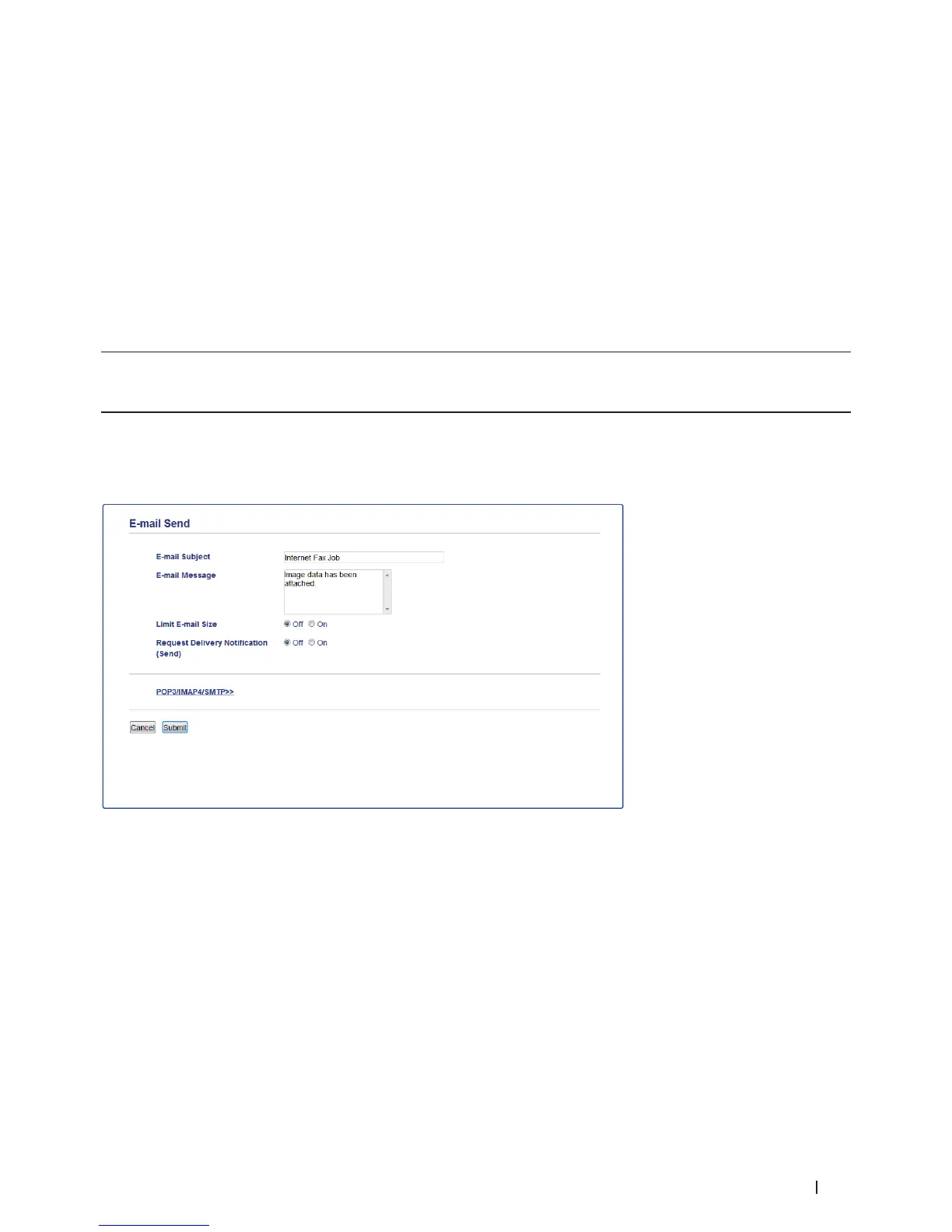
Before sending your I-Fax, use the control panel or Web Based Management to configure the following optional
items:
• E-mail Subject
• Limit E-mail Size
• Request Delivery Notification (Send)
If you are unsure of any of these items, contact your system administrator.
Send an I-Fax
Related Models:Dell E515dn / Dell E515dw
Sending an I-Fax is like sending a normal fax. Make sure that your recipient's information is saved in your email
address book, and load the document you want to I-Fax into your Dell machine.
NOTE: If the computer to which you want to send a document is not running Windows Server
®
2003/2008/2012/2012
R2, Windows Vista
®
, Windows
®
7, or Windows
®
8, ask the computer's owner to install software that can view TIFF-F
files.
NOTE: To send multiple pages, use the ADF.










 To Next Page