126 Copy
2. Do one of the following:
• Dell E515dn/Dell E515dw
Press
(Copy).
Use the dial pad to enter the number of copies you want.
• Dell E514dw
Press p or q to enter the number of copies you want.
3. Press Options.
4. Press p or q to select Stack/Sort, and then press OK.
5. Press p or q to select Sort, and then press OK.
6. Press Start.
If you placed the document in the ADF, the machine scans the pages and starts printing.
If you are using the scanner glass, go to the next step.
7. Repeat the following steps for each page:
• Dell E515dn/Dell E515dw
a. After the machine scans the page, press 1 to scan the next page.
b. Place the next page on the scanner glass, and then press OK to scan the page.
• Dell E514dw
a. After the machine scans the page, press p to select the Yes option.
b. Place the next page on the scanner glass, and then press OK to scan the page.
8. After scanning all the pages, do one of the following:
• Dell E515dn/Dell E515dw
Press 2 to select the No option.
• Dell E514dw
Press q to select the No option.
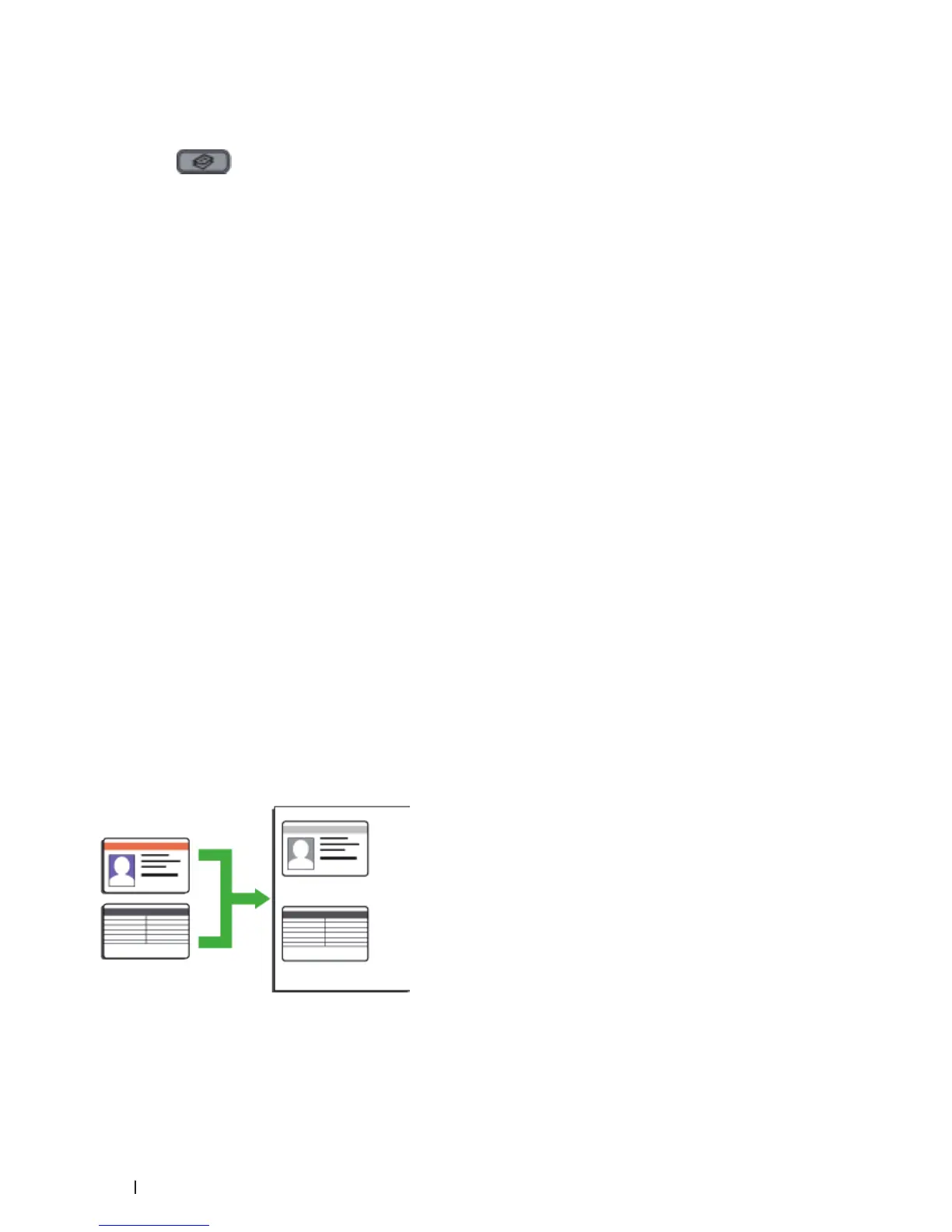
Copy Both Sides of an ID Card onto One Page
Use the ID Copy feature to copy both sides of an identification card onto one page, keeping the original card size.










 To Next Page