107Scan
The machine starts scanning. The file will be saved in the folder you selected.
Scan Both Sides of an ID Card Using ControlCenter
1. Place an ID card on the scanner glass.
2. In the Finder menu bar, click Go > Applications > Dell Printers, and then double-click the
(ControlCenter) icon.
The ControlCenter screen appears.
3. Click the SCAN tab.
4. Click the File button.
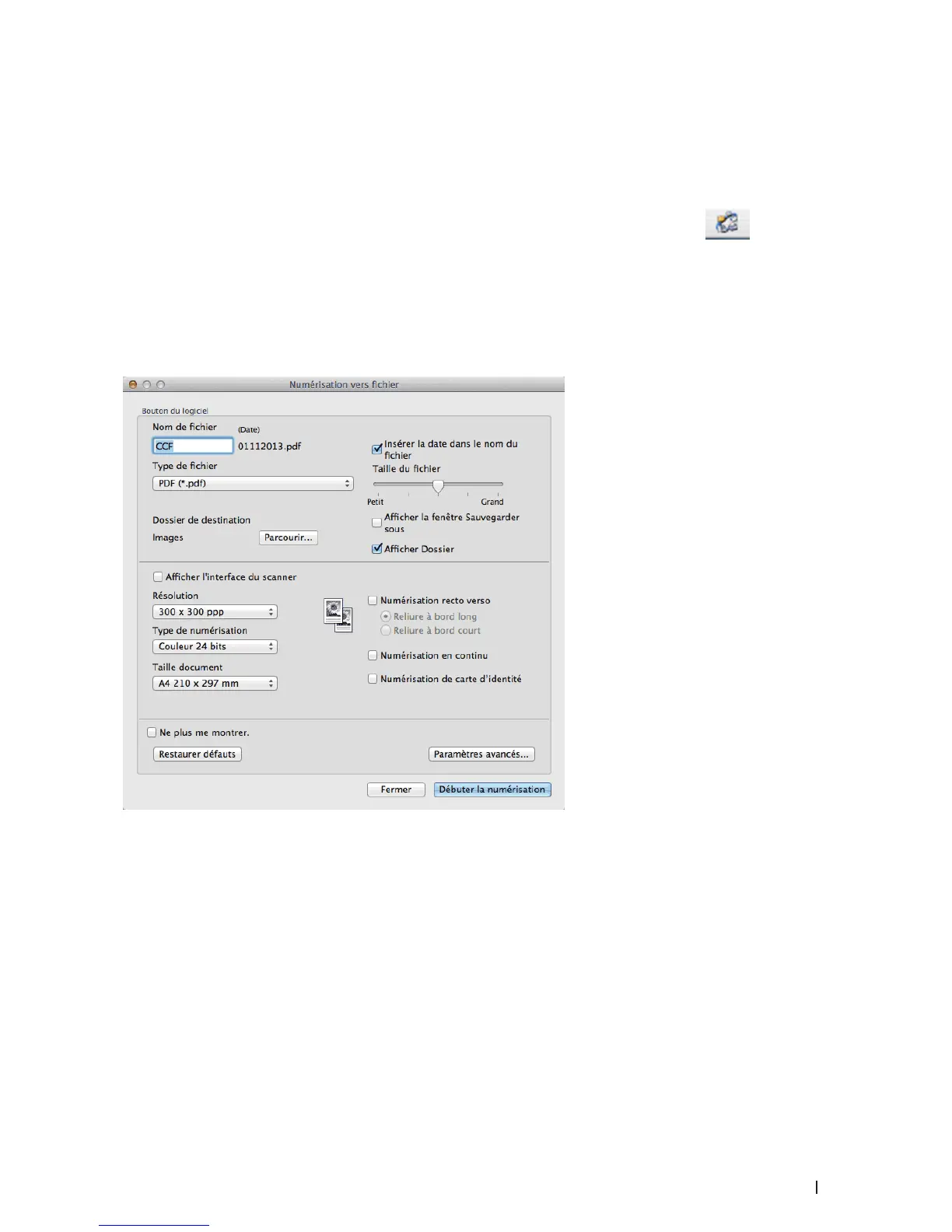
The scan settings dialog box appears.
5. Select the ID Card Scan check box.
The instruction dialog appears.
6. Read the instructions on the screen, and then press OK.
7. Configure other settings, if needed.
8. Click the Start Scanning button.
The machine starts scanning one side of the identification card.
9. After the machine has scanned one side, turn over the identification card, and then click Continue to scan the
other side.
10. Click Finish.










 To Next Page