25Introduction to Your Dell Machine
1
Introduction to Your Dell Machine
• Control Panel Overview
• Dell Printer Hub (Windows
®
Only)
Control Panel Overview
The control panel will vary depending on your model.
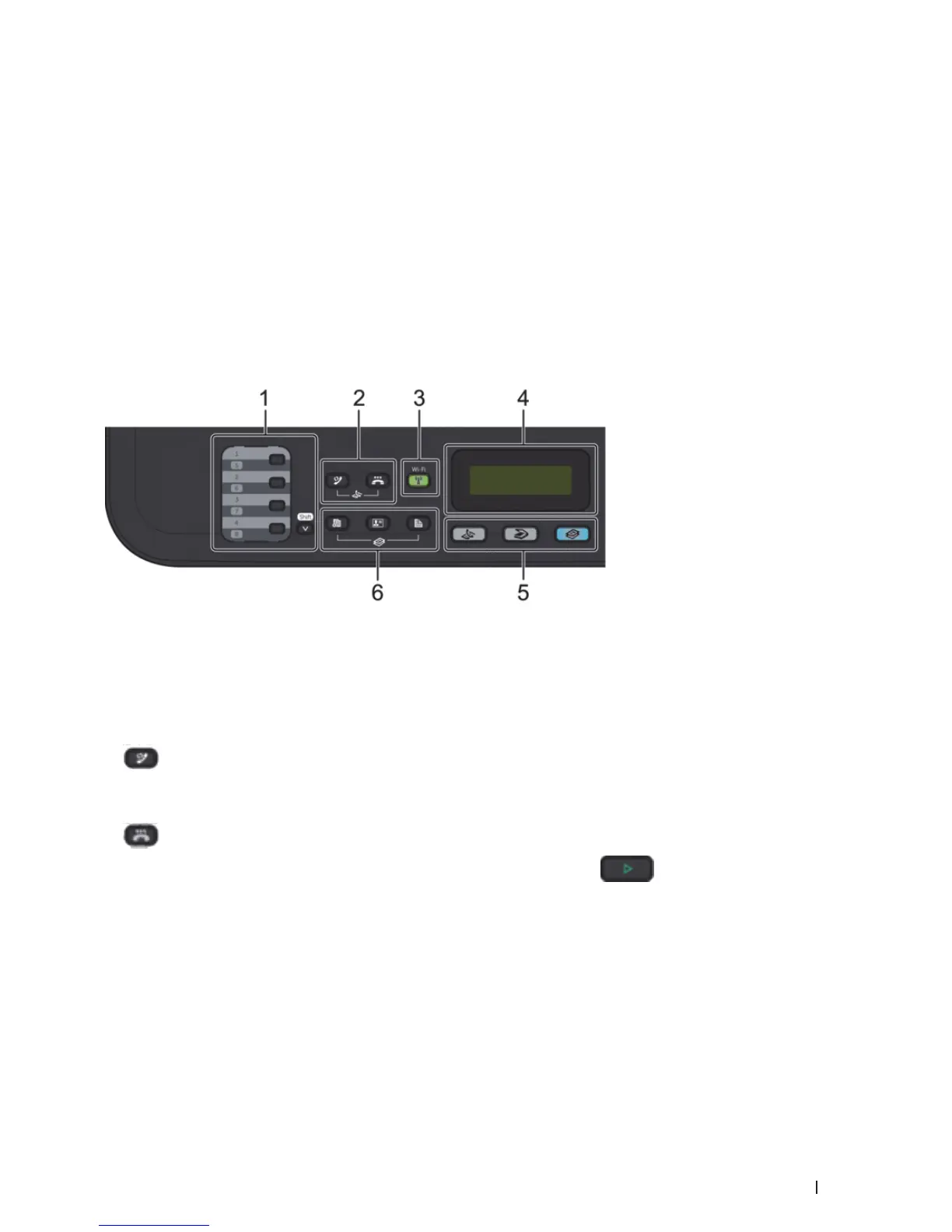
Dell E515dn/Dell E515dw
Dell E514dw
Dell E515dn/Dell E515dw
1. One Touch buttons
Store and recall up to eight fax and telephone numbers.
To access stored One Touch fax and telephone numbers 1-4, press the One Touch button assigned to that
number. To access stored One Touch fax and telephone numbers 5-8, hold down (Shift) as you press the number.
2. Fax buttons
(Redial/Pause)
Press to dial the last numbers you called. This button also inserts a pause when programming quick dial numbers
or when dialing a number manually.
(Hook)
Press Hook before dialing to ensure a fax machine answers, and then press
(Start).
If the machine is in Fax/Tel (F/T) Mode and you pick up the handset of an external telephone during the F/T
ring (pseudo double-rings), press Hook to talk.
3. Wi-Fi (for Dell E515dw)
Press the Wi-Fi button and launch the wireless installer on your computer. Follow the on-screen instructions to
set up a wireless connection between your machine and your network.
When the Wi-Fi light is on, your Dell machine is connected to a wireless access point. When the Wi-Fi light
blinks, the wireless connection is down, or your machine is in the process of connecting to a wireless access point.
While Wi-Fi is on, if you push the Wi-Fi button, the wireless connection is down.










 To Next Page