57Print
5. Click OK.
6. Complete your print operation.
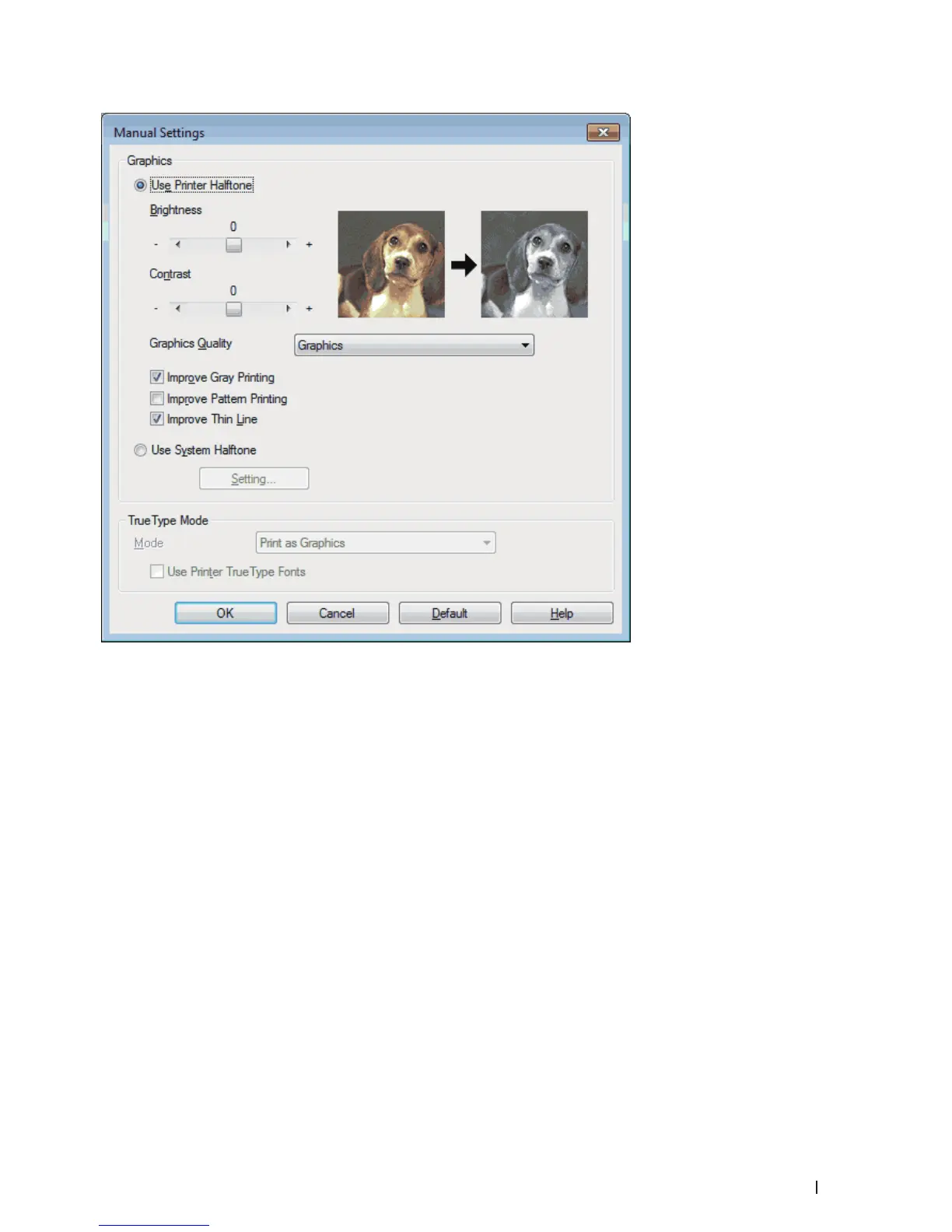
Improve Gray Printing (Windows
®
)
You can improve the image quality of a shaded area.
1. Select the print command in your application.
2. Select Dell MFP EXXXX (where XXXX is the name of your model), and then click the printing properties or
preferences button.
The printer driver window appears.
3. Click the Print Settings drop-down list, select Manual, and then click the Manual Settings... button.
4. Select the Improve Gray Printing check box.
5. Click OK to return to the printer driver window.
6. Click OK.
7. Complete your print operation.










 To Next Page