36 | SEVEN PLUS Continuous Glucose Monitoring System
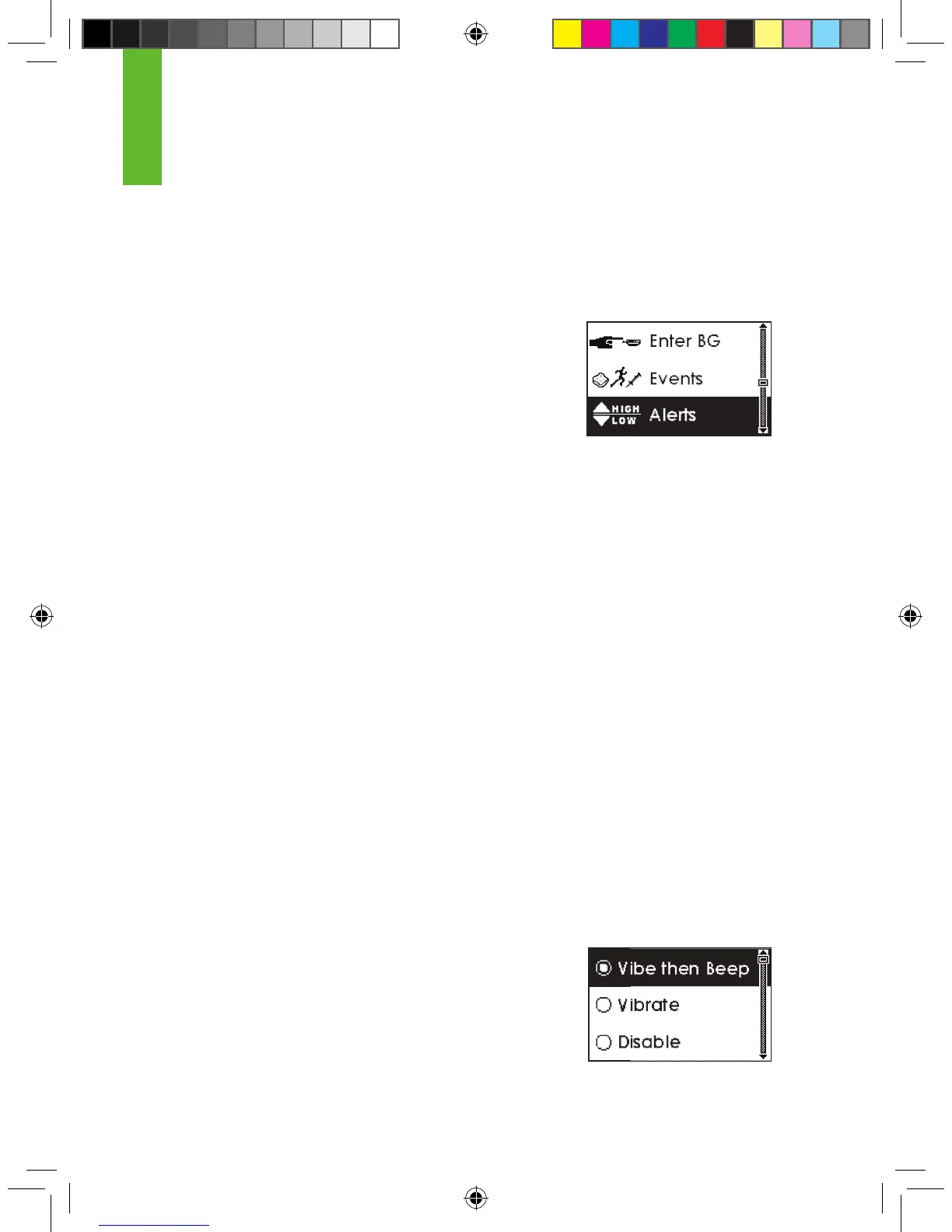
You can change the factory Alert Settings at any time by going to the Alerts Menu. You can
reach the Alerts Menu by following these steps:
1. Press any button to turn on the Receiver display.
2. Press the OK button to reach the Menus.
3. Use the Up p and Down q Arrow buttons to scroll until you
highlight “Alerts.”
4. Press the OK button to go into the Alerts Menu.
5. Use the Up p and Down q Arrow buttons to scroll through the Alerts:
a. High Alert b. Low Alert c. Rise Rate
d. Fall Rate e. Other Alerts f. Out of Range
6. Highlight the Alert you want, and press the OK button.
Sections 2.3.2 – 2.3.4 will show you how to set these Alerts.
2.3.2 SETTING GLUCOSE ALERTS
High Alert, Low Alert, Rise Rate, and Fall Rate Alerts (Chapter 5, Section 5.3, “Glucose Alerts
and ALARM”) provide information about your glucose levels and trends.
The following steps show how to change the High Alert, Low Alert, Rise Rate, and Fall Rate
Alerts settings.
1. Select the Alert you want as described in 2.3.1, “Factory Alert Settings.”
2. Use the Up p and Down q Arrow buttons to scroll to the type of Alert notication you want
to receive:
a. Vibrate then Beep (the rst alert will vibrate, then every 5 minutes the Alert will vibrate and
beep)
i. High Alert sound = 2 high tone beeps
ii. Low Alert sound = 3 low tone beeps
iii. Rise Rate sound = 2 high tone beeps
iv. Fall Rate sound = 3 low tone beeps
2



 To Next Page