94 | SEVEN PLUS Continuous Glucose Monitoring System
8.2 CALIBRATION TROUBLESHOOTING
The following prompts may appear during or shortly after you try to calibrate your System.
Review the following troubleshooting tips so that your calibration is successful.
•
Make sure you have inserted a Sensor and Started a Sensor Session
•
Do not use expired Sensors
•
Store Sensors at room temperature (see Chapter 9 for Maintenance and Storage
of your System)
•
Make sure your meter readings are between 40 and 400mg/dL before you calibrate
•
Quality check your blood glucose meter per the manufacturer’s instructions
8.2.1 CONNECTION FAILURE AND NEW METER SCREENS
(AUTO UPLOAD ONLY)
You should see these two notication screens only if you are using the OneTouch Ultra Meter
with the Connection Cable.
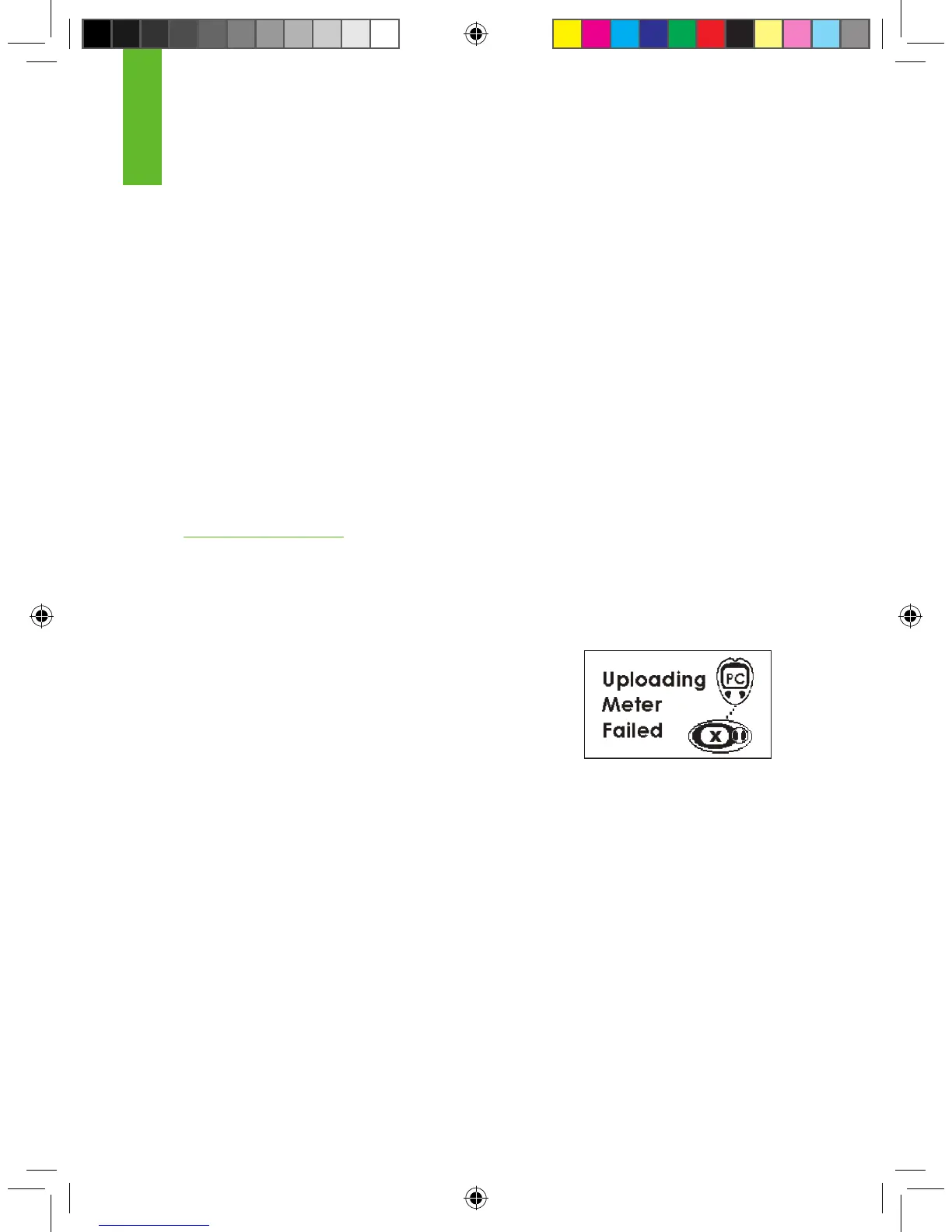
Connection Failure Screen
If you see this screen to the right, (with an “X” on the
Receiver screen), the ngerstick reading transfer failed. First clear
the alert by pressing the C button. No additional ngersticks are
required. Disconnect the devices and review the following:
1. Make sure that the meter screen is always blank before you con-
nect the 2 devices.
2. Make sure you plug the Connection Cable into the meter rst and into
the Receiver second.
3. Do not disconnect the cable while uploading or before you see the
Trend Graph appear.
4. Re-try upload using the proper step order.
8
Connection Failure Screen



 To Next Page