60 | SEVEN PLUS Continuous Glucose Monitoring System
4.1.2 USING AUTO UPLOAD FOR CALIBRATION
If you choose to use Auto Upload for calibration you must make sure your meter is “registered”
to your Receiver (see Chapter 2, Section 2.4, “Auto Upload Meter Registration”). Also make
sure the Receiver date/time and OneTouch Ultra date/time match. You should register your
meter during the Start-Up period.
Auto Upload is when you use the OneTouch Ultra Meter and the Connection Cable that is
available for purchase from DexCom Customer Support. You need to use the OpenChoice
feature for all other meters. The steps below will show you how to use Auto Upload Calibration:
1. Check to see that the Receiver and OneTouch Ultra meter have the same date and time.
2. Take a ngerstick reading using your meter (take 2 ngerstick readings for Start-Up Calibra-
tion).
3. Make sure the OneTouch Ultra Meter display is off (screen is blank) before connecting. To
turn the display off, press the M button once.
4. Using the optional Connection Cable, follow the steps below. You must follow these steps in
order for successful ngerstick reading transfer and calibration of the System.
a. First plug the cable into the connection port of the OneTouch Ultra Meter. (The connec-
tion port is at the bottom of the meter).
b. Second connect the wide end of the cable into the Receiver. Make sure the raised
“push” button on the cable is facing down.
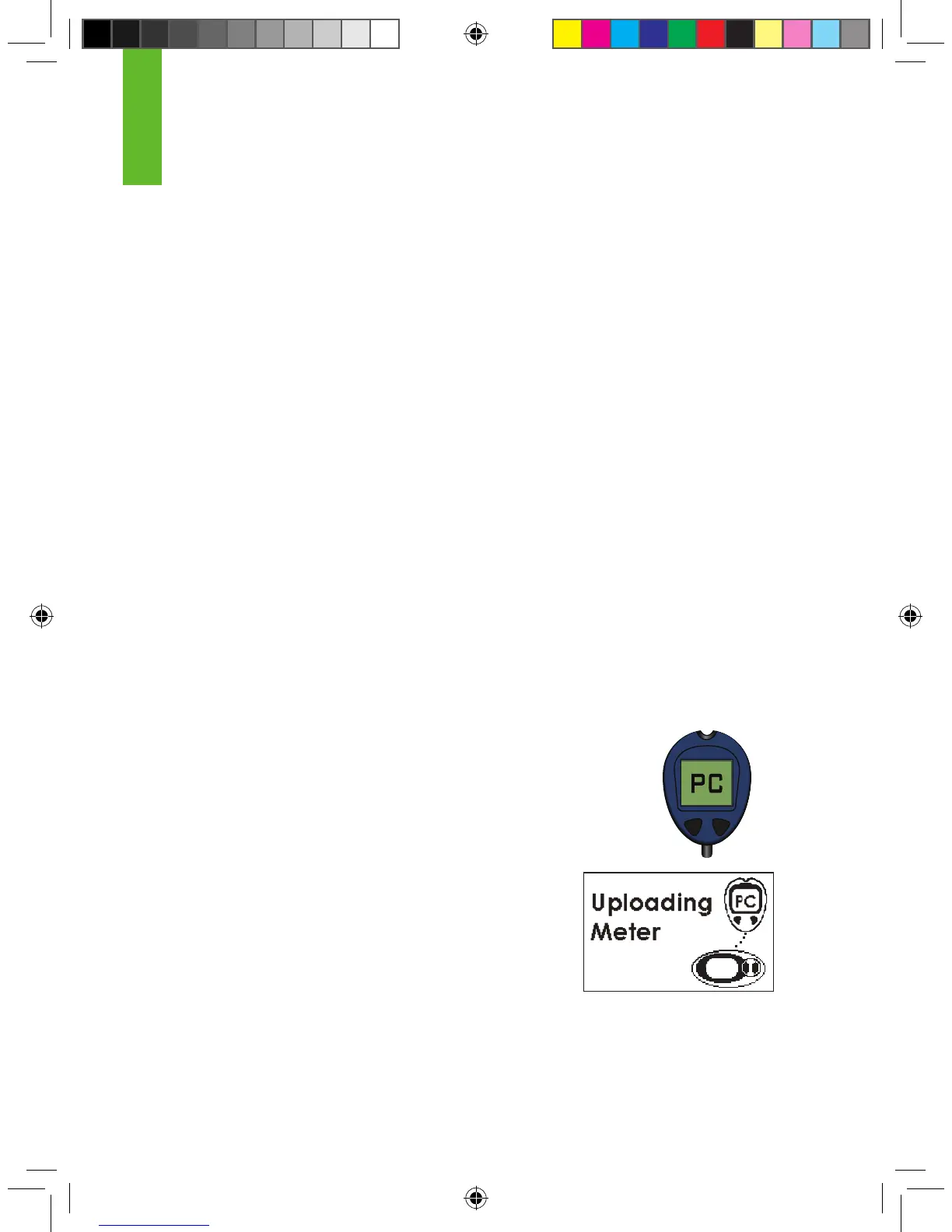
5. After a few seconds, “PC” will appear on the OneTouch Ultra Meter screen
(shown to the right):
6. The Receiver will display the Connection Screen. The Connec-
tion Screen tells you that ngerstick readings from the meter are
successfully being uploaded to the Receiver.
MC
Connection Screen
4



 To Next Page