WinAQMS Mini DAS User manual 1.0 Edit Menu
33
4.4.1 Alarms
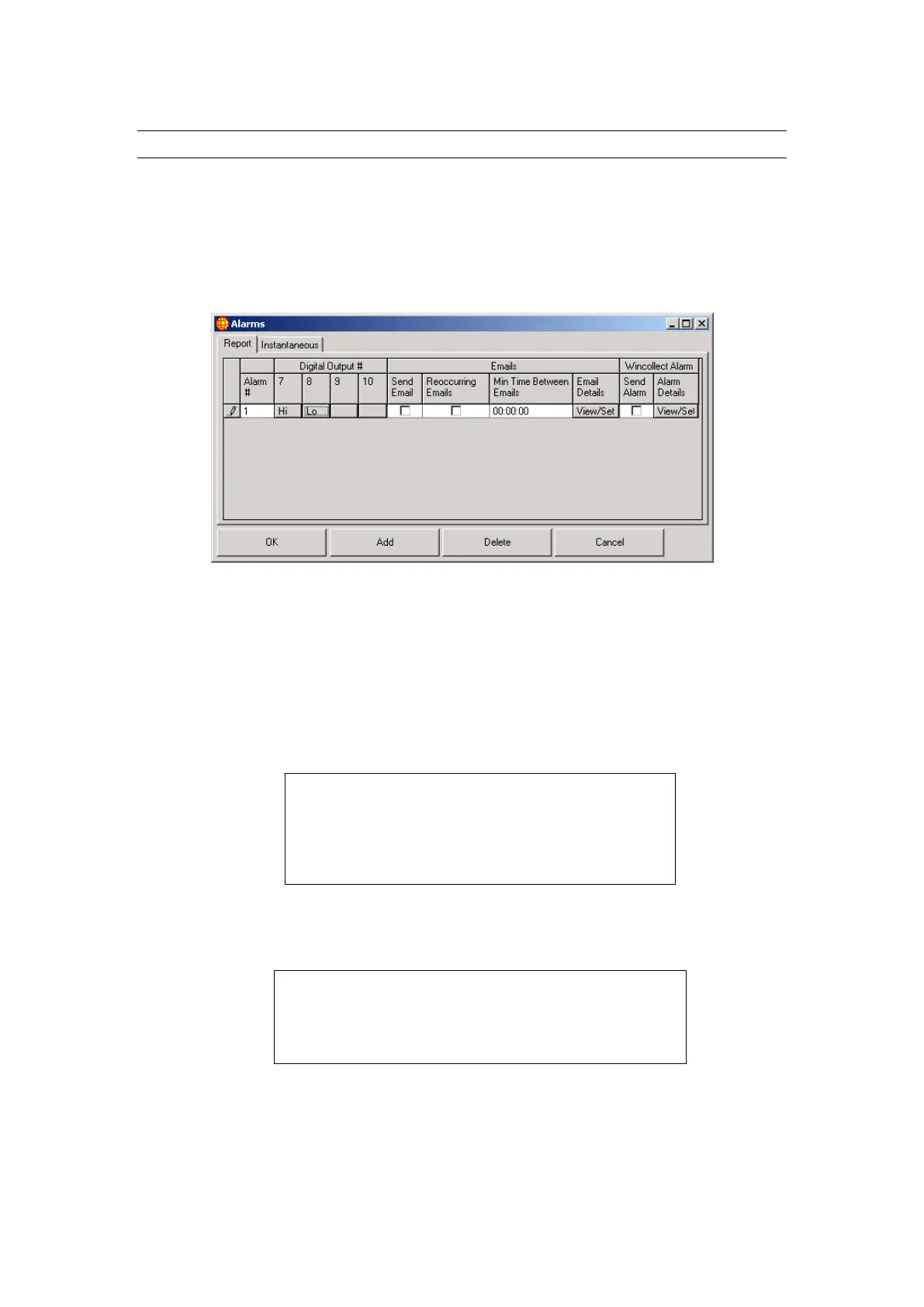
The Alarms window sets any digital outputs, emails and WinCollect alarms that get
sent when a channel in WinAQMS Mini DAS triggers an alarm. A channel triggers an
alarm by either going above the High Alarm Value or below the Low Alarm Value.
Report alarms are triggered by the values of reports. Instantaneous alarms are
triggered by the instantaneous data values received from analysers.
Both windows are presented in the same format being made up of at least 7 fields and
is shown in Figure 33.
Figure 33 Alarms
o Alarm # : This field is used to identify the alarm.
o Digital Outputs # : The four Digital Output fields specify which digital output
gets set to either Hi, Lo or not changed (blank).
o Send Email sets whether WinAQMS Mini DAS sends an email when the
alarm is triggered.
o Reoccurring Emails sets whether WinAQMS Mini DAS will continue to send
new emails if a channel stays in the alarm state.
Note: If a channel enters its alarm state and the Send
Email field is set a single email will be sent. If a
channel stays in the alarm state at the time of the next
report (or the next instantaneous data reading) a new
email will not be sent unless the Reoccurring Emails
field is set.
o Min Time Between Emails is the minimum time in hours, minutes and seconds
between an email being sent for that alarm.
Note: If a channel enters an alarm state and the Send
Email and Reoccurring Email fields are set then a new
email will be sent only if the time in Min Time Between
Emails has passed since the time the last email was
sent.
o The Email Details View/Set button will open up a window as shown below in
Figure 34.



 To Next Page