WINAQMS MINI DAS User manual 1.0 Installation and Setup
9
the Local Users and Groups window click on Users and go up to Action and select
New User. Set the User Name to be WinAQMS Mini DAS (or another account name
that you want to use to run WinAQMS Mini DAS), type in a password and remember
it. Remove the tick in the User Must Change Password at Next Logon and add a tick
to the Password Never Expires option. Click on Create and then close the box. Open
the Control Panel again and double click on Users Accounts shown in Figure 5. Click
on the Users tab, select the WinAQMS Mini DAS user and then click on properties.
Select the Group Membership properties and give the WinAQMS Mini DAS account
Standard User access. Click on the Apply button and close the Users and Passwords
box.
2.3 Connecting a Remote Client to a WinAQMS Mini DAS
A remote WinAQMS Mini DAS client is able to connect to different WinAQMS Mini
DAS servers (a compatible server/client version is required). In this way a single
computer with the WinAQMS Mini DAS Client software installed can oversee the
operation of multiple mini DAS. If WinAQMS Mini DAS is started using the start
menu or a standard shortcut it will attempt to connect to a running WinAQMS Mini
DAS Server process on the local computer. If you want to connect to a DAS using a
dialup connection or if you want to connect to different WinAQMS Mini DAS you
need to enter a special command line when starting WinAQMS Mini DAS so that it
gives you a choice of DAS to choose from. To do this click on Start, then Run. Delete
any text in the box and replace it with the following line (including quotes).
“C:\Program Files\WinAQMS\Client\WinAQMSClient.exe” /ask
Then click on OK. This will tell the WinAQMS Mini DAS Client software to start in
a mode where it waits for a connection request from the user before it tries to connect
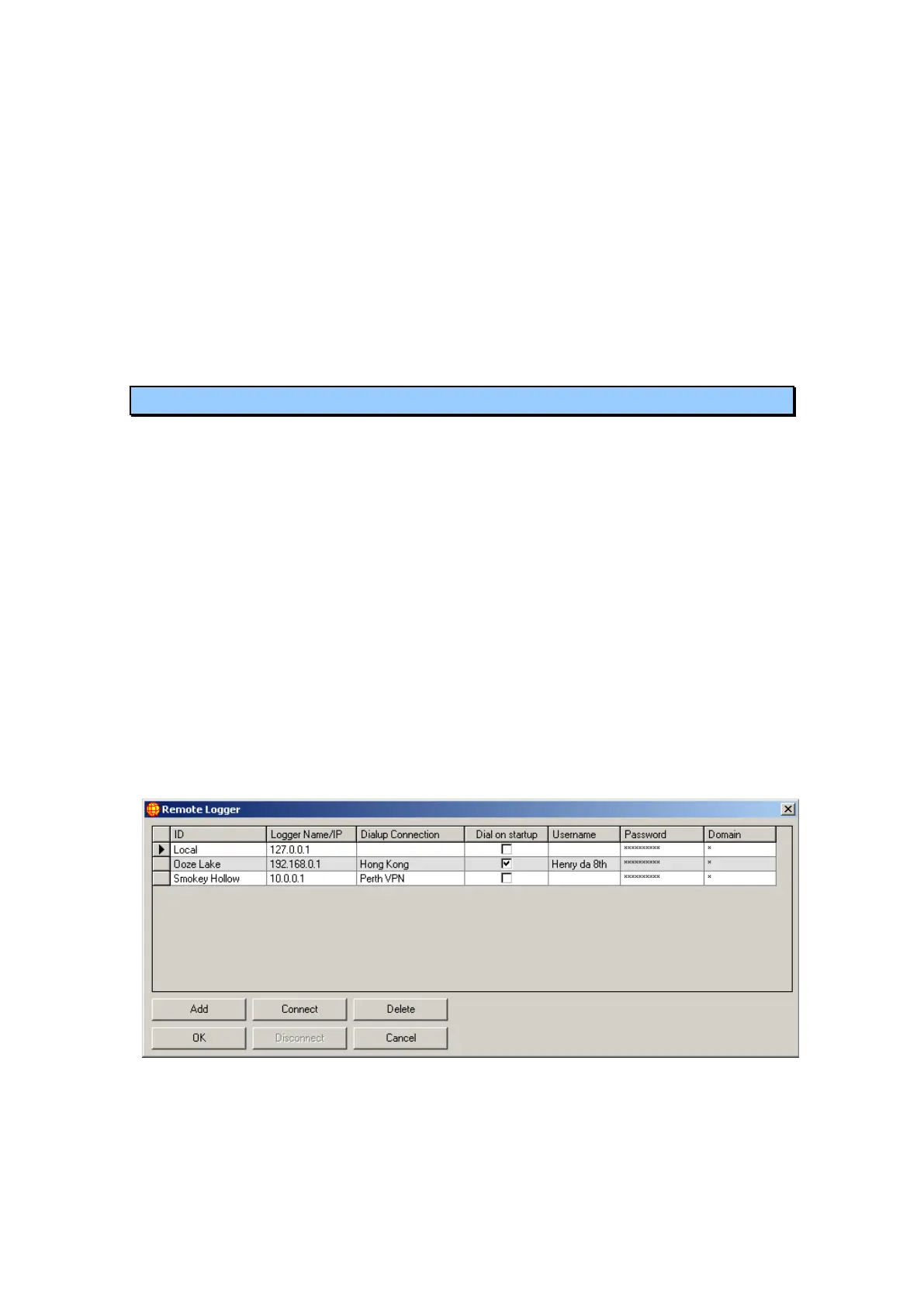
to a remote server. WinAQMS Mini DAS will start up and display a window similar
to Figure 11 below;
Figure 11 Connecting to a Remote WinAQMS Mini DAS
Figure 11 shows that the WinAQMS Mini DAS client can be set to connect to
multiple WinAQMS Mini DASs.
o The ID field is used by WinAQMS Mini DAS to uniquely identify loggers.
o Logger Name/IP is the logger‟s network name or IP address.



 To Next Page