WinAQMS Mini DAS User manual 1.0 Edit Menu
37
When a window that uses a display scheme is closed or the WinAQMS Mini DAS
program exited, WinAQMS Mini DAS will remember the settings and display scheme
of the windows and will restore them exactly the same way they were before.
To add a display scheme enter the name of the new scheme into the text box to the
right of “New scheme name” as shown in Figure 39. If you want to copy the settings
from the display scheme shown in the dropdown box, then put a tick in the Copy
selected scheme checkbox and click Add. To delete an existing scheme, select it from
the dropdown list and click on Delete.
Figure 39 Adding a new Display Scheme
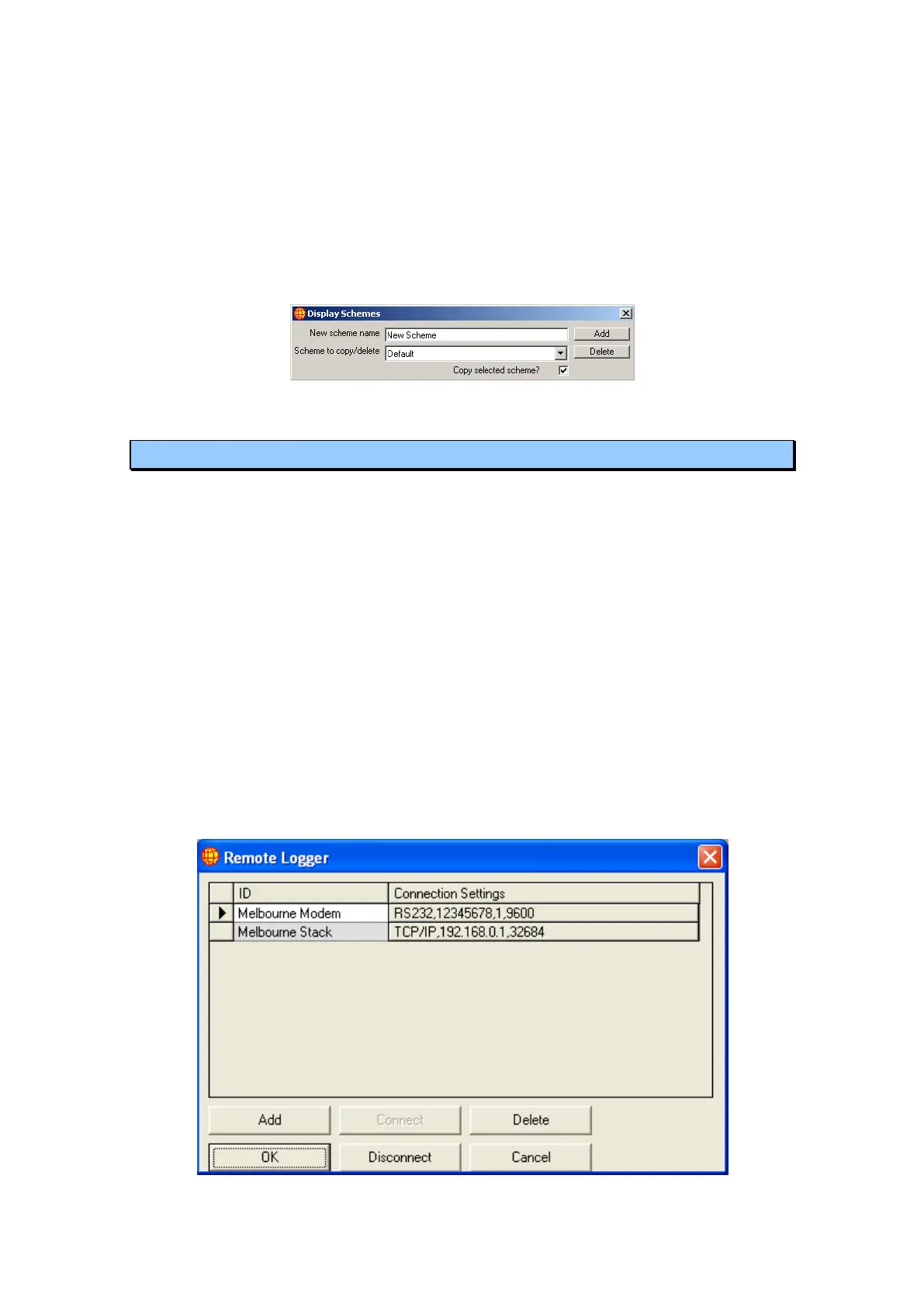
4.7 Remote Logger
The Remote Logger window shows a list of the remote data DAS connections.
Connections can be added by clicking on the Add button. Connections can be deleted
by highlighting the connection(s) and clicking on the delete button. A deletion
confirmation box will appear when deletions are made. A connection to a remote
DAS can be established by highlighting the required connection and clicking the
connect button. Once a connection is established the Connect button will become
inactive and a new connection cannot be made unless the current connection is
dropped.
The Connection Settings column shows the basic information about the connection. It
shows the connection type (TCP/IP or RS232) and basic settings related to the
connection. For TCP/IP connections it shows the IP address and port number. For
RS232 connections it shows the phone number, RS232 port number and baud rate.
Clicking on the Connection Settings button will open a second window which will
show the full details of the connection as shown in Figure 41 and Figure 42.
Figure 40 Remote Logger Window



 To Next Page