Manual Menu WinAQMS Mini DAS User manual 1.0
56
window closes all manual calibrations will end and all automatic calibrations will be
enabled once again. To reset or update the timeout type a new numeric value within
the timeout box and click on the Reset Timeout button. The timer will now count
down from this new number.
Note: If the start time for an automatic calibration passes
while calibrations have been disabled the calibration time
will move on to its next scheduled start time.
6.2 Communicate with Serial Port
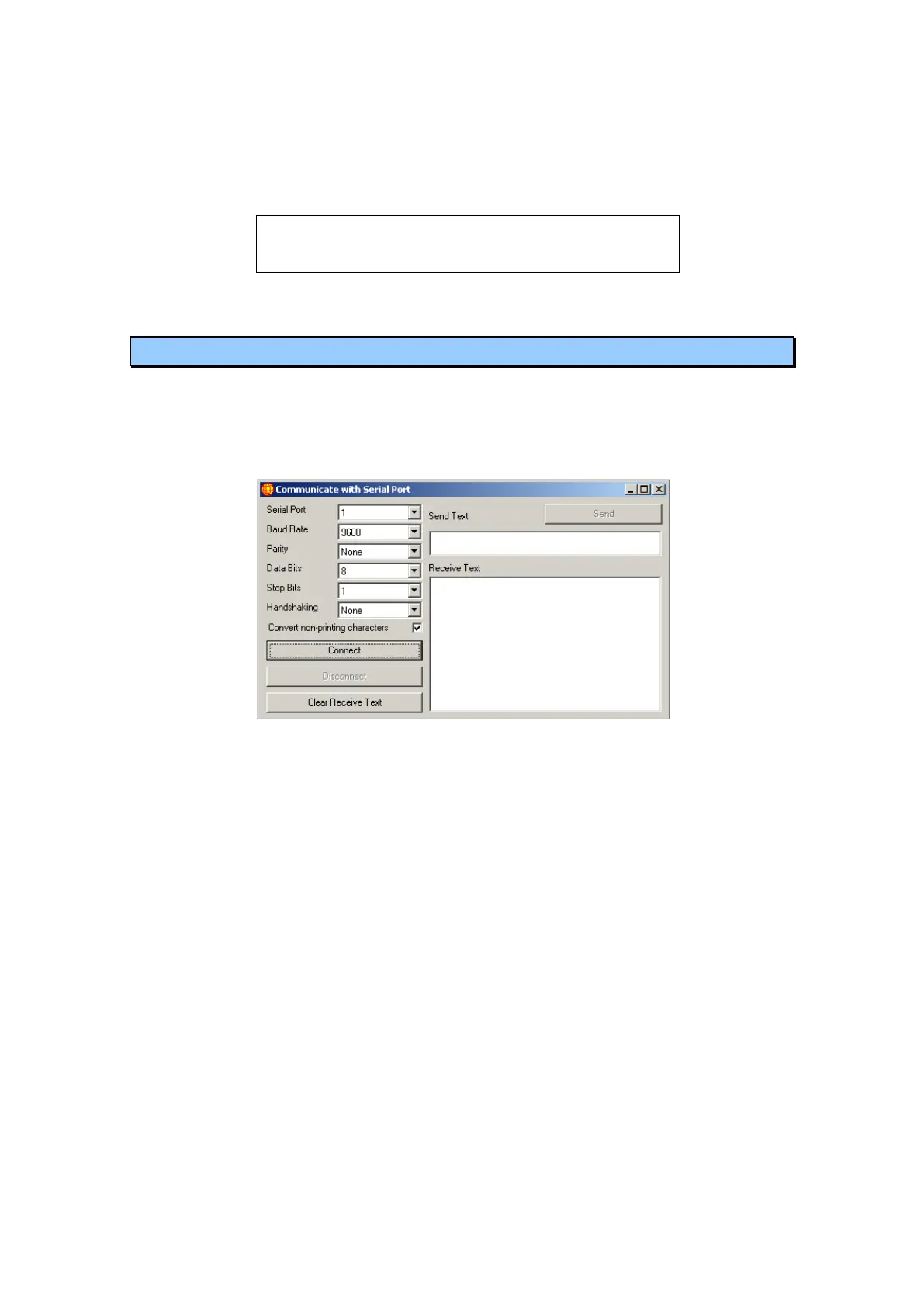
The Communicate with Serial Port option on the Manual menu allows you to
communicate directly with the desired communications port using the settings shown
on the window. It allows you to select the communications port you want to
communicate with, the baud rate, the parity, data bits, stop bits and handshaking you
want to use.
Figure 64 Communicate with Serial Port
Once all the communication settings have been entered click on the Connect
button. The logger will suspend logging on the selected communication port and
attempt to open it with the given settings. If the connection request succeeds then
a message will appear in the status bar of WinAQMS Mini DAS saying „Talking
directly to serial port‟.
To send data to the port, type the message into the Send Text box and then hit the
Send button. The message will be sent to the port you are connected to. Any
response from the port will be shown in the Receive Text box.
If the Receive Text box is becoming too cluttered with text then clicking the Clear
Receive Text button will remove all text from the Receive box.
Once you have finished communicating with the port click on the Disconnect
button and WinAQMS Mini DAS will release the port and display the message
„Communication port released‟. If WinAQMS Mini DAS was using the port
previously to log data then it will resume doing so.
If there is a check in the Convert non-printing characters checkbox then ASCII
characters can be sent to the serial port (or printed when they are received) by
enclosing the ASCII character code in square brackets. For example to send a data
request to a R&P Teom instrument with a PRC# of 8 you need to send the string



 To Next Page