WinAQMS Mini DAS User manual 1.0 Edit Menu
45
5
5
5
V
V
V
i
i
i
e
e
e
w
w
w
M
M
M
e
e
e
n
n
n
u
u
u
The View menu allows users to access information and data from the instruments.
This data can be in real time Instantaneous data, or Historical data. This data can be
accessed either in the form of data readings, or in a graphical format such as a line
graph.
5.1 Calibration Status
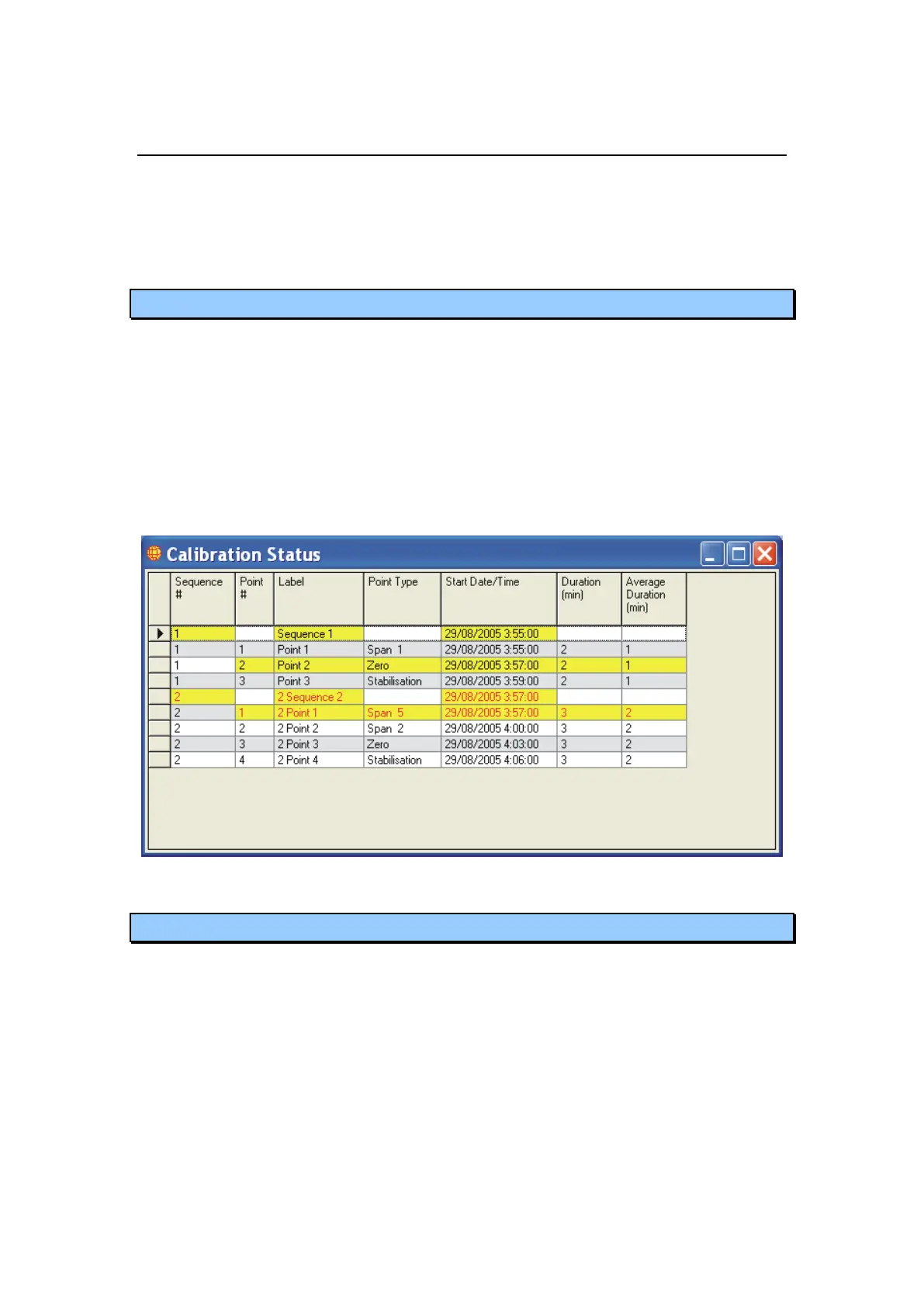
The Calibration Status window shows the current calibration state of the WinAQMS
Mini DAS. All sequences and points are listed on a separate row in the Calibration
Status table which also shows the Label, Point Type, Starting Date/Time, Duration
(min) and Average Duration (min). When a sequence and point is active they will be
displayed with a yellow background. The text colour will be black if an automatic
sequence/point is running and red if a manual sequence/point is running. Any points
in an active sequence that are not currently running will not show up with a yellow
background. When a point is running the Average Duration (min) column will show
as being active only when the Span or Zero report for the point is being calculated.
Figure 49. Calibration status window
5.2 Channel List
The Channel list window provides a streamlined view of the channels and the
instruments associated with them. The first column lists the channel number and
name, in column two the analyser from which data is being acquired for that channel
is listed and the third column has the communication port that WinAQMS Mini DAS
is receiving the data through. As shown below in Figure 50 multiple channels can be
serviced by the same instrument running through the same communications port. The
list can be ordered by channel, analyser or port number by clicking on the heading of
the respective column. This list can be exported to a comma delimited text file by
pressing the “Export to text” button or to a H.T.M.L. formatted file by pressing the
“Export to HTML” button.



 To Next Page