WinAQMS Mini DAS User manual 1.0 Edit Menu
23
4.2.3 Channel Information
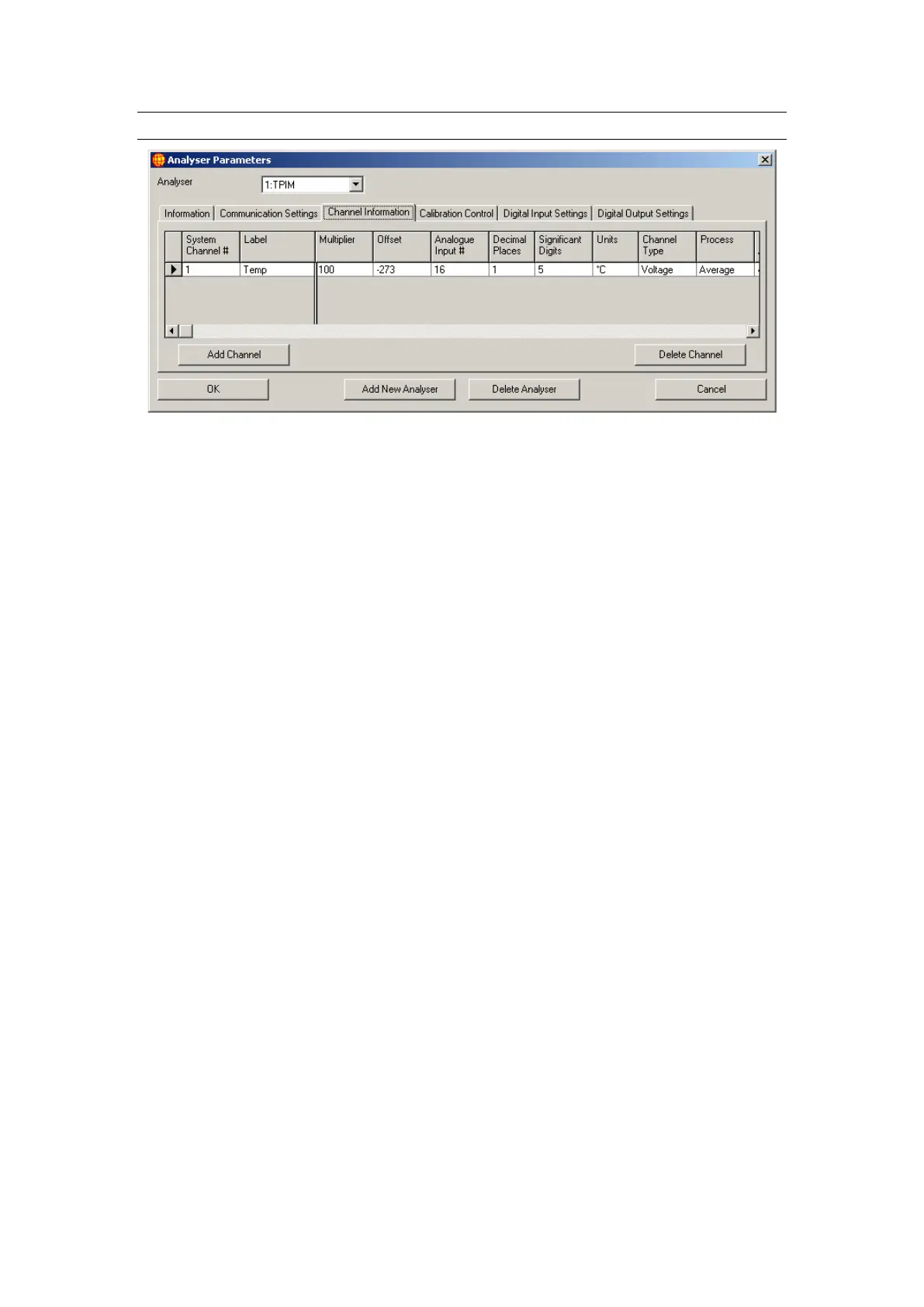
Figure 25 Channel Information in Analyser Parameters
The Channel Information tab allows configuration of the input data channels for the
analyser. To add a channel to the system click on the Add Channel button. To remove
a channel, highlight it by clicking on the grey block at the left end of the channel row
and click on the Delete Channel button. Multiple channels can be highlighted and
deleted at the one time. The fields present in the Channel Information tab includes
those listed below:
System Channel #: the unique number that WinAQMS Mini DAS uses to identify
the channel. This number can be changed but must be unique.
Label: allows you to enter a label to easily identify the channels in other parts of
WinAQMS Mini DAS.
Analogue Input #: the physical channel number on the analyser. For a Teom
analyser the Analogue Input # field is replaced by a PRC# field, which allows you
to specify certain register numbers in the Teom analyser.
Analogue Output #: Choose from four channels where voltage output signals will
be sent from (ICP DAS only).
Multiplier and Offset: Every time a reading is taken the value is multiplied by the
value in Multiplier and has Offset added to it (in that order).
Units: is an editable list which shows the units of the channel data. If you do not
find the appropriate unit in the dropdown list then you can edit the Units box and
enter the unit you require. Superscript and subscript characters can be entered
using the Windows Character Map utility which can be found in Start, Programs,
Accessories, System Tools, Character Map.
Decimal Places: When the data is displayed the number digits to the right of the
decimal place will match the number in the Decimal Places column.
High Alarm and Low Alarm: show the values at which WinAQMS Mini DAS will
label the status of the data as being in high or low Alarm. Setting both high and
low alarm values to 0 will disable the alarms for that channel. Data must first
qualify as „Good‟ (that is, the percentage of readings that were valid exceeds the
value in the System Parameters window) before it can be marked as in high or low
alarm.



 To Next Page