Page 35 of 159
5.4 Using an External Keyboard
An external keyboard provides the same data entry features as the on-screen virtual keypad
presented by the touch screen user interface with faster typing.
The “Settings/Customize/On screen keyboard active” check-box allows you to choose
whether the on-screen virtual keypad is presented or not when data entry is required (name,
sample ID, target value etc.). If the check box is left unchecked, then the on-screen virtual
keypads are not presented and an external keyboard is required for data entry. If the check
box remains checked, the external keyboard can still be used by pressing the ‘ESC’ key on
the external keyboard to dismiss the on-screen virtual keyboard and complete the data entry
using the external keyboard.
5.5 Using the On-Screen Virtual Keypads
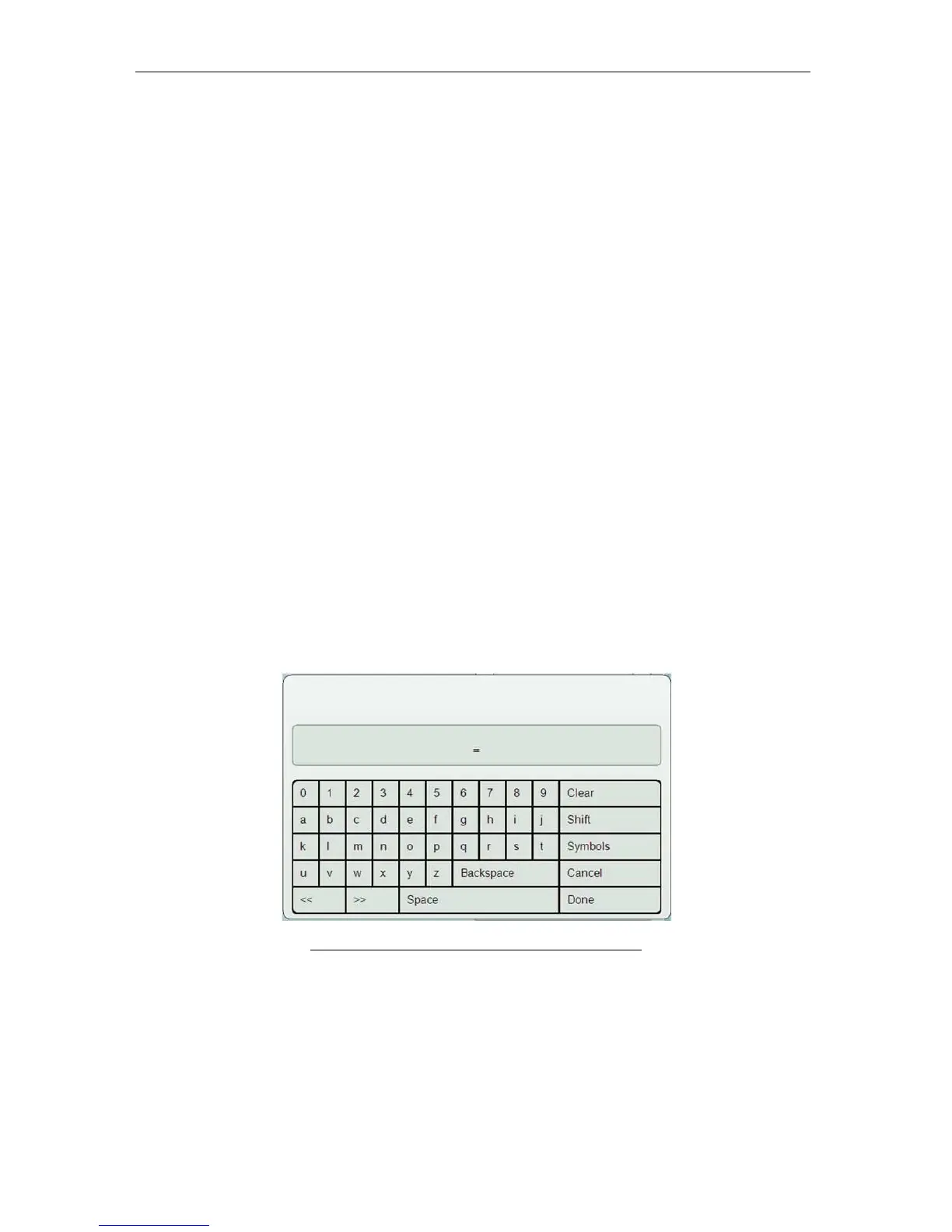
There are three types of virtual on-screen keypads:
• Alpha-numeric with shift and symbol options
• Numeric only
• Date
The particular virtual on-screen keypad presented is tailored to the data entry required. If
only numeric values are accepted than a numeric-only keypad is presented. For selection of
dates, a date keypad is presented.
The touch-pad of the ‘ELite 5’ handles single taps only. The Shift and Symbol keys are
‘sticky’ on the virtual on-screen keypads like the ‘caps-lock’ on a PC key-board. Click/tap on
the appropriate buttons to type in the required value. Complete the operation by
clicking/tapping the ‘Done’ button. The ‘Symbols’ button presents special characters such as
the question mark or ampersand (&).
Figure 17. Alphanumeric Virtual On-Screen Keypad



 To Next Page