Page 38 of 159
5.6.3 Status Display
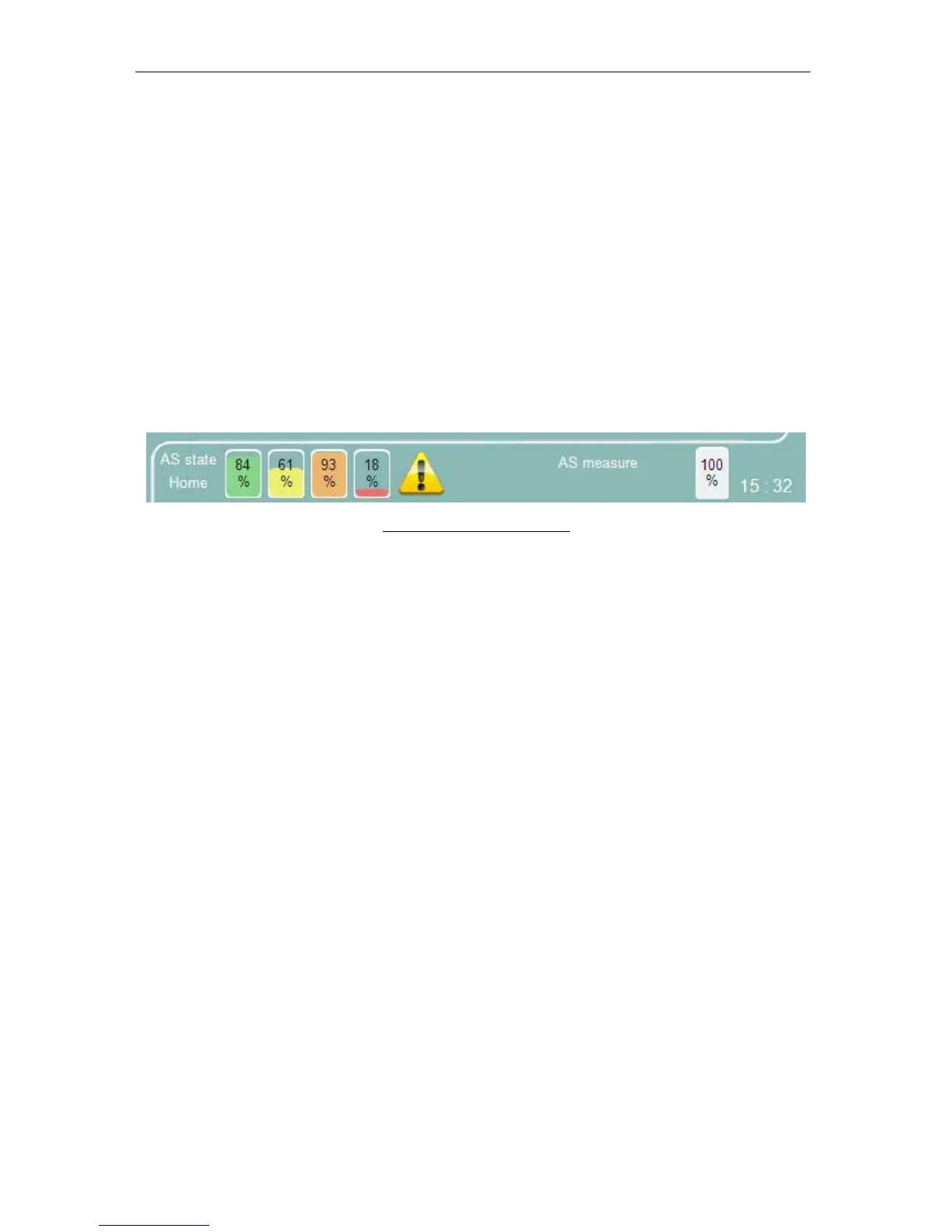
The bottom section is called the Status display, and shows information of the following:
• Status of the Autosampler unit
• The state of the reagent and waste containers
• Error/ warning icons
• Status of the pneumatic system (standby, manual measure, rinse, clean)
• Progress of the active operation
• Time
• Printer status
Clicking or tapping on an error or warning icon navigates directly to the relevant menu where
the problem can be addressed, or provides the user with information on how to resolve the
problem.
Figure 22. The Status Display
5.6.4 Entering Information
The ‘ELite 5’ sometimes requires the operator to enter information such as sample ID or
patient data. In order to enter information into a data field simply tap or click on it. The data
field will change color to yellow indicating that data entry is active for that field. Information
can be entered using the virtual on-screen keypad or with an optional external keyboard.
5.7 The Menu System
The graphical user interface of the ‘ELite 5’ analyzer has primary functions that are
accessible directly by means of icons or controls that are always available to the operator.
The ‘ELite 5’ analyzer also has secondary functions that are available via two or more taps or
clicks through the menu structure, or menu tree.
5.7.1 Primary Menu Items
The following menu items or functions are directly accessible:
• Start a manual single tube measurement
• Start an automated measurement
• Access the database
• Initiate printing
• Access the main menu
• Access the control panel of the Autosampler (opens with double click or tap)
• Access the time adjustment panel (opens with double click/tap)
• Access the warnings panel (only visible if an error or warning was reported)
5.7.2 Starting a Manual Single Tube Measurement
Tapping or clicking on the ‘Measure’ icon with the single sample tube graphic allows access
to the following functions:


 To Next Page