Page 58 of 159
- Not applicable for blank and QC measurements
- Can be changed by setting the name or the database identifier of the patient
displayed with the measurement results
- The ‘default’ patient (ID =1) patient is used if no patient is selected
7.4 Running Samples
The ‘ELite 5’ supports both manual and automatic sample presentation modes. Automatic
sample presentation requires the optional Autosampler. The ‘ELite 5’ analyzer software
automatically detects and initializes the Autosampler.
Before performing any measurement the ‘ELite 5’ should be:
• Powered up and started
• The pneumatic system initialized and a blank measurement performed and accepted
7.4.1 Manual Mode
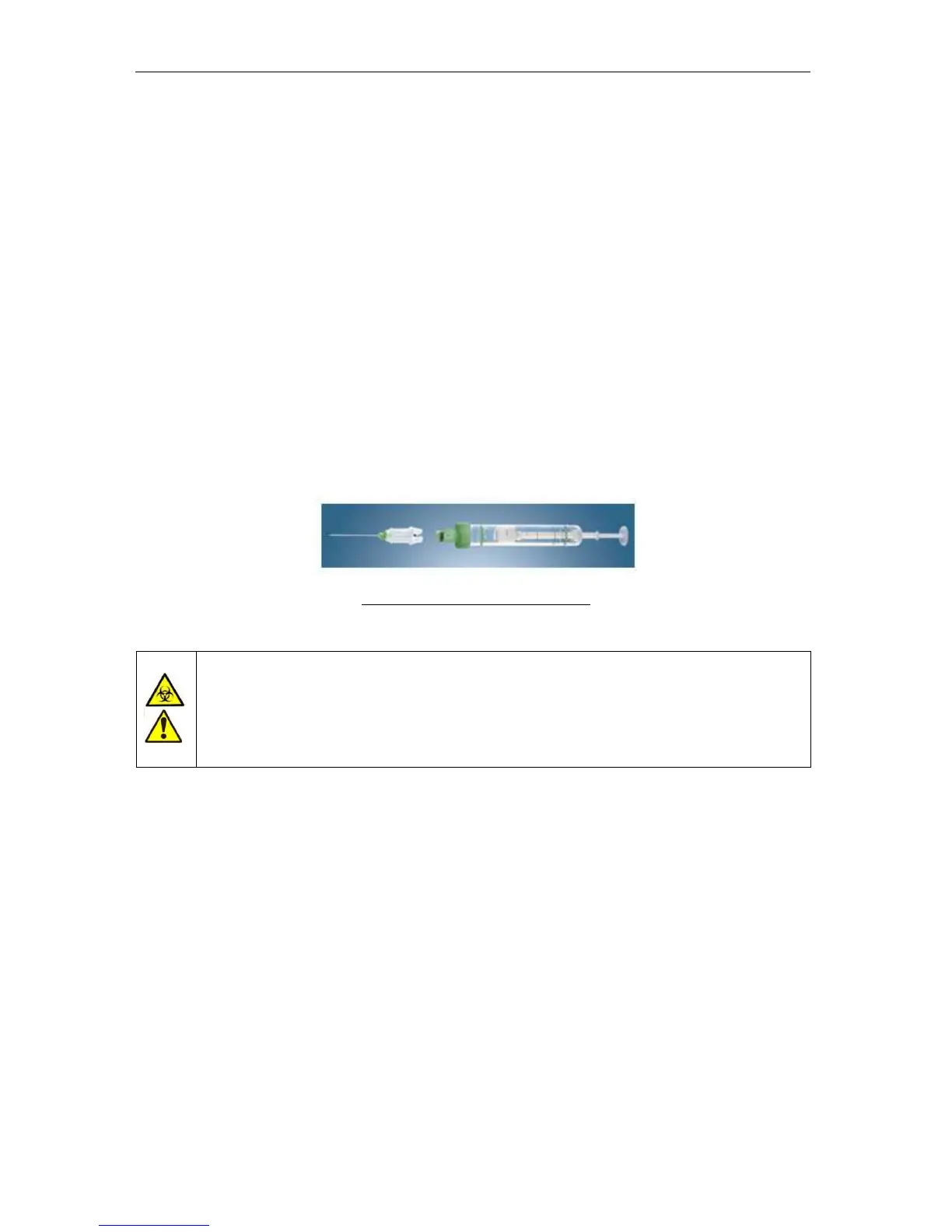
To use Sarstedt Monovette
®
manually presented tubes at the sample rotor, check the ‘Use
only Sarstedt Monovette tube from sample rotor’ check box in the Main
menu/Settings/System panel.
Figure 37. Sarsted Monovette tube
Always ensure the ‘Use only Sarstedt Monovette tube from sample rotor’
check box in the Main menu/Settings/System panel is checked if you are
manually presenting Sarstedt Monovette
®
tubes in the sample rotor. Needle
damage, tube damage and spilled blood may result if Sarstedt Monovette
®
tubes are presented and this option is not checked.
Select the ‘Measure’ quick link at the top left of the screen to initiate a manual measurement.
The new measurement panel opens, giving you the following options:
• Review the results of the previous measurement by using the ‘Last Measure’ function.
This feature can be useful if you were interrupted during the measurement batch, and
you want to double-check which sample is the last processed sample.
• Define the sample ID of the sample to be processed by clicking or tapping on the
“Sample ID” field:
- You can type it in the Sample ID using the virtual on-screen keypad or an
external keyboard.
- You can use an external (USB) bar-code reader.
- You can use the auto-generated sample ID.
• Activate or deactivate the automatic generation of sample IDs. If the ‘Autoincrement
mode’ check box is checked, then the ‘ELite 5’ will add 1 to the last sample ID if it was
fully numeric or offer ‘0’ if the last sample ID had any non-numeric characters.
• Connect a patient to the sample by clicking/ tapping on the Patient field:


 To Next Page