Page 99 of 159
11.2 QC Measure
To run a QC measurement, please ensure that a valid blank measurement has been run and
accepted. Associate the QC measurement to the correct control material lot by select the
matching QC name in the selector below the ‘QC measure’ button on the QC panel. Place
sample tube with the control material in the sample rotor and click or tap ‘QC measure’.
The QC measurement results will be added to the QC database and associated with
matching QC material lot.
11.3 View QC References
Click or tap the ‘View QC References’ button to see a list of QC lot references stored in the
‘ELite 5’ analyzer control database. Target values and ranges can be viewed for any stored
QC references.
11.4 View QC Data
Selecting ‘View QC data’ displays QC runs stored in the QC database in a table format that
operates the same way as the ‘ELite 5’ analyzer database. QC measurement results will
have sequential ID numbers. Option buttons are provided to switch back and forth between
viewing QC data and viewing QC diagrams.
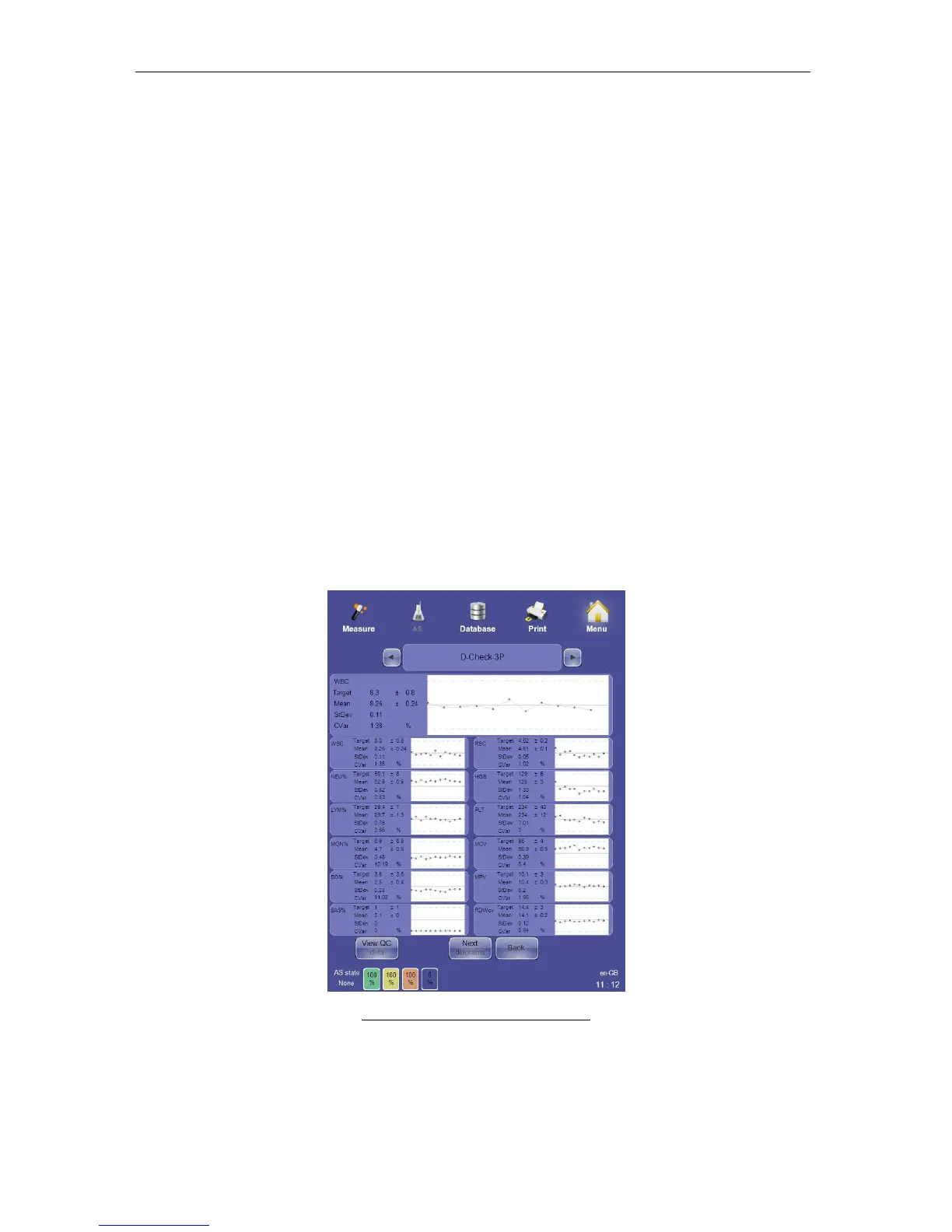
11.5 View QC Diagrams
Click or tap ‘View QC diagrams’ to see the QC diagrams for control measurements.
Figure 73. View QC Diagrams Panel
Means, standard deviations (SD) and coefficients of variation (CV) are calculated based on
the QC analyses. The dotted lines delineate acceptable ranges on QC diagrams. Use the


 To Next Page