Getting Started With Patching 13
Getting Started With Patching
To be able to control the lighting fixtures in your system you need to assign each fixture (or a group of dim-
mers) to a channel fader. The channel fader can then be used to set intensity of a fixture. The channel also
becomes a way to select that fixture for other types of control like color changes, or adjustment of other
parameters (in the case of a moving light, for example). The fixtures in your lighting system are controlled
using the DMX protocol and each dimmer or fixture uses a DMX address (or set of addresses) to com-
municate with the console.
The Patch is used to associate a channel with DMX addresses and device types. Once a channel is
patched to an address or addresses, and the output is connected to a device (for example a dimmer, mov-
ing light, or accessory), the channel will then control that device.
To access the Patch functions, press the Setup > Patch.
Note: If your patch stays the same between shows, you can save time by saving a default
show, which will load your patch automatically for you.
Patch
Displays the patching screen and controls.
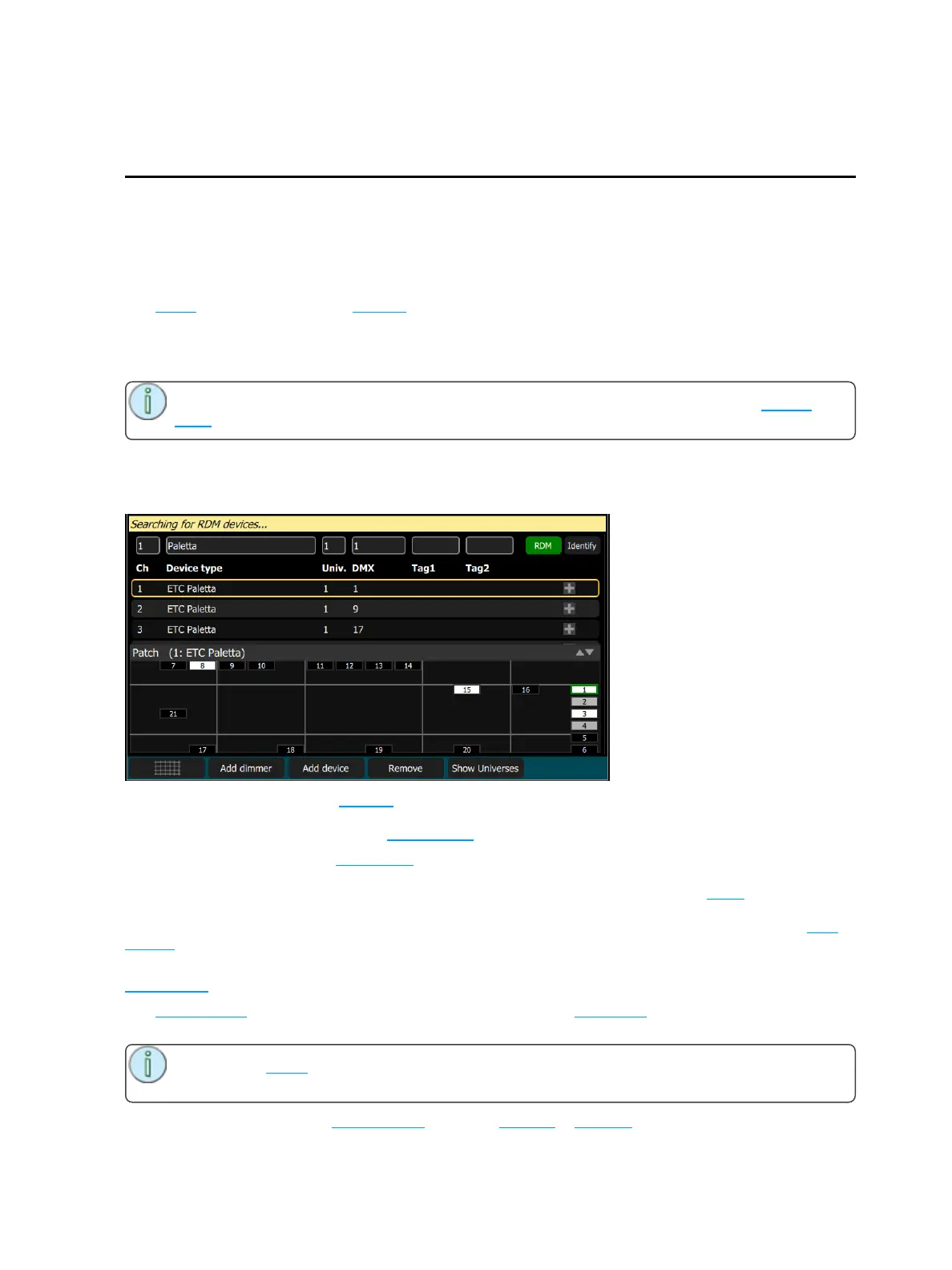
Patching associates a console channel number with an address or block of addresses on the DMX output.
You must ensure that the address on the light, dimmer, or device matches the address that you setup in
Patch. To patch a basic device, press Add Dimmer.
Complex devices with several parameters, such as motion, color, or beam controls, are described by a per-
sonality. Select the make and type of device to match the actual connected device. Some devices have
modes that must also match on the device and in the patch list. Lighting devices with RDM available and
enabled are found automatically and added to the list of devices. You must still assign them to console
channel numbers though. To patch a complex device that is not automatically found by RDM, press Add
Device.
During patching you may add tags to each light, dimmer, or device to aid in convenient grouping on the
quick select screen.
The lower section of the screen may be set to display the channel stage map or a view of the DMX uni-
verses output.
Note: The media outputs, audio and video, do not need to be patched as they are controlled dir-
ectly.
The settings and patch for the independents are on the Ind. Tab in Settings.



 To Next Page