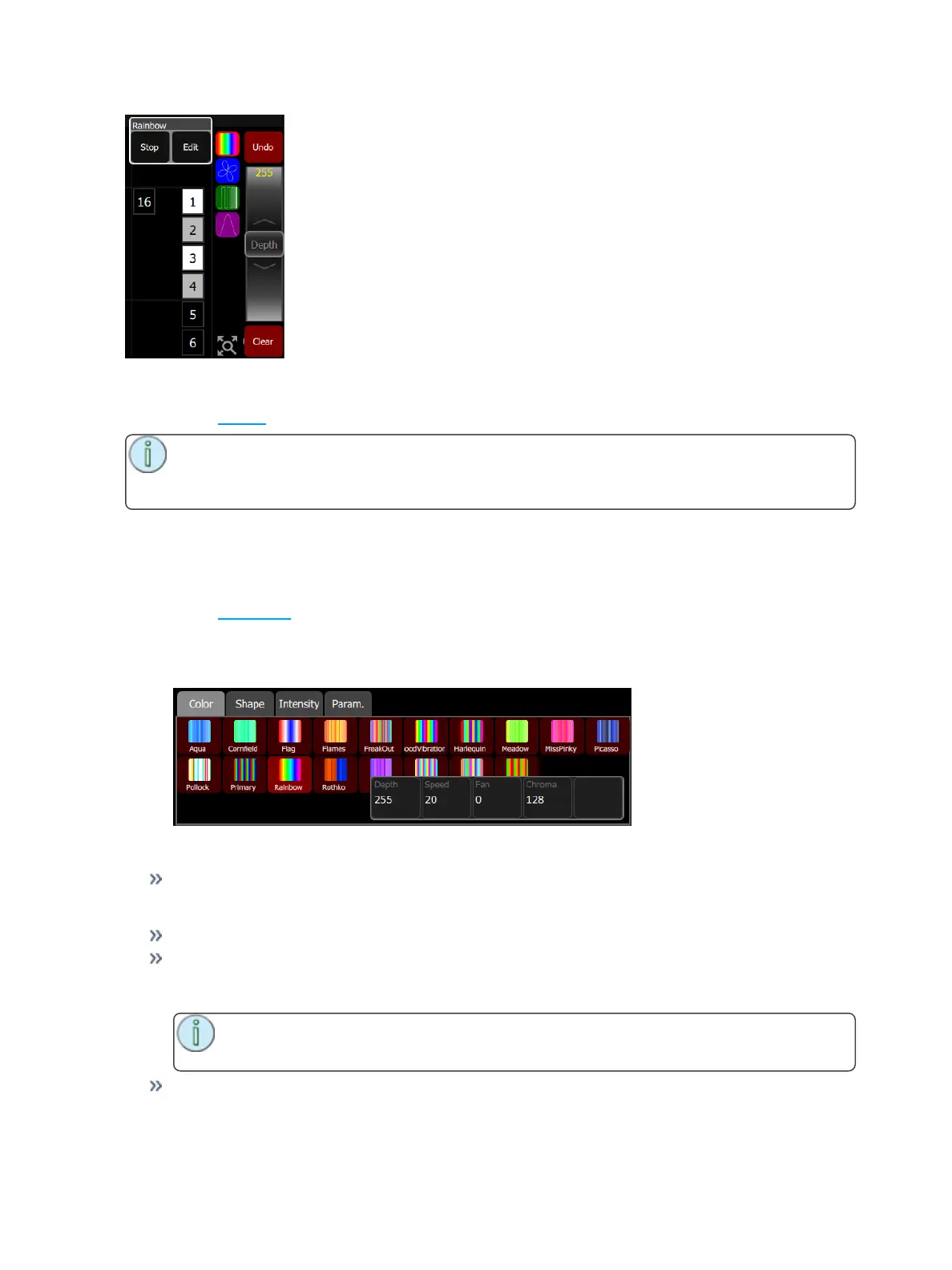
44 Using Effects
Effect, Color
Applies color effects to selected channels.
Note: The color effect system only works with lights capable of performing color mixing. Color
effects cannot be applied to lights with fixed colors or a choice of single colors on wheels or
scrollers.
How to Apply a Color Effect
1. Select some channels.
2. Go to Controls>Effects.
3. Press Add Effect.
4. Choose the color tab from the tab area.
5. Select a pattern.
6. Adjust the effect settings for the desired result.
Effect Settings
Depth- The amount that the effect deviates from the static color set on the light. When set to full,
the light follows the effect colors entirely. When set to 50%, the resulting colors will be half way
between the light's static rest-state color (the color it was before the effect was chosen), and so on.
Speed- The speed or rate that the effect runs.
Fan- The amount the effect is spread out over the selected lights. Without fan, all the lights change
together at the same time. With increasing the value of fan, the lights respond to different parts of
the effect, offset from each other.
Note: The order in which the lights are selected will affect how they are spread-out by
the fan setting.
Chroma- The intensity of color. Chroma is currently 0-255. 127 = Normal, 0 = Paler, and 255 = Sat-
urated.



 To Next Page