38 Recording Your Looks For Playback
New Step
Inserts a new sequence step. The new step is added to the next free whole-numbered step at the end of the
sequence list. The new step may then be given another number, including a fractional or 'point' number.
For example, to insert a step between steps 4 and 5, you would enter 4.5.
Note: The sequence list is not re-numbered when a step is inserted.
Copy Step
Copies the selected step and creates a new step. The new step is added to the next free whole-numbered
step at the end of the sequence list. The new step may then be given another number, including a fractional
or 'point' number.
For example, to insert a step between steps 4 and 5, you would enter 4.5.
Note: The sequence list is not re-numbered when a step is inserted.
Delete Step
Deletes the selected step.
The sequence list will not be re-numbered, and the missing step will be skipped the next time the list is
played.
Note: A deleted step may be recovered if Undo is pressed immediately after the deletion is per-
formed.
Update Sequence Step
Sequences play back on the playback faders. A sequence may contain up to 99 steps with fade and step
timing. Sequences must be stopped and stepped-on to the correct step for editing in order to update a step.
Operation
Select a bump for the playback you want to Stop.
Running sequences are indicated by a yellow bump button.
Stopped sequences are indicated by a blue bump button.
Stopped sequences may be advanced by pressing the blue bump button.
Note: Stopped sequences may be used as additional cue lists if required.
To Update a Sequence Step
1. Stop the sequence by using the Seq Run/Step button, which is accessed by pressing the playback
mode button in the Playback Toy display.
2. Use the bump button to advance to the step you wish to edit.
3. Then you may alter the lighting, effects, and media as required.
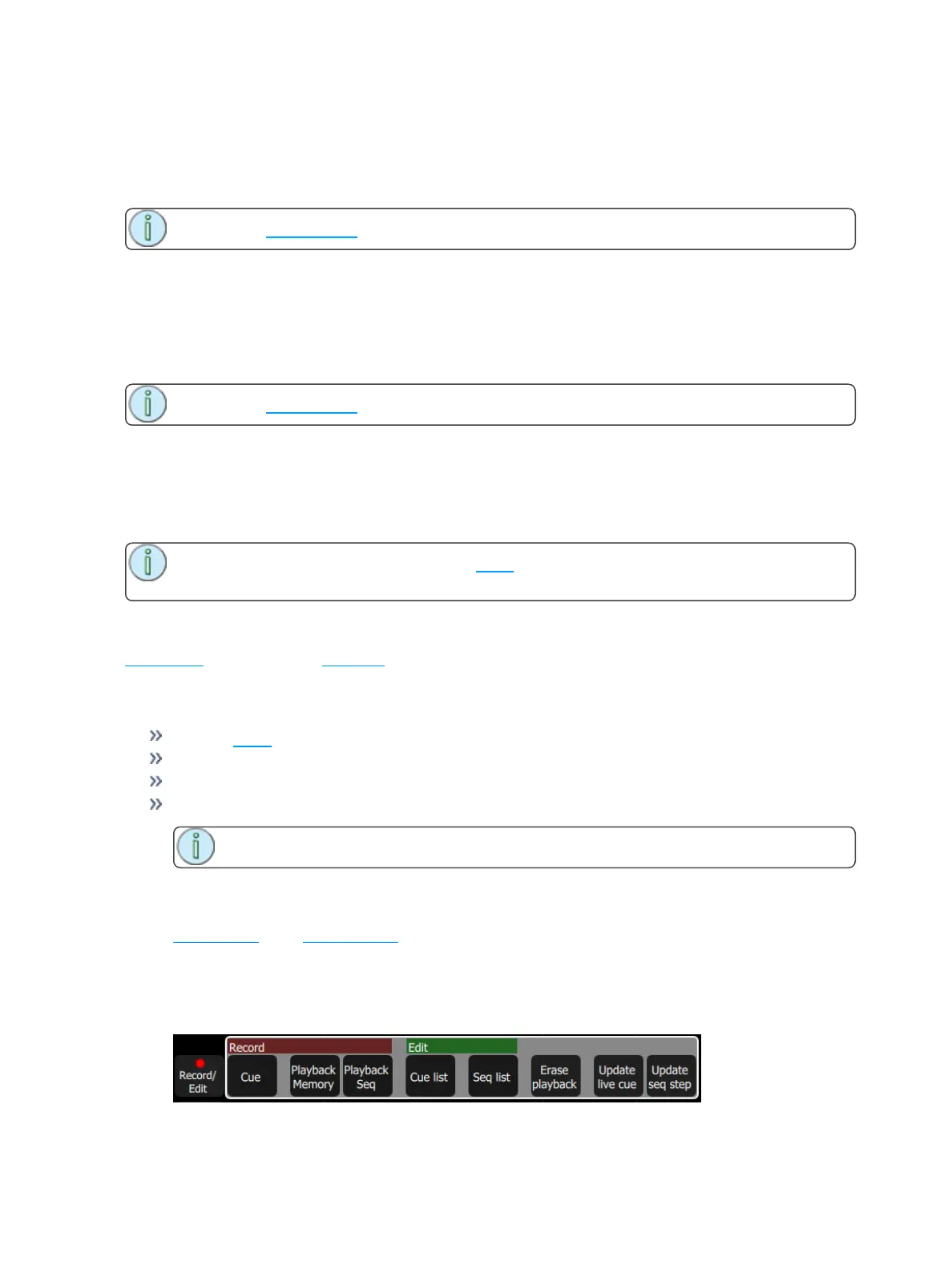
4. When the edit is complete, select Update Seq Step to save the changes. Update Seq Step will dis-
play only when a step needs updating.



 To Next Page