36 Recording Your Looks For Playback
Update Live Cue
Records the current state of the channels to the live cue in the cue list. The cue's previous content will be
replaced.
All recording operations use the output currently live on stage. Blind recording is not permitted.
Use Update Live Cue to quickly change or edit the cue on stage.
Clear Cues
Clears the output from the cue list. The action is the same as taking the cues fader to zero.
Note: The cue list position is not affected. Pressing GO will fade in the next cue after the one
that was cleared.
Record Sequence
Sequences play back on the playback faders. A sequence may contain up to 99 steps with fade and step
timing.
Select the bump button of the playback to which you want to record the sequence. If a sequence already
exists in that position, you may add steps to it, they will be added to the end of the existing sequence.
Each step of a sequence may contain channels, parameters, and media. To choose which channels, para-
meters, and media are recorded for each step, select Include Options.
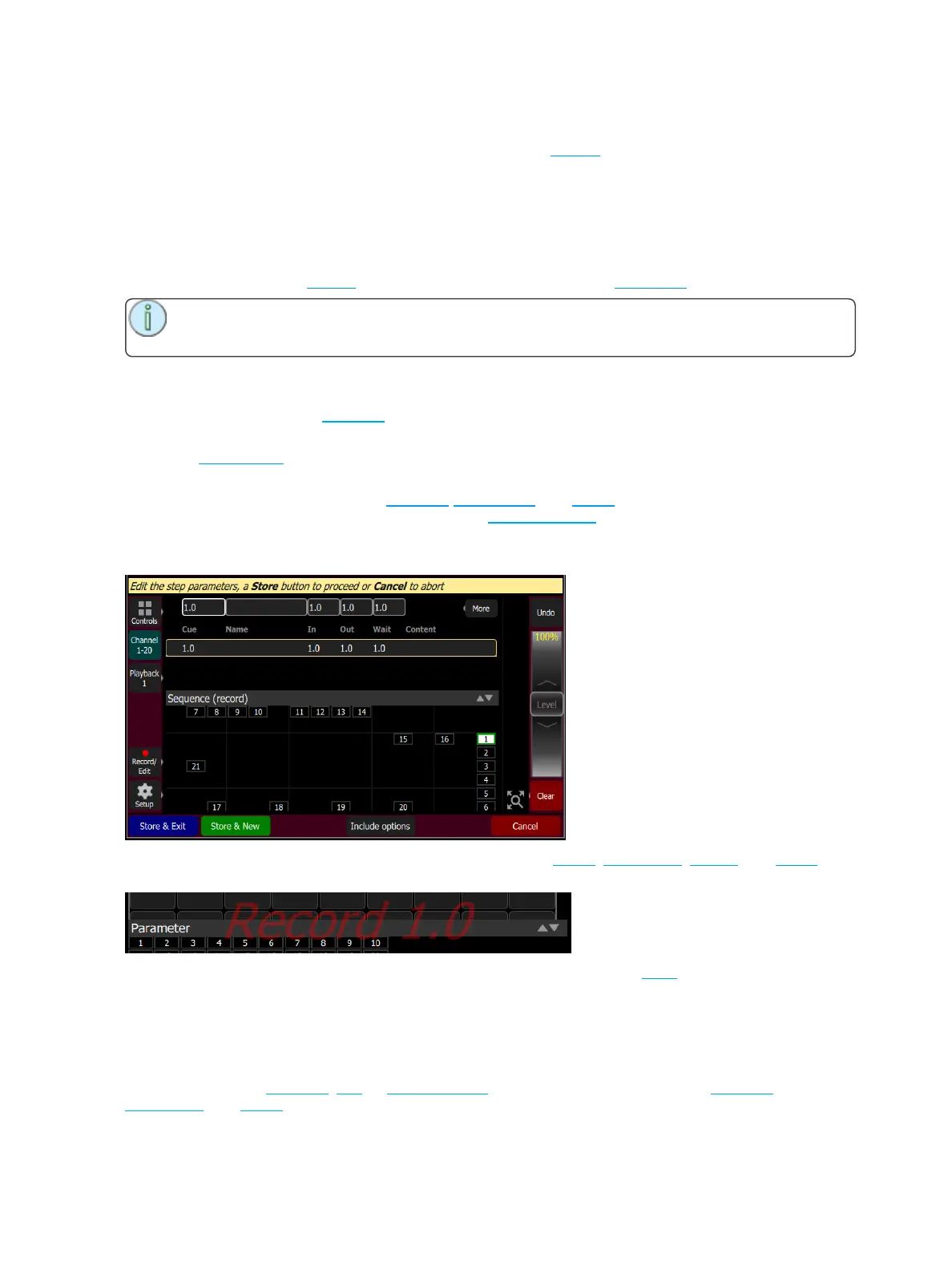
Sequence recording is a mode which takes over the screen. The recording mode is shown by a red sur-
round to the screen.
While in the recording mode you may visit other screens to set colors, parameters ,effects, and media.
While in those screens, a red watermark will be displayed showing what step you are editing.
To return to the main recording screen press Record / Edit again. You may store the step you have made
and exit immediately with Store & Exit or you may store the step and remain inside sequence recording to
record further steps with Store & New. Press Cancel to leave the recording screen without saving any-
thing.
Include Options
When recording to a playback, cue, or sequence step, you may specify which lighting channels, sets of
parameters, and media are included in the recording by pressing the Include Options button.



 To Next Page