60 AV Functions
Caution: You should ask a competent electrician to perform any changes of grounding
as it could affect equipment safety.
If hum cannot be cured easily you should consider using a Direct Injection (DI) box. You will need a
stereo DI box on either the input or the output, and exceptionally on both. DI boxes are readily obtain-
able from music stores. You need a fully isolated type.
Media, Video
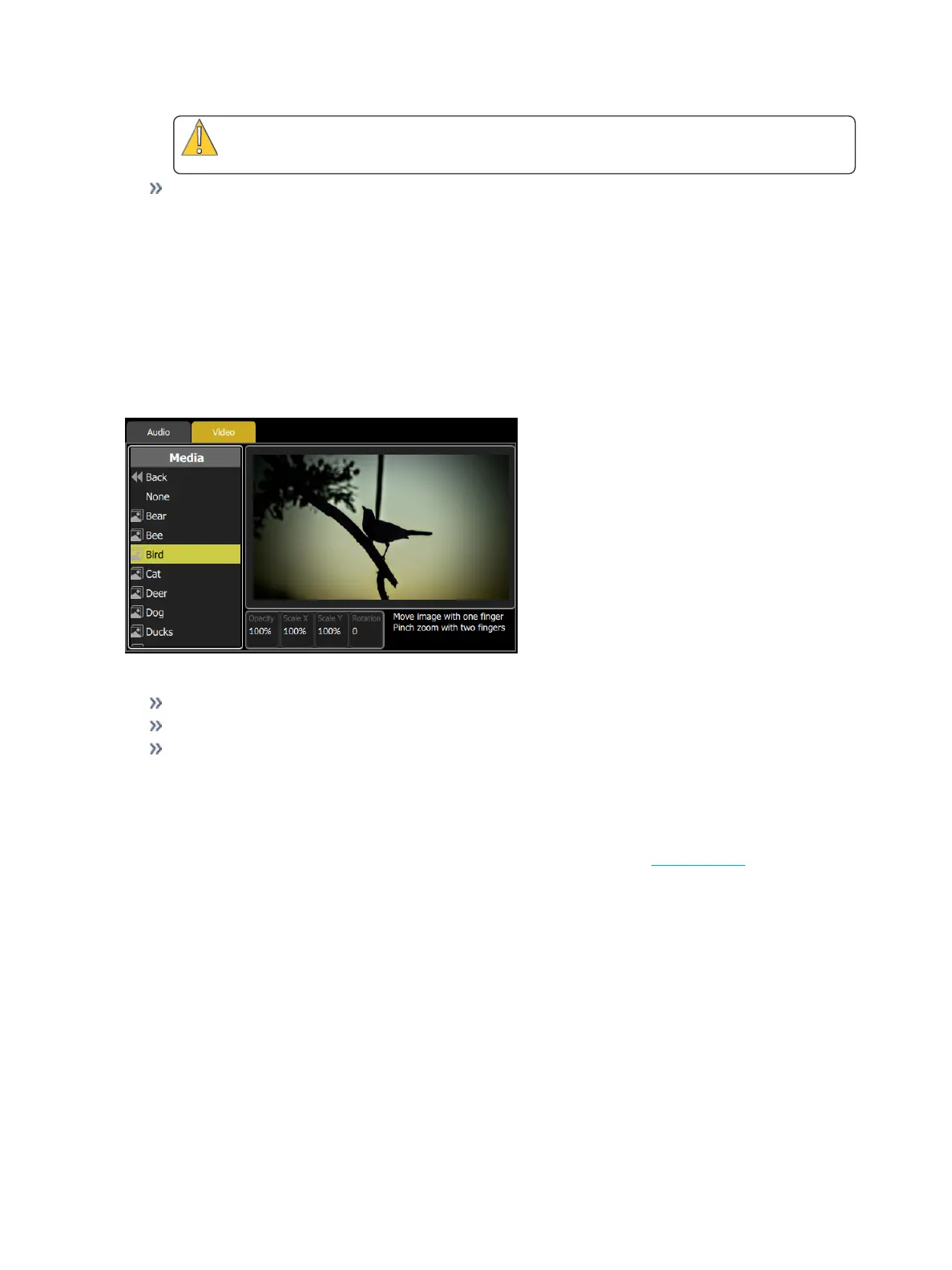
To open the Video tab, go to Controls >Media. Here you can choose still image or Video Toy pattern to
play or record.
Browse the clip files to find an image or Video Toy pattern to play or record, and try it on the local player on
this screen. If a clip is playing when a recording is made you will be asked if you wish to include it in the
recording.
Images
Image Controls
Opacity: Controls the brightness or luminance of the image, if set to zero the image will be invisible.
Scale X & Y: Controls the size of the two picture dimensions.
Rotation: Alters the angle of the projected image.
Additionally, images may be manipulated on-screen with pinch-zoom and pan gestures.
Video Toy
Video Toy is a video synthesizer tool that can create patterns and images for scenic effects. Patterns may
be run automatically, by on-screen finger gestures, or may be driven from the Sound 2 Light system.
Browse the included pattern files in Video >Media > Effects folder to find a pattern to play and try it on the
local player on this screen. If a Video Toy pattern is playing when a recording is made, you will be asked if
you wish to include it in the recording.



 To Next Page