Recording Your Looks For Playback 37
Channels:
Active: Only channels with an intensity above zero are included.
Selected: Only channels currently selected (surrounded by a green box on the stage map or brightly
lit on the bumps) are included.
All: All channels are included.
Include:
Intensity / Color: Only the intensity and color mixing channels are included.
Position: Only the position (pan/tilt) channels are included.
Beam: Only the beam channels are included (beam includes non-fadable colors such as wheels and
scrollers).
If any media is playing, you will have the option to include it in the recording.
Store
The current lighting levels will be stored in the selected cue or sequence step and recording will be com-
pleted. The recording mode is then closed, and normal operation resumes.
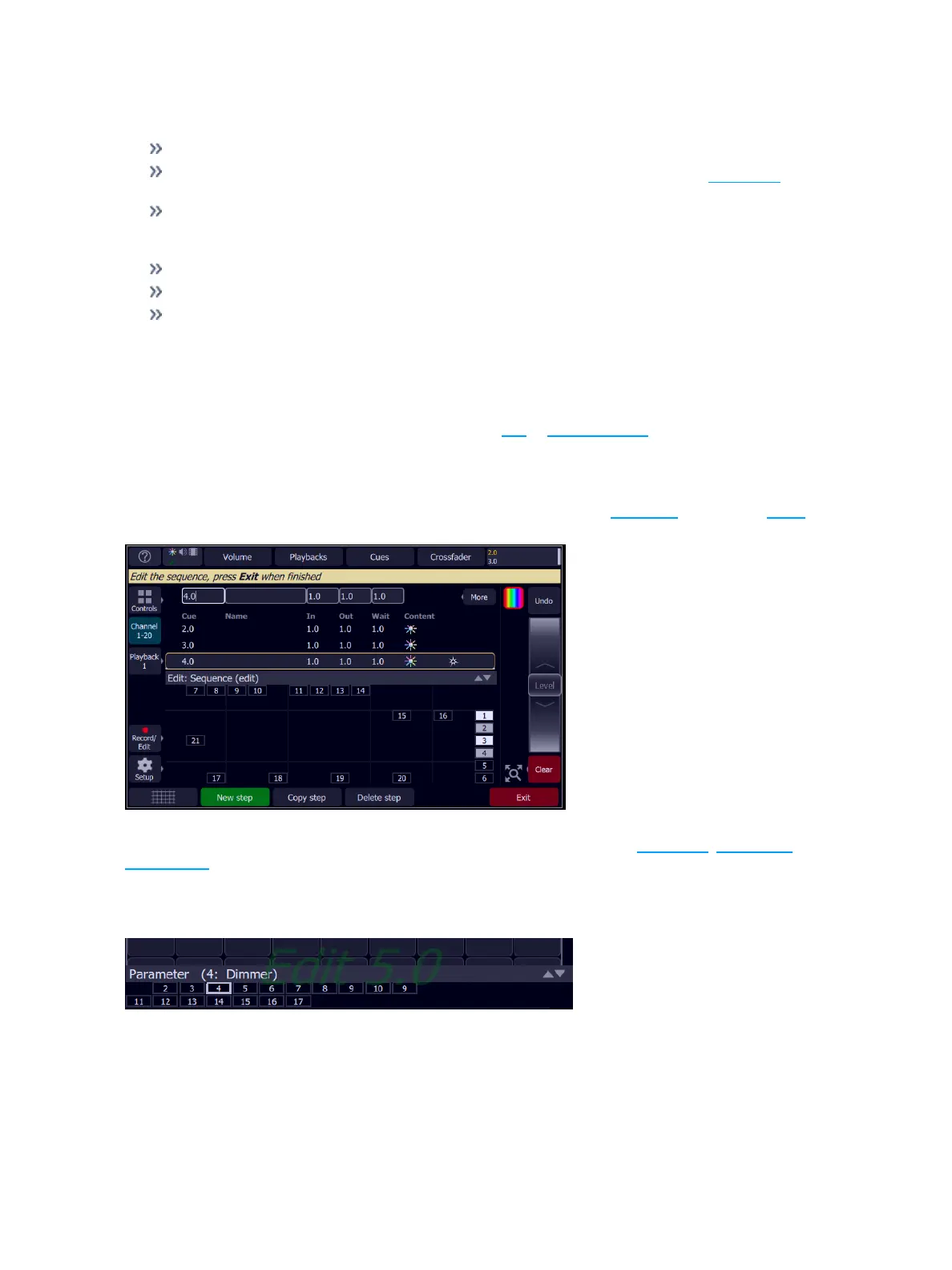
Edit Sequence List
Opens the Sequence List editor where you can change the content of a sequence list. Press a bump to edit
a sequence.
Here you may change the content of steps, their names, and the timing of fades. Pick the step you want to
edit in the sequence list in the upper part of the display. You can also insert new steps, copy steps, and
delete steps.
Edit Sequence List is a mode which takes over the screen. While inside the edit screen, you may visit other
screens to change colors, parameters, effects and media of the sequence you are editing. While in those
screens, a green watermark will be displayed showing what cue you are editing.
To return to the main edit screen, press Record/Edit. Press Exit to leave the editing mode. Any changes
made will be stored in the selected sequence.



 To Next Page