24 Controlling Your Lighting System
Keypad, << (Backspace)
The << key behaves as a backspace button for the command line.
Controlling Parameters
Depending on the types of lights you have patched, you may have additional parameters that you can con-
trol. Those parameters may include color, position (focus), beam, and lamp commands.
Color Selector
Lights that have a color mixing system may be operated from this screen. If no such lights are patched, this
option will only be available at the bottom of the stage map.
Lights must be selected before a color choice can be applied to them. Select some lights on the stage map
view, or with the bump buttons if the fader mode is set to channels, and then pick a color or try several col-
ors.
Note: Not all color mixing systems can produce precise color matches and a full range of col-
ors. It is advisable to control color on only one fixture type at a time.
For lights with fixed ranges of preset colors, such as color wheels or scrollers, use the parameter control
screen.
Color Controls
Two methods are provided:
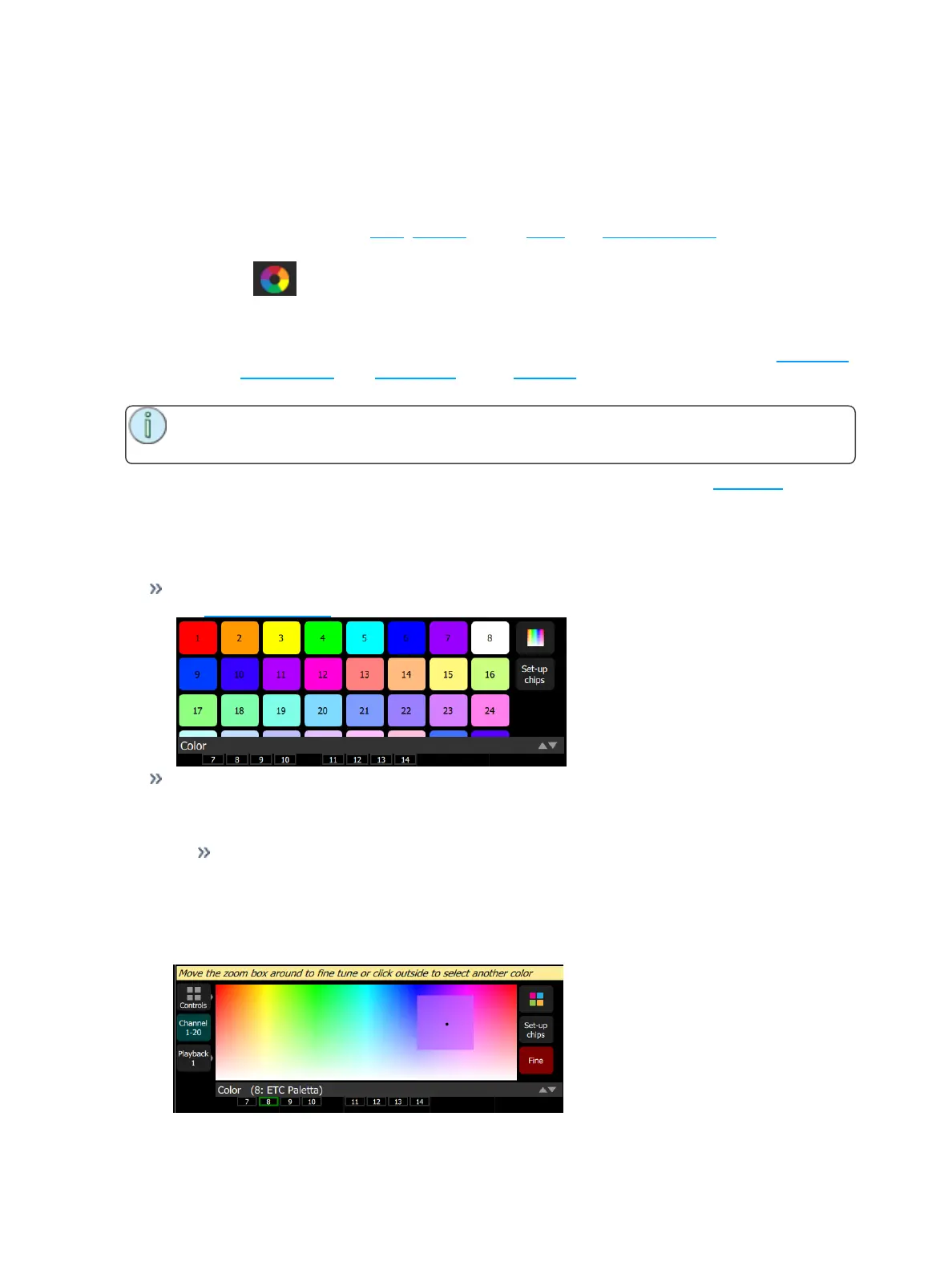
Color Chips- A set of preset color chips. Color chips may be programmed to carry any color mix.
See Setup Color Chips for more information.
Color Picker- A diagram of the visible spectrum varying by hue from left to right and by saturation
(paleness) from top to bottom. A black dot is used to indicate the color selected. Press Fine to put
the color picker in fine mode. When in fine mode a box appears that may be dragged around with
finer resolution.
White- Anywhere on the bottom edge picks the color white. The actual shade of white pro-
duced will depend on the type of light and its capabilities.
Lights made by ETC that are set to 'Direct mode' will produce the color 'D50' - equivalent to a
color temperature of 5005K.
For ETC lights operating in other modes you should set the color temp close to 5005K on the
light so that they will match ETC lights running in Direct Mode. Other manufacturer's lights
may need to be adjusted separately.



 To Next Page