30 Recording Your Looks For Playback
If two playbacks are up and contain the same channels with differing colors, the resulting color will be the
combination of the two. For example, if one playback has a channel set to green and another playback has
the same light set to red, when they are mixed the light will turn yellow.
When playbacks also carry parameter values for automated lights, parameters may be run up or down on a
playback fader until another playback or cue takes control of them.
There are 10 pages of playbacks. If the page is changed, playbacks that are currently up will not change
immediately to the new page and must be brought first to zero. Playback faders may also carry sequences
of up to 99 timed steps.
Page 10 is a special case. It may be used in the same way as other pages, or it can be used as a temporary
store for remote recordings. Each time a remote recording is requested, the entire output state, including
any running media, is stored as a snapshot to a playback on page ten and the snapshot counter is incre-
mented. If more than 20 (40) recordings are made, the counter rolls round to playback #1.
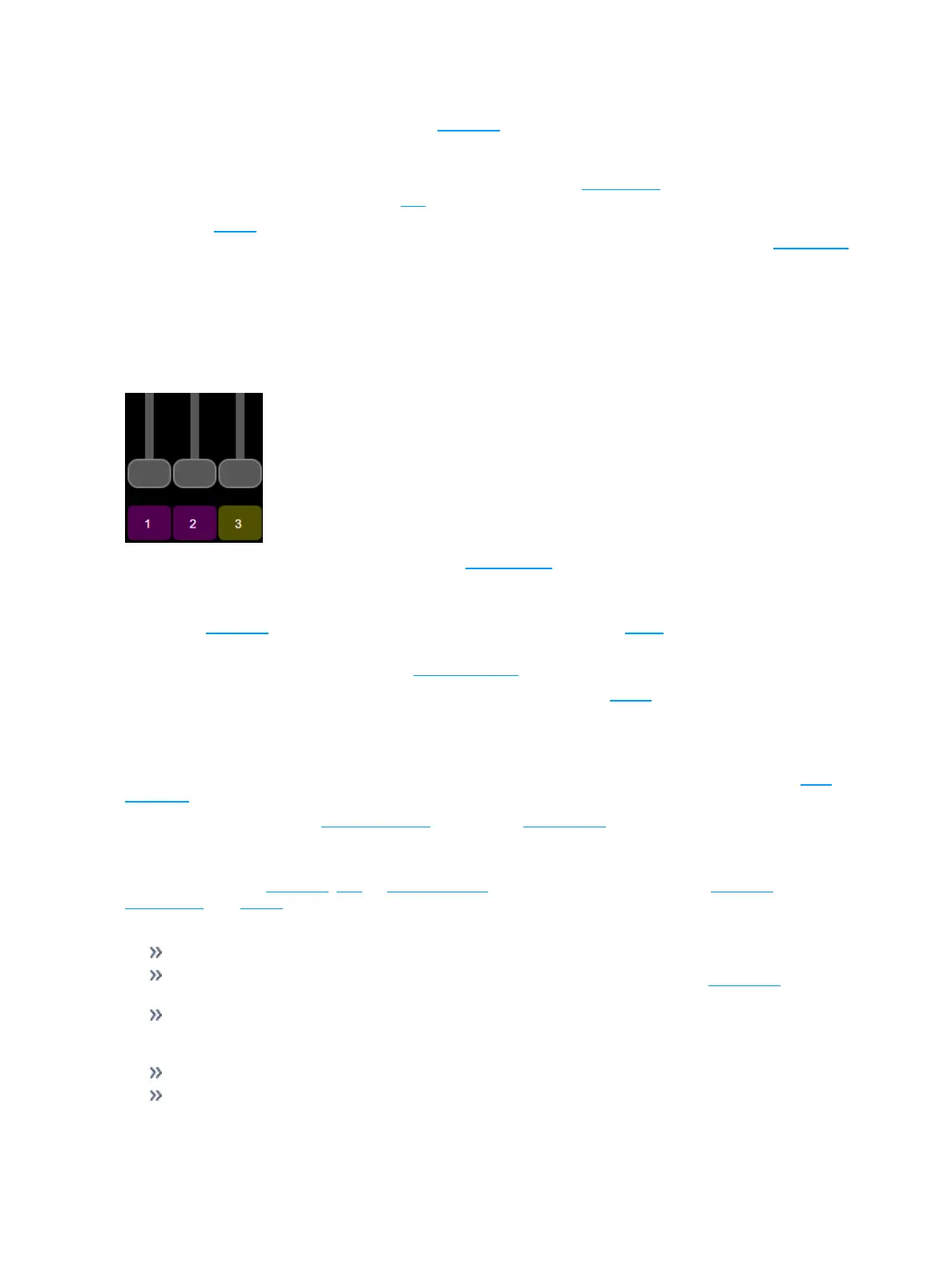
Simple static playbacks are shown in mauve on the bump button, sequences are shown in yellow on the
button.
The playbacks are all controlled by the playbacks master fader.
Record Playback Memory
To record a playback, select Record Playback Memory and then pick a bump button. A playback memory
can contain one lighting look.
To record on a different page select a new Playback Page before pressing the bump.
You may choose to include any media that is currently selected on the Media screen from the pop-up
panel. To choose which lights are recorded, select Include Options and pick Selected, Active or All. The
default if you do not choose is Active; only lights currently on at a level will be recorded.
When a playback recording is complete, the playback page will revert to its previous setting.
Playbacks may be named and given a time. The names and times may be viewed and edited in the Play-
back Toy screen.
To clear a playback, use the Erase Playback button under Record/Edit.
Include Options
When recording to a playback, cue, or sequence step, you may specify which lighting channels, sets of
parameters, and media are included in the recording by pressing the Include Options button.
Channels:
Active: Only channels with an intensity above zero are included.
Selected: Only channels currently selected (surrounded by a green box on the stage map or brightly
lit on the bumps) are included.
All: All channels are included.
Include:
Intensity / Color: Only the intensity and color mixing channels are included.
Position: Only the position (pan/tilt) channels are included.



 To Next Page