22 Controlling Your Lighting System
To release a captured channel back to the normal output from playbacks and cues, press Clear. Operating
a playback or cue containing a channel that is captured will return that channel to normal control.
Color and other parameters may also be over-ridden on captured channels.
Controls
Controls contain all the functions for controlling lights and cues, and setting color and other parameters:
Stage Map: The 'home' view of the full topographical stage map.
Color Selector: Selection of mixable colors using a color picker or color chips.
Param: Parameter control for moving or automated lights.
Cue List: The cue display.
Playback Toy: A screen to launch lighting looks and play, or busk, live.
Keypad: Classic level control by typing numbers.
Quick Select: Selection of channels in useful blocks or sets.
Effects: Lighting effects for color, intensity, and movement.
Media: Audio, Video, Image, Video Toy, and Sound2Light controls.
Note: The options, Color Selector and Param, are only available if you have patched lights
with those capabilities.
Quick Select
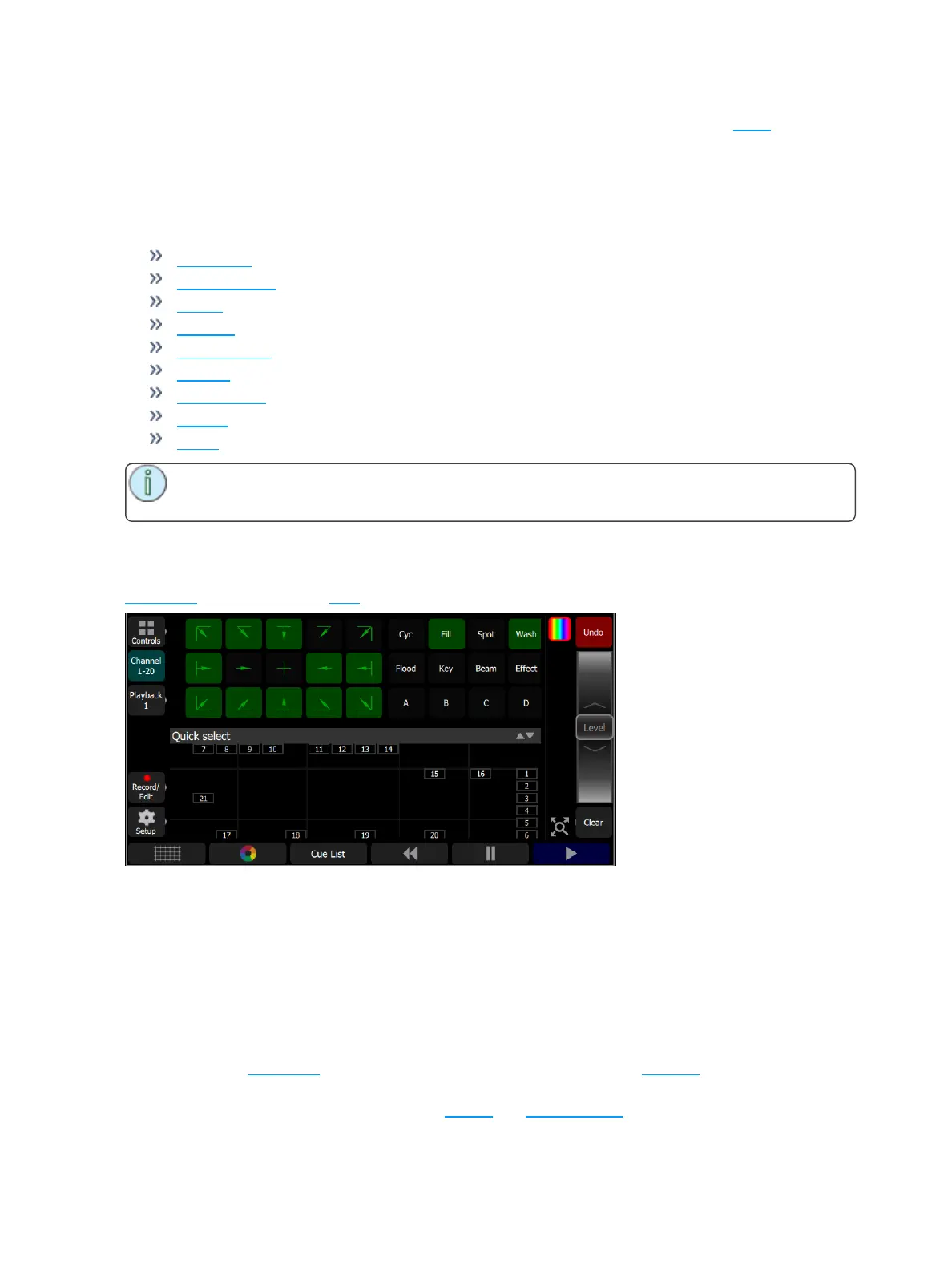
In the quick select display, you can pick groups of channels according to their position on the topographical
stage map or by choosing the tags setup during patching.
Groups display in the upper section, and the lower section of the screen displays the channel stage map.
Available groups are displayed in green boxes. Double click on a group to select only the lights in that
group, click on other groups to add or subtract channels from the selection.
While in the quick select display, the wheel operates the level of the selected channels proportionally. The
group buttons are also variable cells that may be wiped up and down to alter the value.
When you exit the quick select display, the channels will remain selected and colors or other parameters
may be applied to them.
Wheel
To the right of the stage map is the wheel. The wheel can be used to control channel levels by moving the
wheel up to increase the level or down to decrease.
The wheel can also be used to control depth of effects and sequence rate.



 To Next Page