40 Recording Your Looks For Playback
Stopped sequences are indicated by a blue bump button.
Stopped sequences may be advanced by pressing the blue bump button.
Note: Stopped sequences may be used as additional cue lists if required.
Tap Tempo
Places the bump buttons for playbacks carrying sequences into 'Tap' mode.
Hold Tap and press the bump of a playback carrying a sequence (shown in yellow on the bump) in the
rhythm you want for the sequence rate.
Press several times until the rate is correct.
Tap can be assigned to a bottom button by going to the Console tab under Setup.
GO
Advances the cue list to the next position using the default cue times.
The next position may be the following entry in the cue list, or it may be somewhere else if you are jumping
to another cue or flag.
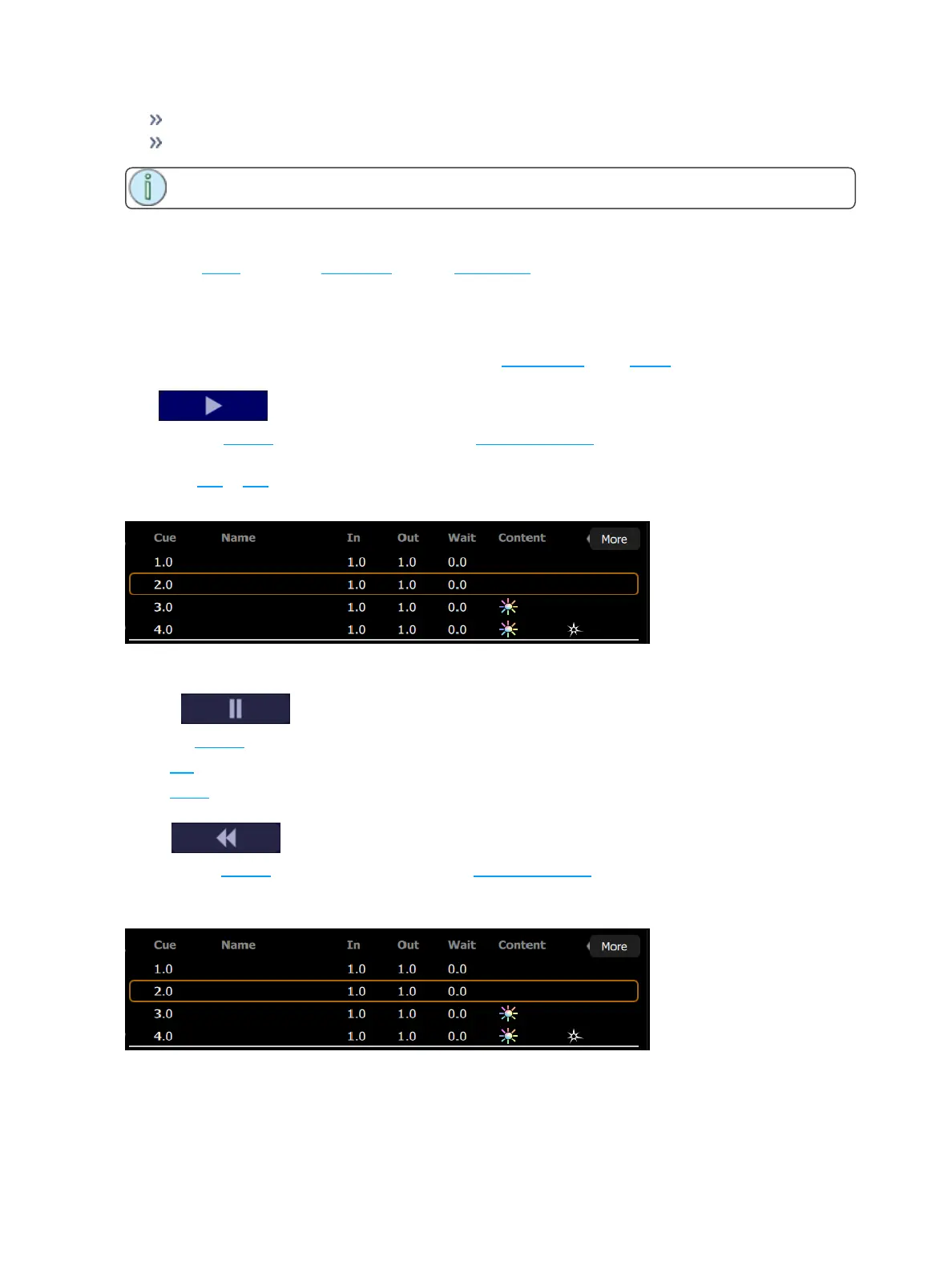
The live cue is displayed surrounded by a yellow box with the next cue beneath it.
Press GO twice or more to rapidly advance to further cues.
Pause
Stops the cue list at its current position. Any fades that are underway will be stopped.
Press GO to resume crossfading and running times.
Press Back to return to the previous cue.
Back
Reverses the cue list to the previous cue using the default cue times.
The live cue is displayed surrounded by a yellow box with the next cue beneath it and the previous cue
above it.
Press Back twice or more to rapidly return to previous cues.



 To Next Page