58 AV Functions
Media, Audio
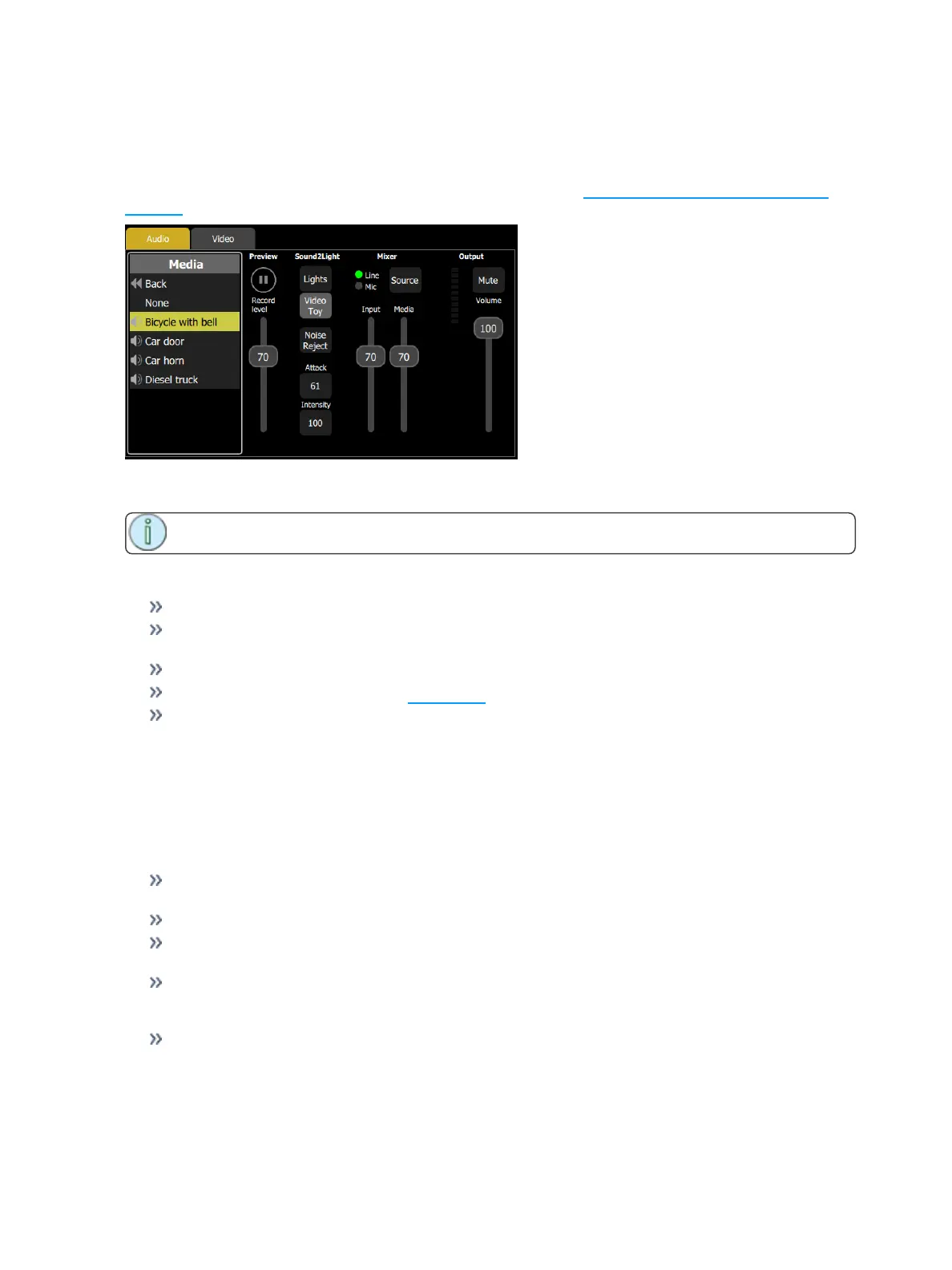
To open the Audio tab, go to Controls >Media. Here you can choose audio clips to play or record. You can
also operate the mixer to control audio volume and the external input on the rear panel.
For additional information about Audio input and output, please see Audio Input and Output Help on
page 59.
Browse the clip files to find a sound to play and try it on the local player on this screen. If a clip is playing
when a recording is made, you will be asked if you wish to include it in the recording.
Note: The audio mixer also feeds the Sound2Light converter.
Audio Mixer
Input: Controls the input level from the external socket on the rear panel.
Source: Selects the source of input audio from either the internal microphone or the external line
input socket.
Media: Controls the playback level of audio clips in playbacks and cues.
Mute: Mutes all audio output. See Audio Mute for more information.
Volume: Controls the volume of the final output going to the output jack.
Sound2Light
The Sound2Light processor drives the first six playback faders according to the frequencies contained in
the sound. Low, bass, frequencies go to Playback #1, higher to #2 and so on to #5 driven by high treble
sounds.
When there is no sound Playback #6 is activated as a rest or silent background state. The rest state is
driven after a delay so that it only appears when a sound clip has finished.
Lights: Sends Sound2Light to the first 6 playback faders. You must program content into these to
see the Sound2Light effect.
Video Toy: Sends Sound2Light to the VideoToy video synthesizer.
Noise reject: Turn this on if the sound source is noisy with hum or hiss, or there is high background
noise if the Mic input is being used.
Attack: Low values produce sudden changes tracking the sound rapidly and on VideoToy produces
strong primary colors, high values result in slower and smoother response and more pastel or paler
colors in VideoToy.
Intensity: The brightness of the Sound to Light effects on either Lights or VideoToy.



 To Next Page