48 Using Effects
Running Effect Control
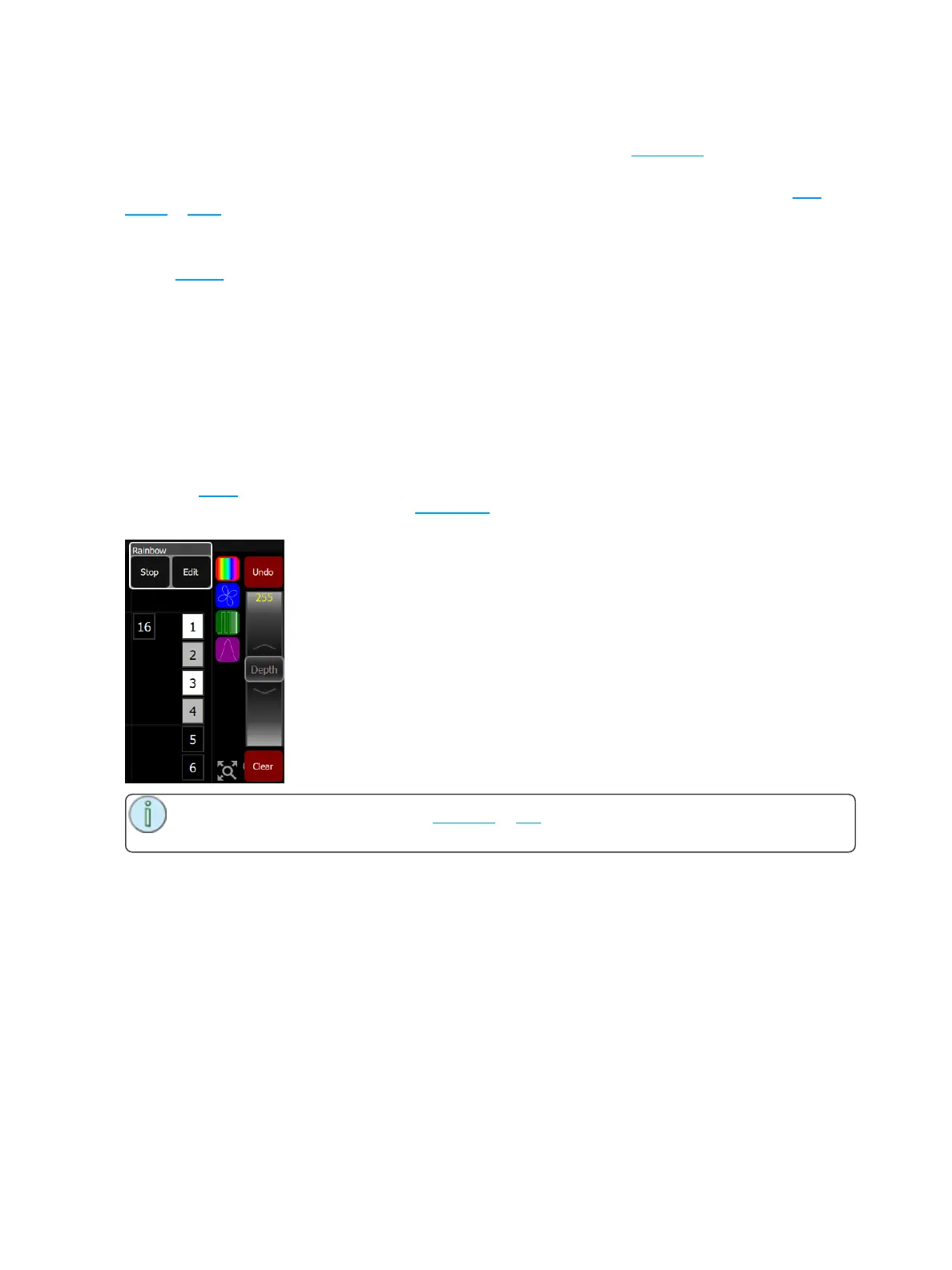
When effects run an icon is displayed in the vertical area to the right of the stage map. This may be selec-
ted at any time to manipulate the effects.
Effects may be edited, removed or reduced via the wheel control when they are playing back from play-
backs or cues.
Add Effect
To use effects, select some lights and then press Add Effect. Choose an effect type in the tab area, select
a pattern, and then adjust the effect settings for the desired result.
The order that lights are selected in is relevant and affects the behavior of the Fan setting. Fan refers to the
amount the effect is spread-out over the selected channels. With no Fan all the lights change together at
the same time. With increasing values of Fan the lights respond to different parts of the effect, offset from
each other. Fan is set in the specific effect type tabs.
Several effects may be added to one device or channel and their actions will be combined, for instance a
small circle effect may be applied as well as a large circle effect. The chosen device will then move in small
circles processing round a larger circle.
Remove Effect
Select the effect to be removed on the effect symbol shown in the vertical strip to the right of the Effect dis-
play, and press Remove Effect. From the Stage Map, select the effect to be removed on the effect symbol
shown in the vertical strip to the right of the stage map, then press Edit>Remove effect.
Note: If the effect is playing from a playback or cue, you must edit that item to remove the
effect permanently.



 To Next Page