Recording Your Looks For Playback 35
In the cue list window, press More and then Goto Cue, type in the cue number, and press Enter.
Goto 0
Cue 0 does not exist as a real cue. It is an imaginary cue before the first cue.
Press Goto 0 to take all levels from the cue list to zero, and prepare the crossfader for the first cue.
Edit Cue List
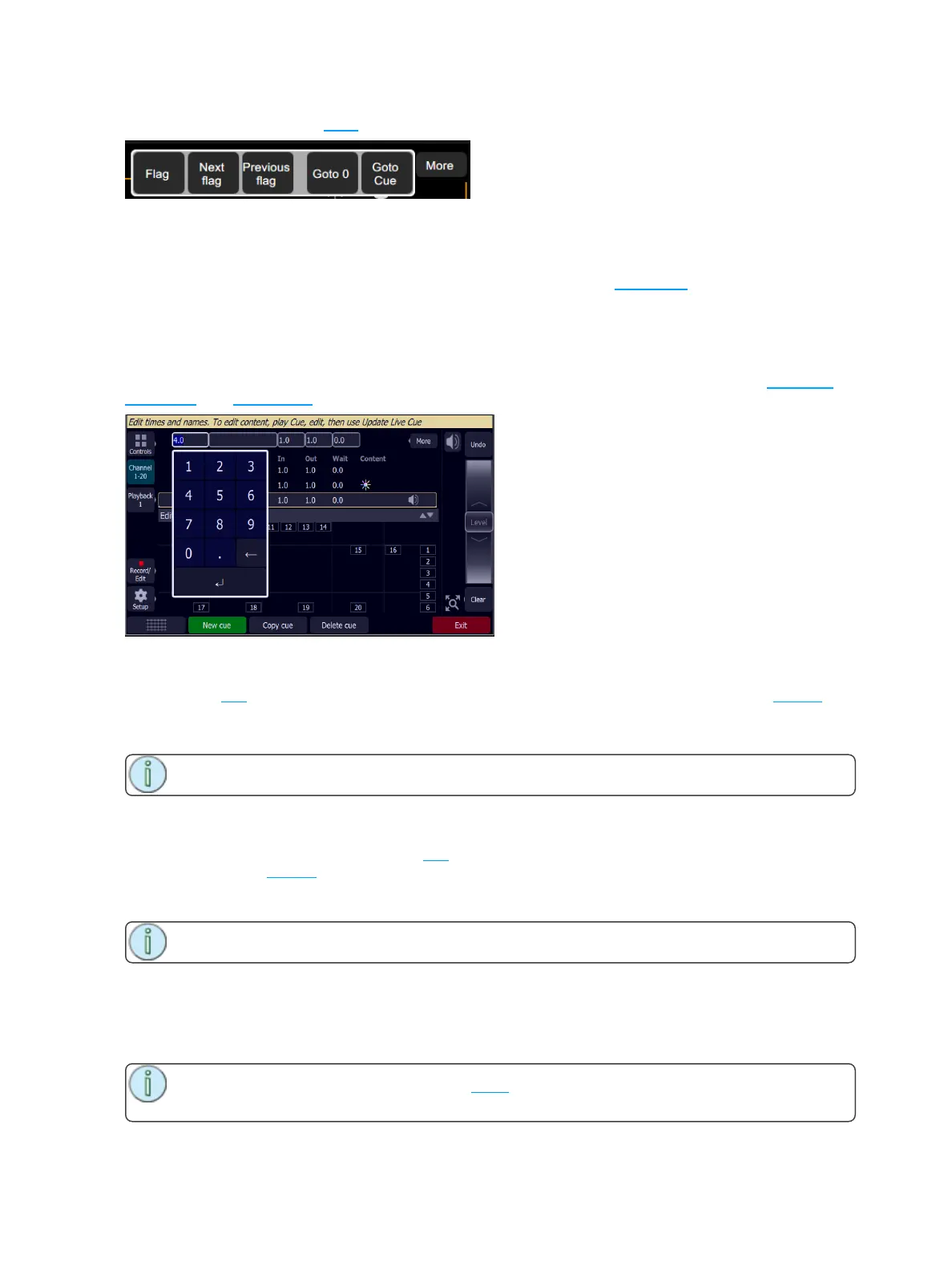
The Edit Cue List option is available by pressing the Record/Edit button and then selecting Cue List. This
opens the cue list editor for the main cue stack. Here you may change cue names and the timing of fades.
Pick the cue you want to edit in the cue list in the upper part of the display. You can also insert new cues,
copy cues, and delete cues.
New Cue
Inserts a new cue. The new cue is added to the next free whole-numbered cue at the end of the cue list.
The new cue may then be given another number, including a fractional or 'point' number.
For example, to insert a cue between cues 4 and 5, you would enter 4.5.
Note: The cue list is not re-numbered when a cue is inserted.
Copy Cue
Copies the selected cue and creates a new cue. The new cue is added to the next free whole-numbered
cue at the end of the cue list. The new cue may then be given another number, including a fractional or
'point' number.
For example, to insert a cue between cues 4 and 5, you would enter 4.5.
Note: The cue list is not re-numbered when a cue is inserted.
Delete Cue
Deletes the selected cue.
The cue list will not be re-numbered, and the missing cue will be skipped the next time the list is played.
Note: A deleted cue may be recovered if Undo is pressed immediately after the deletion is per-
formed.



 To Next Page