Recording Your Looks For Playback 31
Beam: Only the beam channels are included (beam includes non-fadable colors such as wheels and
scrollers).
If any media is playing, you will have the option to include it in the recording.
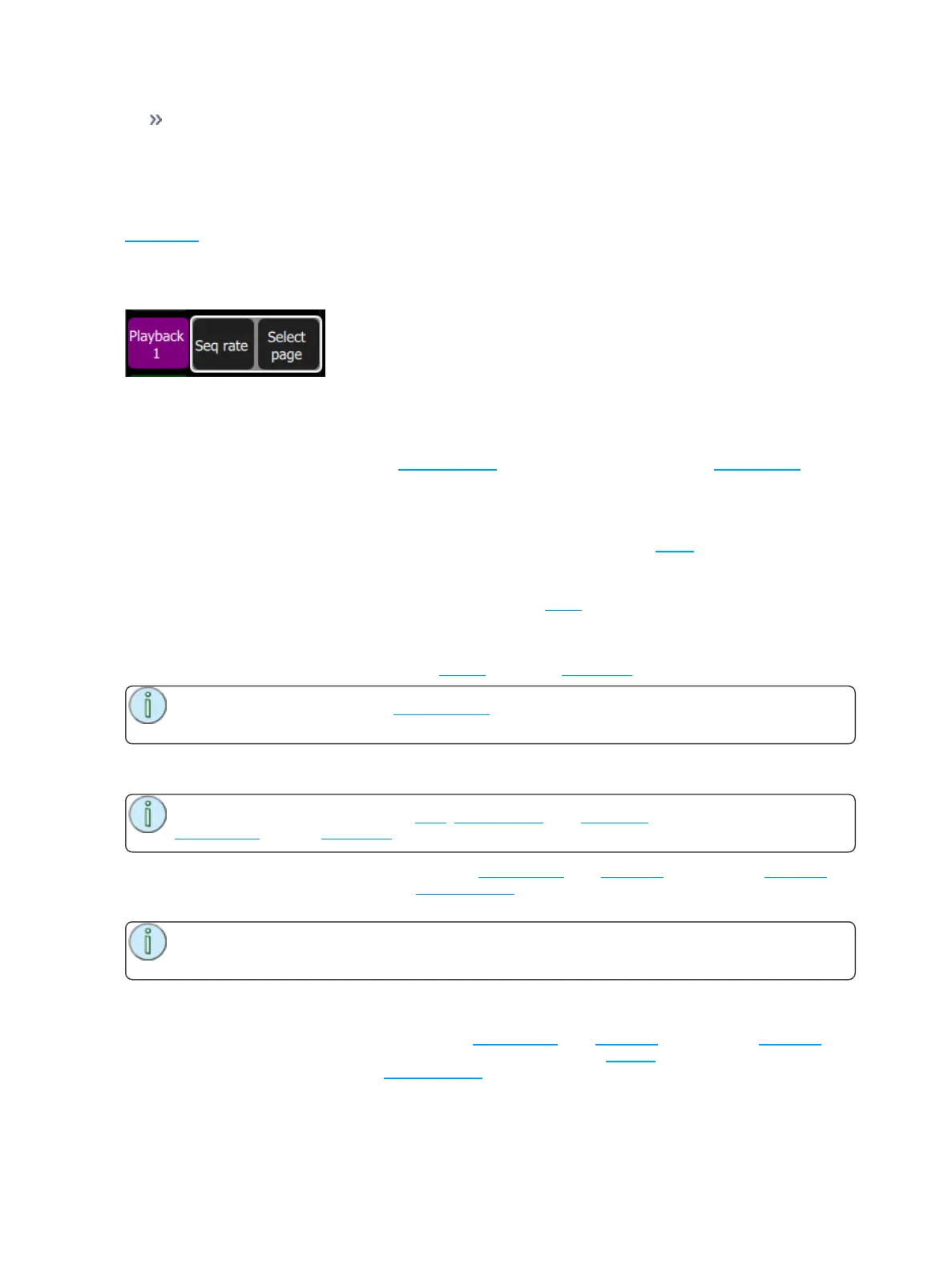
Select Page
Playbacks can be arranged on 10 different pages. In normal use, all the playbacks are on the same page.
You can arrange the content of pages to match songs, scenes, or other blocks of activity in your show by
using Select Page to record playbacks to a different page. Press the Playback button to display the Select
Page button.
When the page is changed, any playback currently set to a level will remain as it is until it is taken to zero.
When a playback arrives at zero, the page will be updated for that playback. The next time the fader is
taken up, it will operate the playback on the newly selected page.
Playbacks may also be operated on the Playback Toy screen, or automatically via the Sound2Light con-
troller.
Erase Playback
To remove content from a playback, press Erase Playback and then pick the bump. You will be asked to
confirm your choice. Press Yes to clear or No to cancel. The content of the playback is not simply cleared
from the output, it is completely erased.
If you accidently delete a playback, you can immediately use Undo to bring it back.
Button Mode
The buttons below the faders may be used as bumps to operate playbacks.
Note: When the faders are in channel mode, the bump button below the fader is always used to
select the channel.
Flash
Note: The button modes; Flash, Solo, Solo Change, and Move/GO are only available when the
faders mode is set to playbacks.
When the button mode is set to Flash, pressing the bump button for a playback will cause the channels in
that playback to flash on to the level of the bumps master. The color on each channel of the selected play-
back will be mixed onto the output with Highest-Takes-Precedence.
Note: Operating the Flash button is the same as if the playback fader had been taken to the
same level as the bumps master.
Solo
When the button mode is set to Solo, pressing the bump button for a playback will cause the channels in
that playback to flash on and all the output from other playbacks or the cue list will be set to zero. The
intensity will be set to the level on the bumps master and the color of the selected playback will be sent to
the output.



 To Next Page