CP-2116E
Remote Control Panel
Page - 16 Revision 1.2
5.1.3. Upgrading Firmware on the CP-2116E
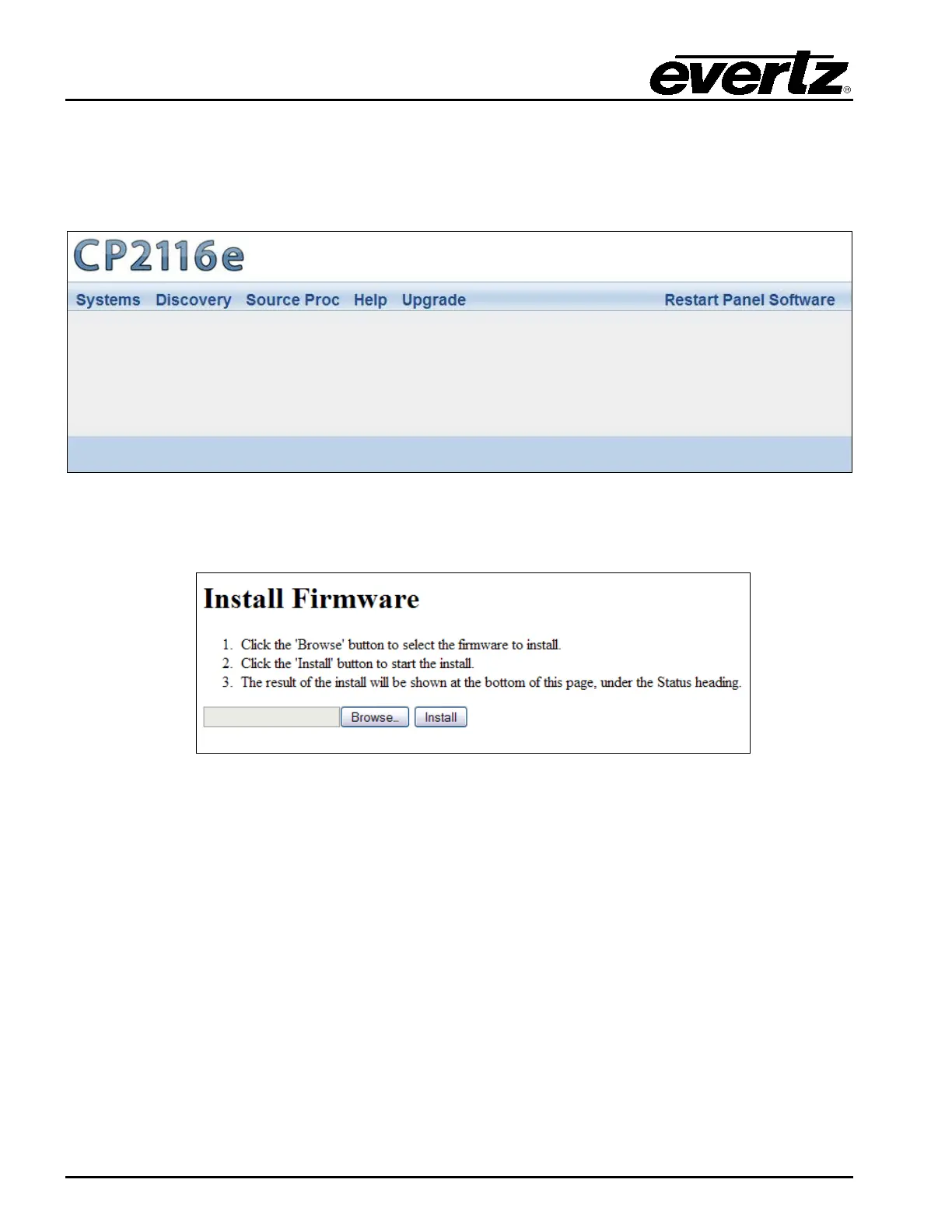
1. To upgrade firmware using the web interface, open a Firefox web browser and enter the IP
address of the CP-2116E, then press the <enter> key. The CP2116e web interface will appear,
as shown in Figure 5-1.
Figure 5-1: CP116e Web Interface
2. Select the Upgrade menu and the “Install Firmware” page will open as illustrated in Figure 5-2.
Figure 5-2: Install Firmware Page
3. Click on the Browse button to select the file to be updated (i.e. CP2116e-1.1_1.efp) and then
select the Install button to start the install.
4. If a reboot is required the panel should automatically reboot on its own otherwise you may
reboot it using the front panel.
5. Once the panel has rebooted you are ready to configure the CP-2116E.



 To Next Page