CP-2116E
Remote Control Panel
Page - 28 Revision 1.2
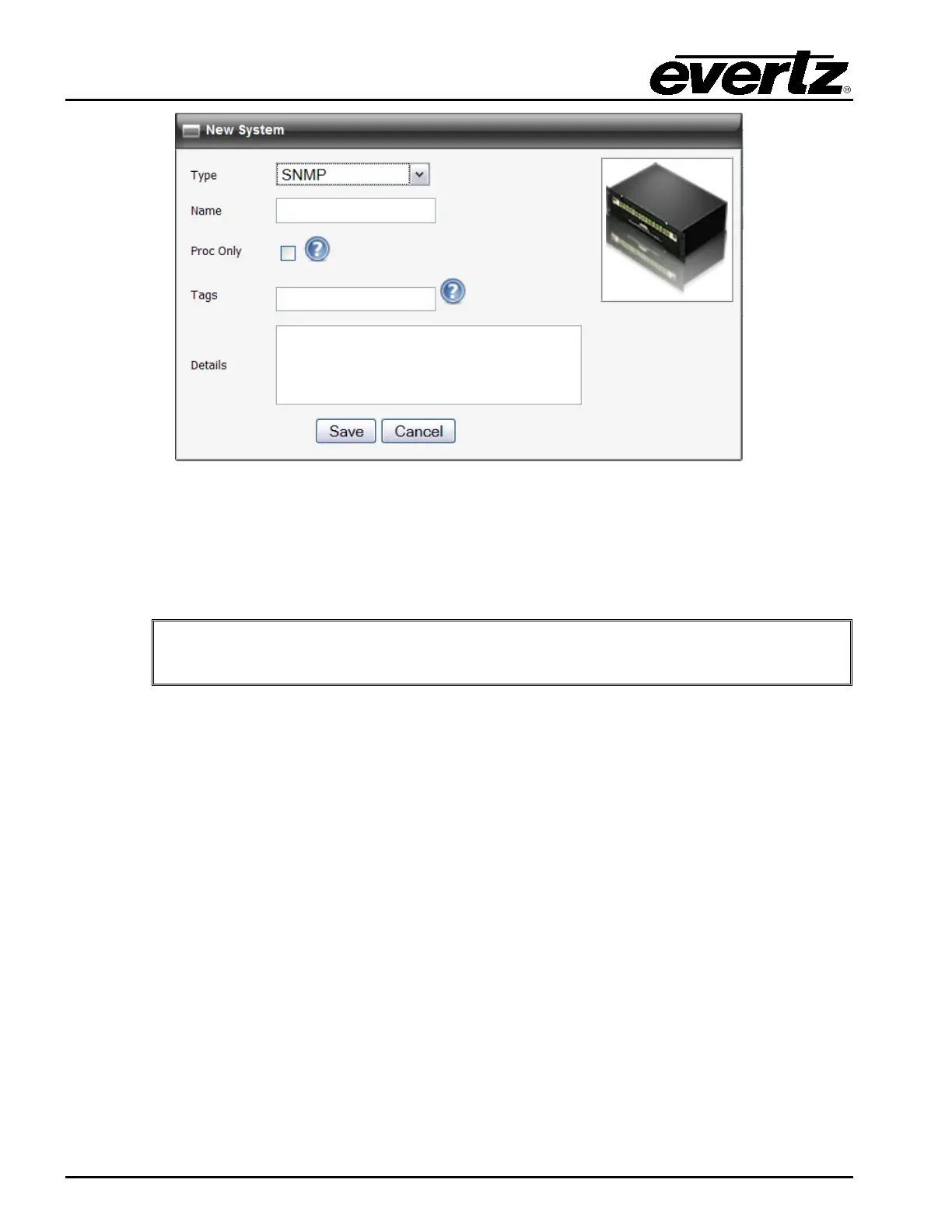
Figure 5-14: New System Window
5.2.4.1. Device Properties
The user can adjust each device’s properties by entering the appropriate information into the fields
below:
If the user double clicks the System, Type, Details, and/or Tags field, an Update
System window will open as illustrated in Figure 5-15.
System: This field displays the device’s name. If the user double clicks the System field, an
Update System window will open. Here, the user can edit the device’s name using the
Name field.
Type: This field displays the device’s type. If the user double clicks the Type field, an Update
System window will open. Here, the user can select a device type using the Type drop
down menu.
Details: This field displays specific details about the device. If the user double clicks the Details
field, an Update System window will open. Here, the user can enter information about
the device using the Details field.
Tags: This field displays the tags for a particular device. If the user double clicks the Tags
field, an Update System window will open. Here, the user can add tags to the device in
order to create shortcut buttons while searching for a system on the first selection
screen of the panel.
Service: This field displays the available SNMP services for the device. The user can drag and
drop a service from the Available Services column to the desired device’s Service
field.



 To Next Page