CP-2116E
Remote Control Panel
Page - 46 Revision 1.2
6.3. ADDING AN EQX SERVER
All router management of the CP-2116E for use in an EQX Server based system is done through the
EQX Server WCT (web config tool). Please see the EQX Server manual for details on working with the
CP-2116E panel in that respect.
1. To add an EQX server, the user must open a Firefox browser and enter the IP address of the
CP-2116E in the address field.
2. Navigate to the Systems page as shown in Figure 6-1 and click the
icon.
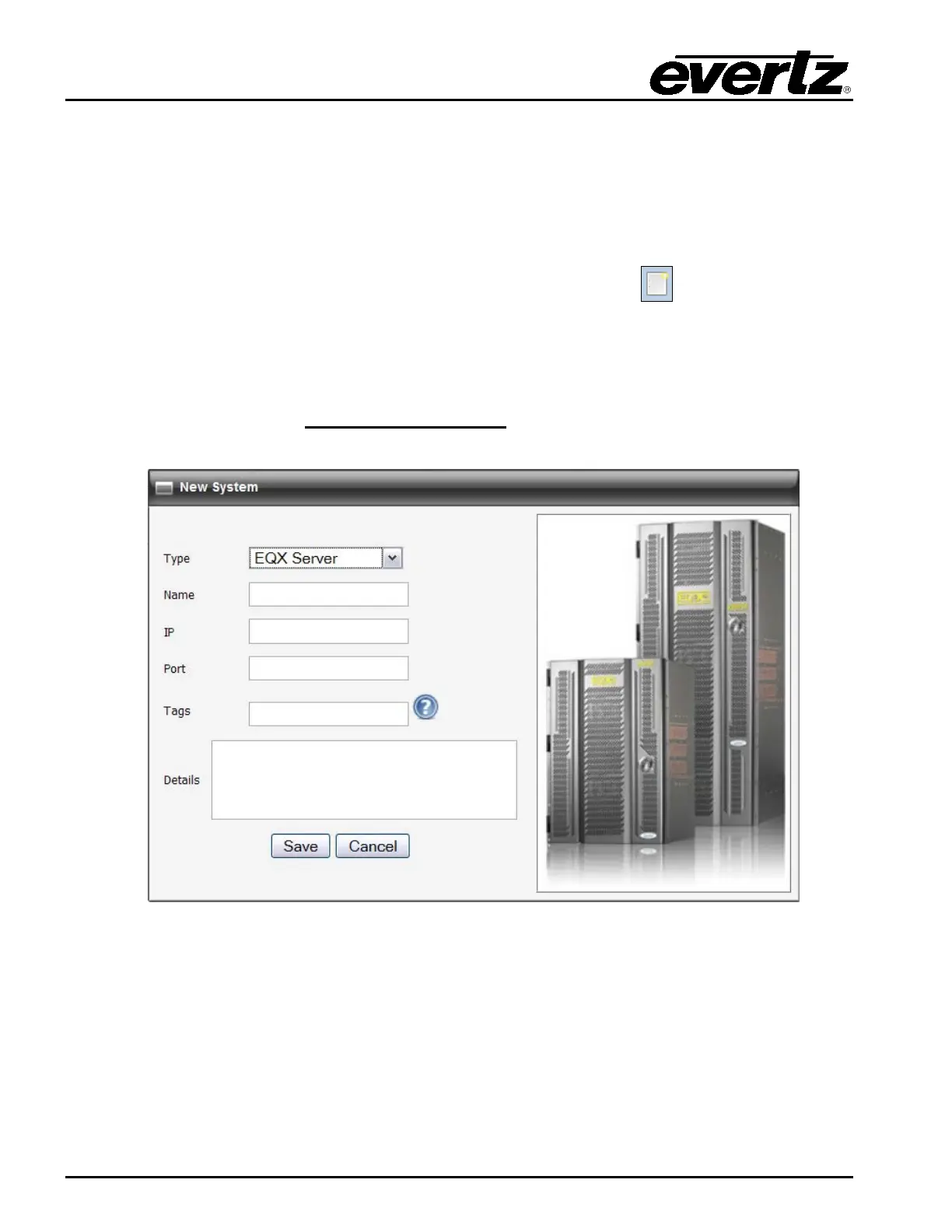
3. A New System dialog box will appear enabling the user to create a new system. Use the Type
drop down menu to select EQX Server. The dialog box will adjust to accommodate the EQX
Server parameters. In the Name field enter a unique identifier name (this name will appear on
the panel). Enter the IP address of the EQX server host into the IP field. Enter the appropriate
port into the Port field. The default port is 8765.
The user can also enter information into the
Tags, and Details fields.
Figure 6-4: Add EQX Server
4. Once the user has filled out all the fields, select the Save button in the New System dialog box.
Once you return to the Systems page, click the Save button on the top right-hand side of the
screen. In the very top right of the page is a link to “restart panel software”. Select this link and
the panel software will take approximately three seconds to restart. When the panel restarts,
the user can use the shaft encoders and soft-key buttons to toggle to the new EQX system
configuration.



 To Next Page