CP-2116E
Remote Control Panel
Revision 1.2 Page - 43
6. ADDING AN EVERTZ SYSTEM TO CONTROL
6.1. CP-2116E CONTROL OF MVP SYSTEM
Controlling an MVP system from the CP-2116E panel requires a few “one time” steps (as well as a
normal procedure) to be completed on the MVP system prior to working with the CP-2116E:
1. Set up the MVP system to allow control from the CP-2116E. (This step should only be
performed once upon initial setup):
a. Ensure the MVP server is in operation.
b. Confirm the “listen” port of the MVP server in the configuration (default is 9680)
c. Create a canvas file for your MVP system and send it to the server. (If possible, please
provide the service with the number of display cards, displays, and resolutions that can
be used to assist in building a custom canvas file)
i. Using the “Transfer scripts” button in the server, choose the remote file type of
canvas. Select the browse button and navigate to your canvas.vssl file. Once
selected, click the Transfer button. Restart the server to apply this canvas.
2. Daily operation of the MVP to allow the CP-2116E control of a layout:
a. Open an existing layout (while connected in maestro) and select the “save as script”
option. Assign a descriptive name and then click send (you will need to do this with any
layout you wish to appear on the CP-2116E).
3. Set up the CP-2116E (This setup should only have to be performed once):
a. Using the firefox browser, enter the IP address of the CP-2116E into the address field.
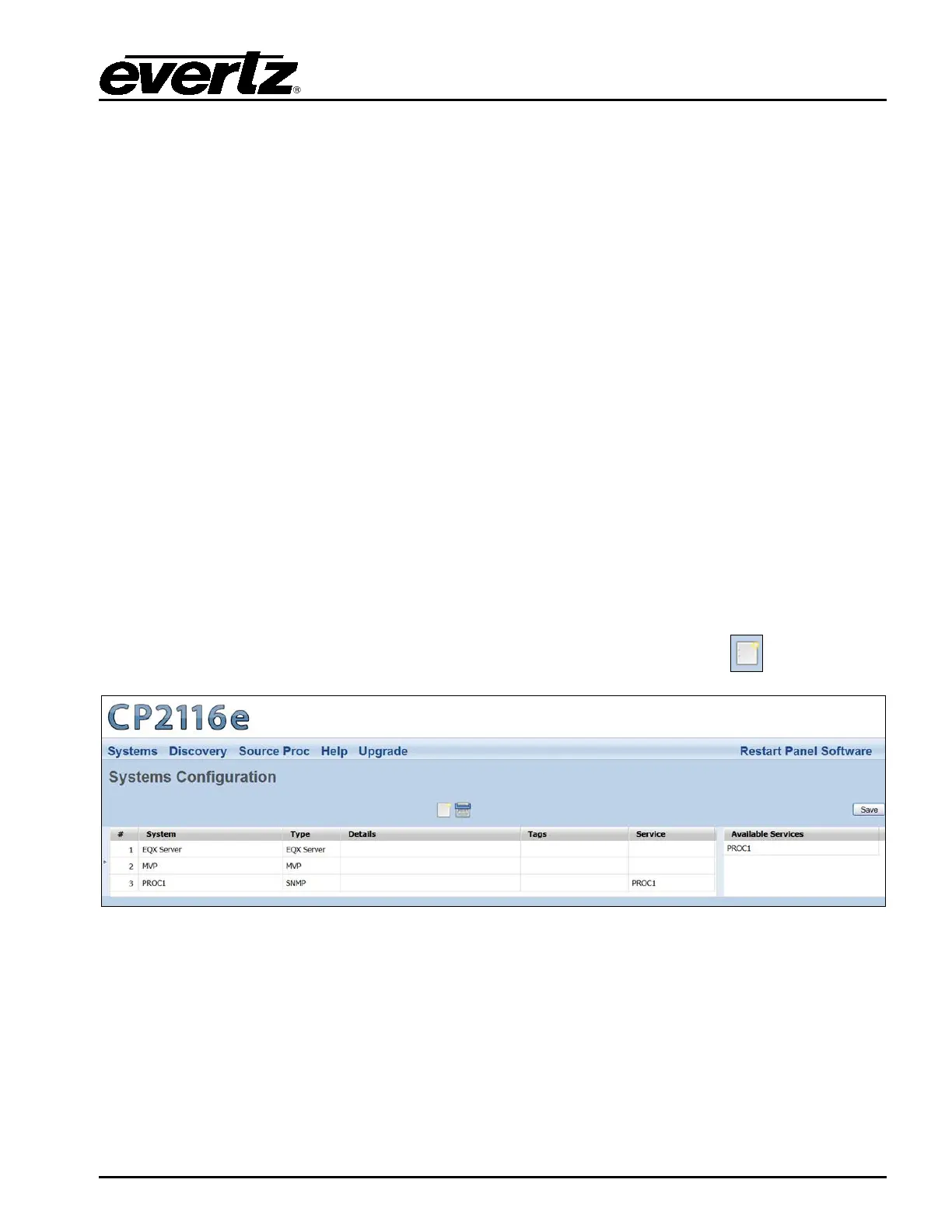
b. Navigate to the Systems page as shown in Figure 6-1 and click the
icon.
Figure 6-1: Systems Page
c. A dialog box will appear enabling the user to create a new system. Use the Type drop
down menu to select MVP. The dialog box will adjust to accommodate the MVP system
parameters. In the Name field enter a unique identifier name (this name will appear on
the panel). Enter the IP address of the MVP server system into the IP field and the
appropriate port into the Port field (the default IP port for MVP systems is 9680). Enter
information into the Display Filter (Limits which Displays are available for control),
Tags, and Details field.



 To Next Page