CP-2116E
Remote Control Panel
Page - 58 Revision 1.2
Selecting the Enable Toggle button will either enable or disable toggle for the selected destination.
When Toggle is enabled the Current Source and Next Source for a destination will flip with each
Take button press. The Back button can be used to return to the return to the Quad Destination view.
A destination that has Toggle enabled will have circular blue arrows next to the green cross-point
icon in the top left corner of the destination quadrant.
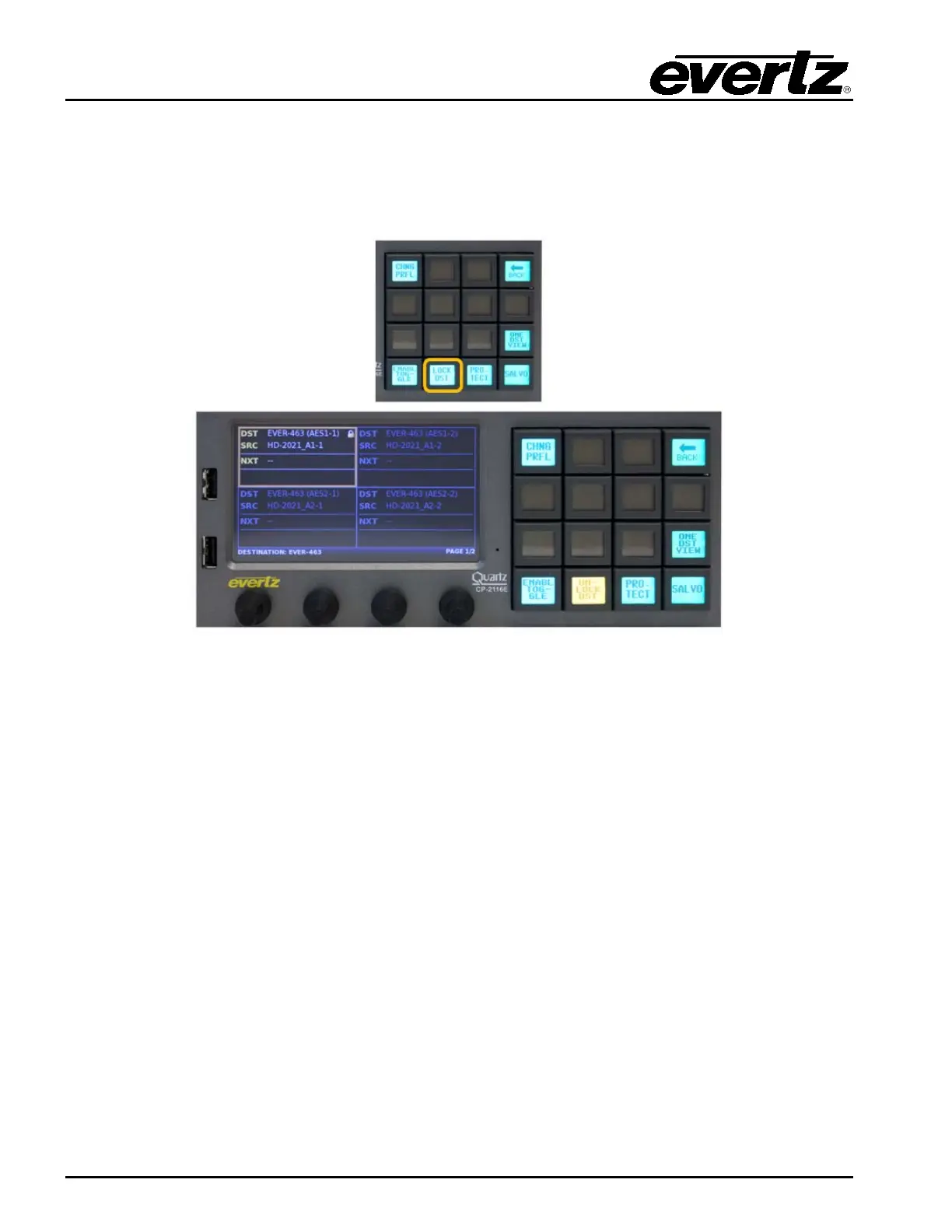
Figure 7-15: Selecting the “LOCK DST” Button
The LOCK DST button when pressed will toggle between Locking or Unlocking the selected
destination. A destination that is locked will display a Lock icon in the top right corner of the destination
quadrant. When a destination is locked no routes are allowed. Only the user who locked the
destination or an Admin user can unlock the destination. To view the owner of a locked destination,
select the INFO button. The Back button can be used to return to the Quad Destination view.



 To Next Page