CP-2116E
Remote Control Panel
Revision 1.2 Page - 27
5.2.3.4. Add a Service Template to the Service List
1. Navigate to the Service option from the Systems menu.
2. Select the desired template from the Available Service Templates column and drag and drop
a template to the Service Template list.
3. Assign a “Frame,” “Slot,” and “Input” number to each service.
4. To apply these changes, select the Save button in the top right hand corner.
Please note that the user must press the “Save” button in order for changes to
be saved and then select “Restart Panel Software” to apply the changes to the
control panel.
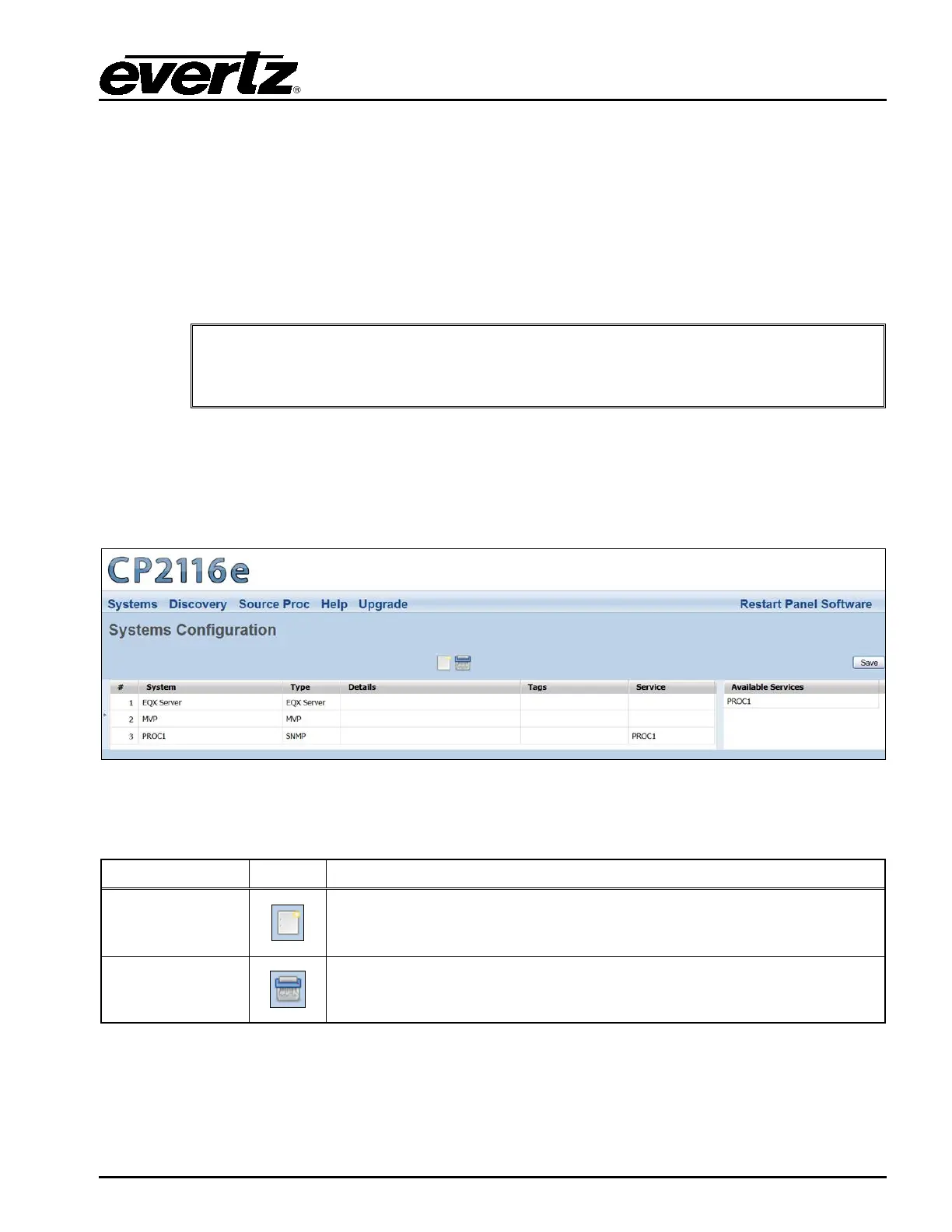
5.2.4. Systems Page
The Systems page enables the user to view the devices that are currently available on the CP-2116E
as well as add new devices. The user can also edit and/or change details, tags, and services for
specific devices.
Figure 5-13: Systems Page
The user can add and/or remove a device using the Systems buttons listed in Table 5-3:
New Device
The New Device
button enables the user to add and create a new
device. Selecting this button will open a new system window as shown
in
Figure 5-14.
Delete Device
The Delete Device button enables the user to completely remove the
currently selected device. Select the device that you w
and then press the Delete Device button to remove the device.
Table 5-3: Service Template Buttons



 To Next Page