Managing printed text and QR codes
99
11 Managing printed text and QR codes
PostBase Fusion can print custom text messages and QR codes, including an accom-
panying message. There are 12 storage spaces available. In this chapter, you will learn
how to generate, change and delete text messages and QR codes.
11.1 Entering a new text
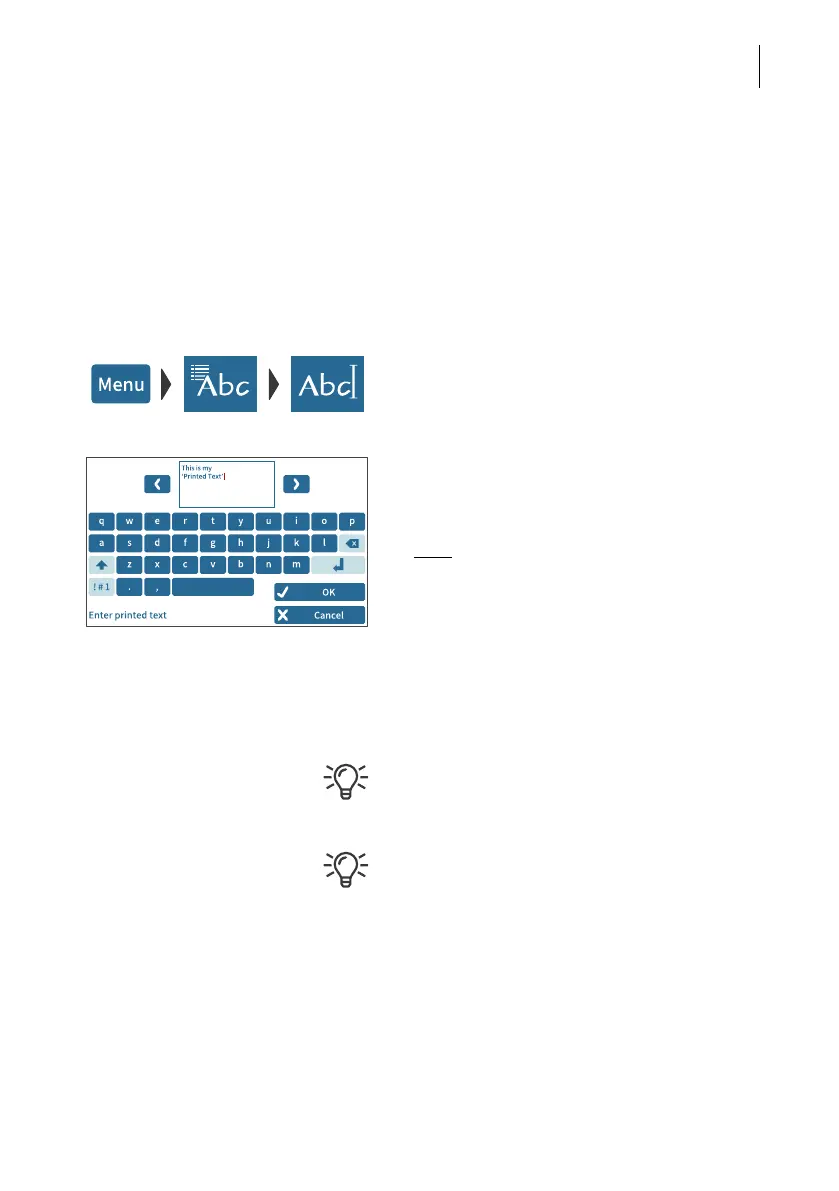
• Open the MENU.
• Choose P
RINTED TEXT/QR-CODE.
• Tap the N
EW TEXT button.
PostBase Fusion opens the on-screen key-
board.
• Enter the desired text.
Note
: You have five lines available for your
text. Once the maximum line length has
been reached, PostBase Fusion will not
allow you to enter anything further in this
line. You insert line breaks manually.
• Confirm with OK.
The text is stored and appears immediately in
the selection list for advertising imprints.
For information on how to use the on-screen
keyboard, please refer to chapter 4.3.7 on
page 47.
You can also enter new text in the selection
list for advertising imprints directly. As long as
not all storage spaces have been assigned,
the button “New” will appear in the list.


 To Next Page