Chapter 4 Various Documents
67
Index
Appendix
Introduction
Glossary
Contents
TOP
Loading
Documents
Scan
Parameters
Various
Documents
Daily Care
Trouble-
shooting
Operational
Settings
Consumables
Scanner
Overview
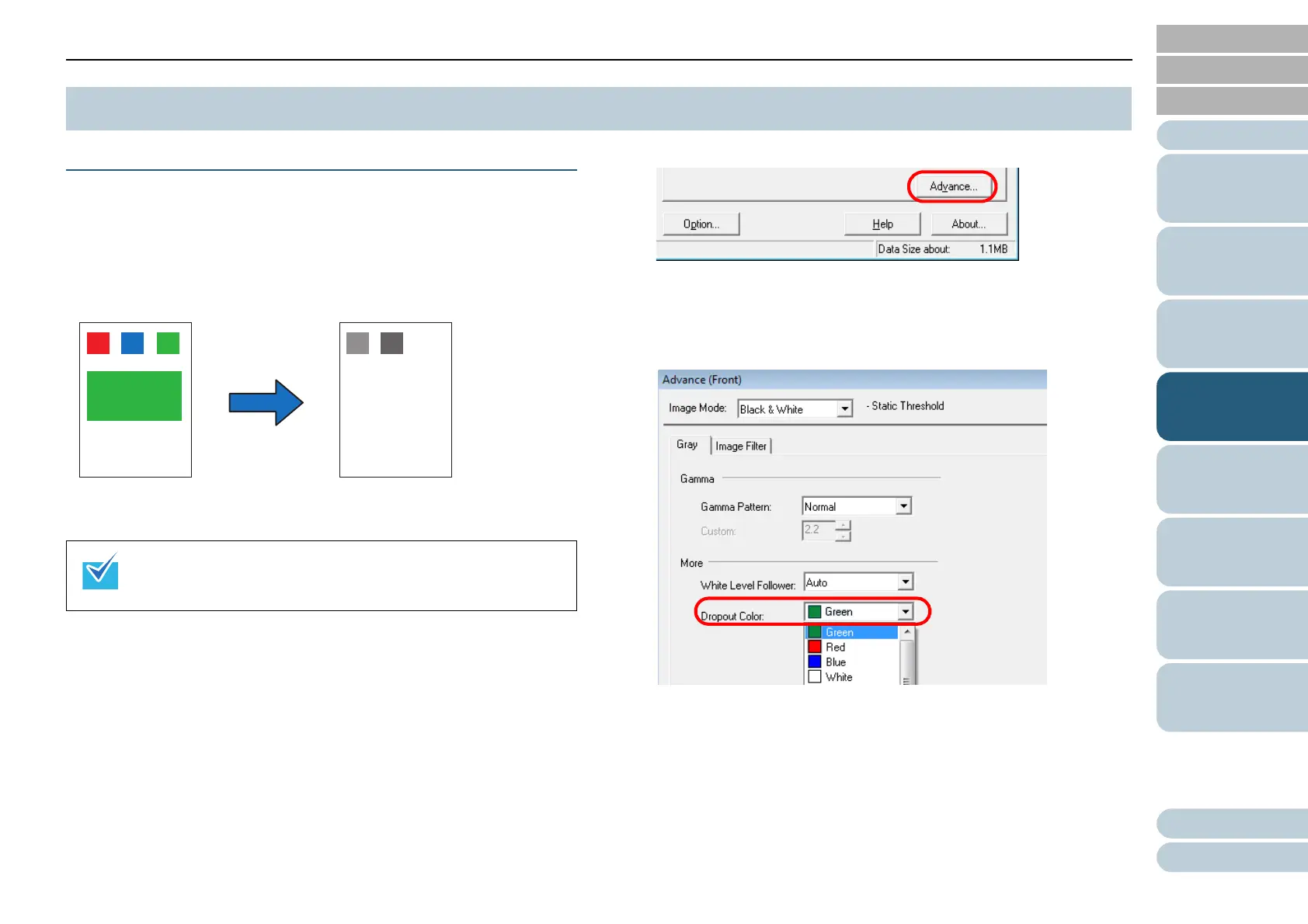
Excluding Color(s) from Images (Dropout Color)
You can select a color from primary colors (red, green, and
blue) to remove (drop out) from a scanned document image.
For example, when you scan a document containing black text
with green background, you can output an image of only black
text.
1 Load a target document on the scanner.
For how to load documents on the scanner, refer to "Chapter 2
Loading Documents" (on page 38).
2 Start up ScandAll PRO, and then open the [TWAIN Driver
(32)] dialog box.
For how to open the [TWAIN Driver (32)] dialog box, refer to "ScandAll
PRO V2.0 User's Guide".
3 Click the [Advance] button.
⇒ The [Advance] dialog box appears.
4 Select a color you want to remove, from the [Dropout
Color] drop-down list under [More].
If you want no color to be dropped out, select [None].
To drop out a desired color, select [Custom], [Custom 2], or [Custom
3].
If you select one of them, the [Select Dropout Color] dialog box will
appear. Here, you can specify up to three colors to be dropped out.
4.3 Advanced Scanning
Note the dropout color can be specified only in binary (black &
white) or grayscale mode.
Example: When "green" is selected to be dropped out











 To Next Page