Documents that are not flat (e.g. with holes, tapes), in particular, can be removed more smoothly from
the top cover side.
● Make sure to check the documents and the paper path thoroughly. Remove any metal objects such as
staples or paper clips to prevent paper jams.
Be sure to remove metal objects such as staples and paper clips from documents before scanning them.
● Be careful not to damage the glass surface and the guides when removing documents with metal
objects such as staples or paper clips.
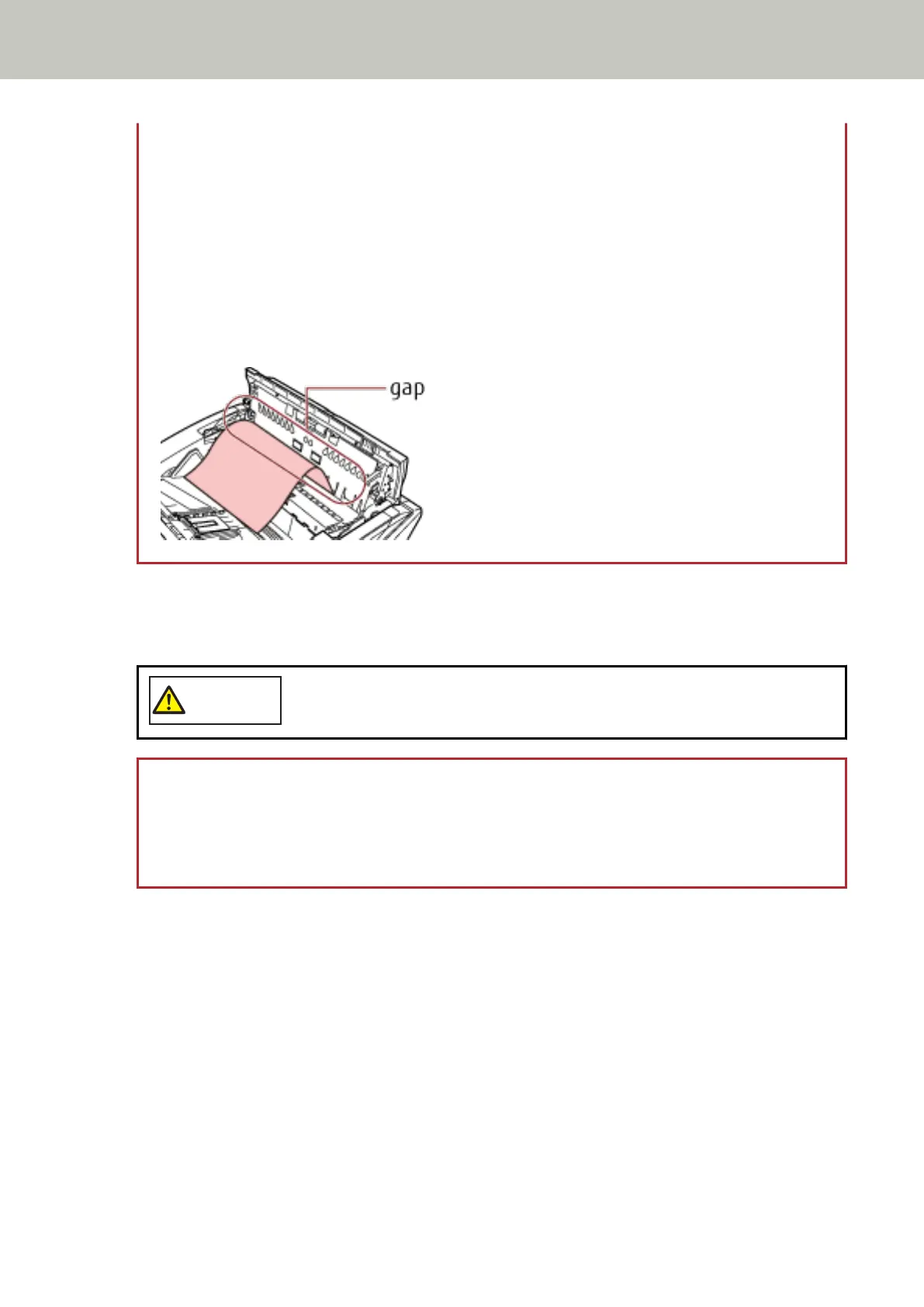
● Be careful not to have the document caught in the small gap as shown in the picture below, because
there is little space in the paper path.
4 Close the ADF/top cover.
For information on how to close the ADF, refer to How to Close the ADF (page 28).
For information on how to close the top cover, refer to How to Close the Top Cover (page 30).
Be careful not to get your fingers caught when closing the ADF.
ATTENTION
● Confirm that the ADF is closed properly. Otherwise, documents may not be fed into the ADF.
● Occasionally when scanning is complete or canceled, documents may remain in the ADF without any
error message displayed. In that case, follow steps 1 through 4 above to remove the documents.
Troubleshooting
155



 To Next Page