GPSMAP
®
700 Series Owner’s Manual 7
Charts and 3D Chart Views
4. Complete an action:
Select Review to view details of objects in the vicinity of the cursor. (Review does not appear
if the cursor is not near an object. If the cursor is near only one object, the name of the object
appears.)
Select Navigate To to navigate to the selected location (page 5).
Select Create Waypoint to mark a waypoint at the cursor location.
Select Measure Distance to view the distance and bearing of the object from your current
location. The information appears in the upper-left corner of the screen. Select Set Reference
to measure from the selected location, rather than your current location.
Select Information to view tide (page 40), current (page 41), celestial (page 42), chart notes,
or local services information near the cursor.
Select Stop Pointing to remove the pointer from the screen. Select Stop Panning to stop
panning and return the screen to your current location.
Viewing Additional Object Information
You can view information about on-screen map items, waypoints, and charts.
NOTE
: The Fishing chart, Mariner’s Eye 3D, and Fish Eye 3D are available with a preprogrammed
BlueChart g2 Vision data card.
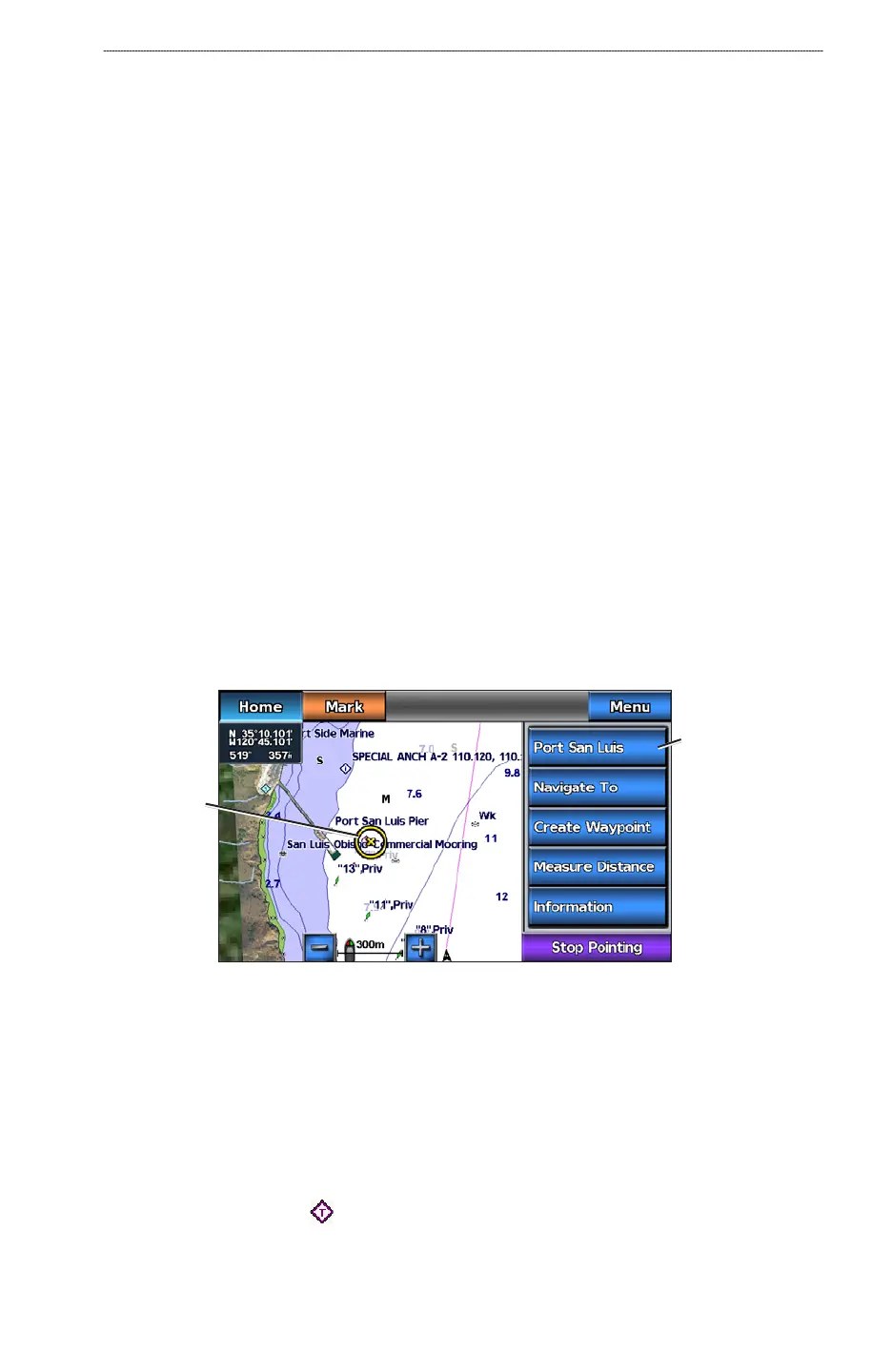
1. From the Home screen, select
Charts.
2. Select a chart or a 3D chart view.
3. Touch an object.
4. Select the button with the name of the item to view the information.
Selected
item
Additional item
information
Viewing Tide Station Information
Tide-station information appears on the chart with a tide station icon. You can view a detailed graph
for a tide station to help predict the tide level at different times or on different days (page 40).
NOTE
: The Fishing chart and tide station icons are available with a preprogrammed BlueChart g2
Vision data card.
1. From the Home screen, select
Charts.
2. Select
Navigation Chart or Fishing Chart.
3. Select a tide station icon (
).
Tide direction and tide level information appear near the icon.
•
•
•
•
•
•













 To Next Page