16 GPSMAP
®
700 Series Owner’s Manual
Charts and 3D Chart Views
4. Select Time To to sound an alarm if AIS determines that a target will intersect the safe zone
within the dened time interval (ranging from 1 to 24 minutes).
5. Select a time.
Viewing a List of AIS Targets
NOTE: The Fishing chart and Mariner’s Eye 3D are available with a preprogrammed BlueChart g2
Vision data card.
1. From the Home screen, select
Charts.
2. Select
Navigation Chart, Fishing Chart, Perspective 3D, or Mariner’s Eye 3D.
3. Select
Menu > Other Vessels > AIS List.
Making a Call to an AIS Target
See “Making an Individual Routine Call to an AIS Target” (page 89).
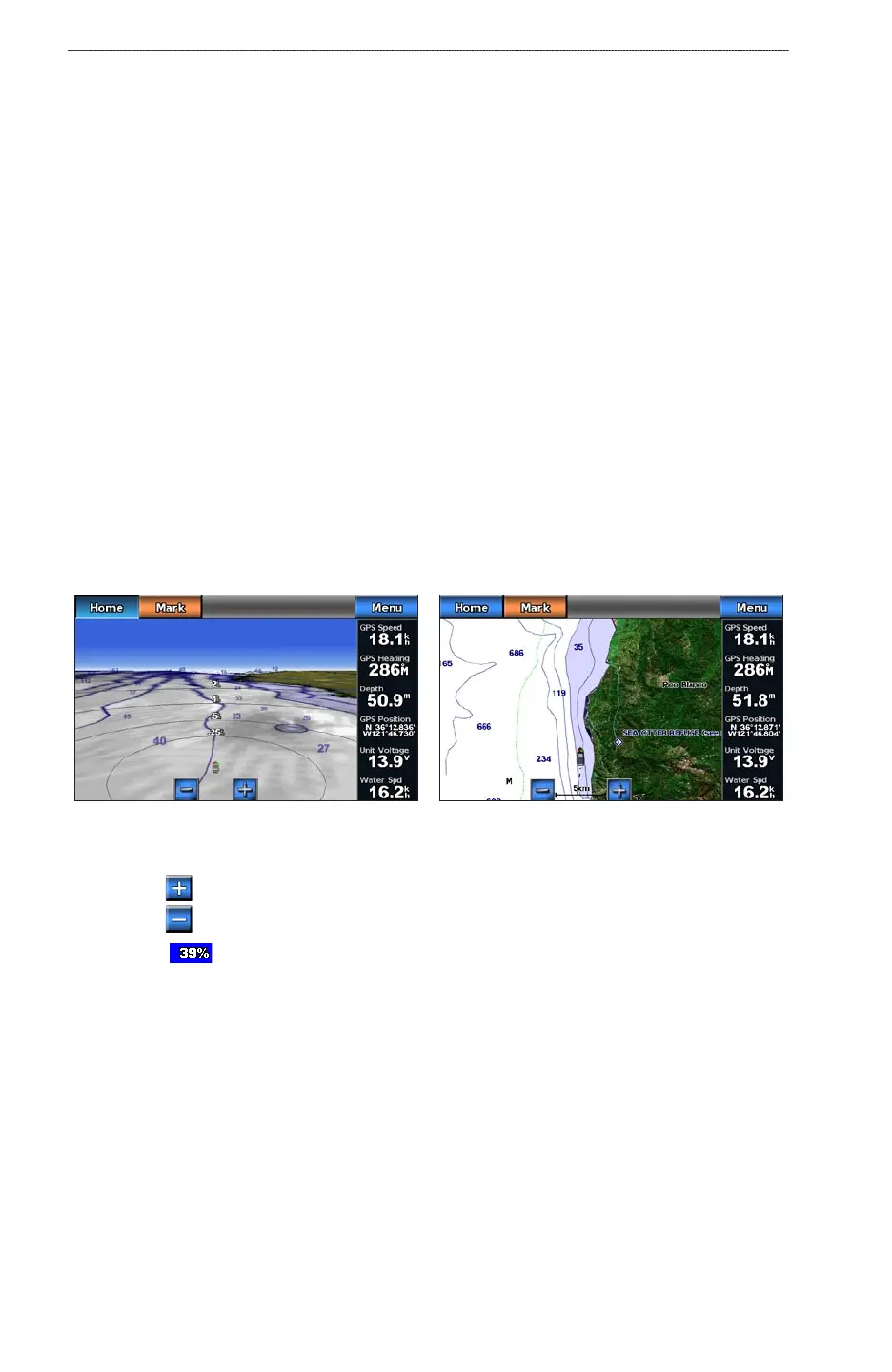
Perspective 3D
Perspective 3D provides a view from above and behind the boat (according to your course) and
provides a visual navigation aid. This view is helpful when navigating tricky shoals, reefs, bridges,
or channels, and is benecial when trying to identify entry and exit routes in unfamiliar harbors or
anchorages.
From the Home screen, select Charts > Perspective 3D.
Navigation ChartPerspective 3D
Adjusting the View
Select the button to move the view closer to your boat and lower to the water.
Select the button to move the view away from the boat.
The scale (
) is momentarily indicated at the bottom of the screen.
Perspective 3D Chart Appearance
Showing Range Rings
The range rings help you to visualize distances in Perspective 3D or Mariner’s Eye 3D.
NOTE
: Mariner’s Eye 3D is available with a preprogrammed BlueChart g2 Vision data card.
1. From the Home screen, select
Charts.
2. Select
Perspective 3D or Mariner’s Eye 3D.
3. Select
Menu > Chart Appearance > Range Rings > On.
•
•













 To Next Page