80 GPSMAP
®
700 Series Owner’s Manual
Sonar
2. Complete an action:
Select Depth > Show.
Select Water Temp > Auto.
Select Water Speed > Auto.
Select Unit Voltage > Show.
Select Navigation > Auto.
If you select
Auto, and if the information is available, the data appears on the Sonar screen.
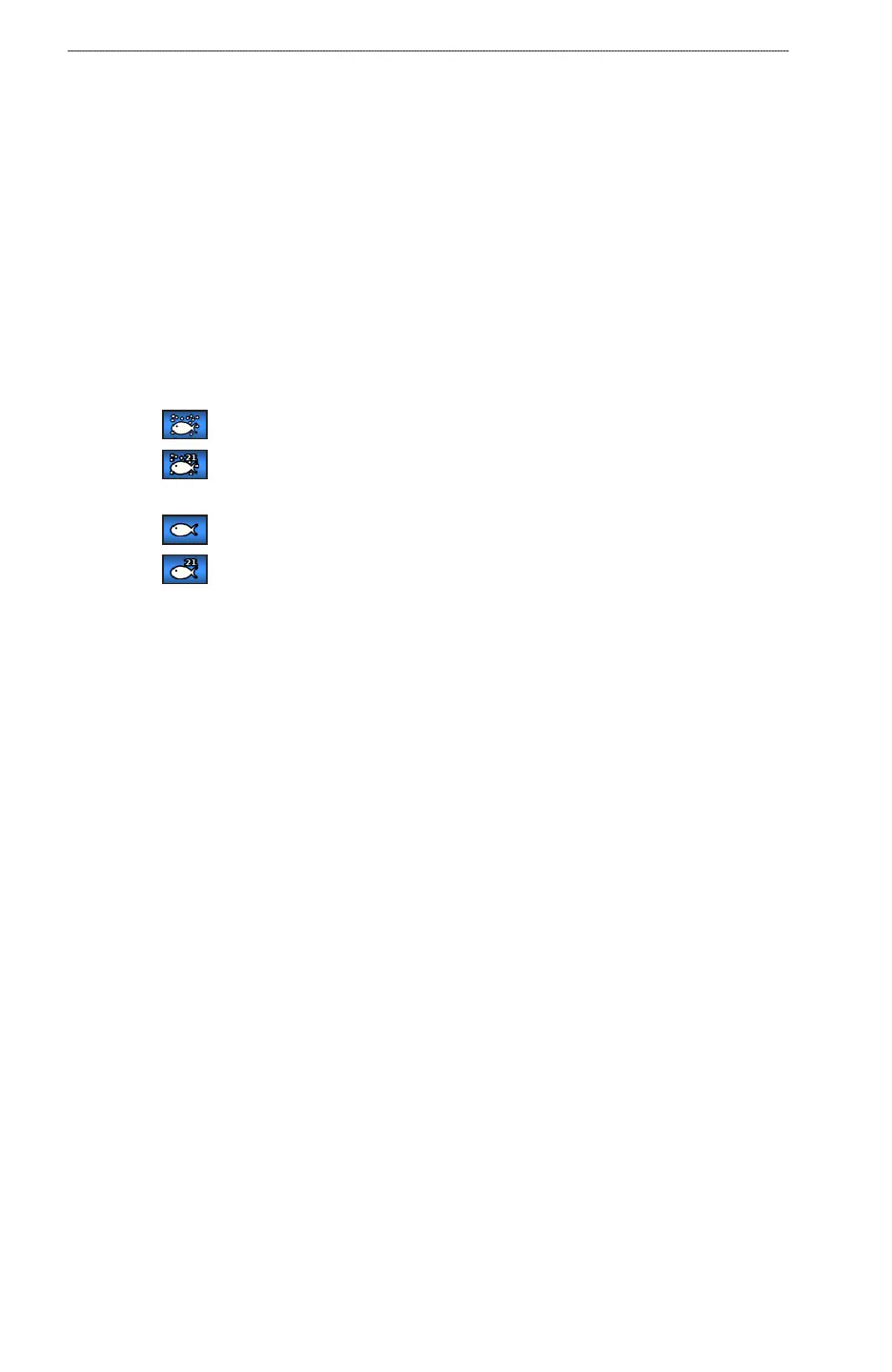
Conguring the Appearance of Suspended Targets
You can set how the sonar interprets suspended targets.
1. From the Home screen, select
Sonar > Sonar Setup > Appearance > Fish Symbols.
2. Complete an action:
Select to show suspended targets as symbols with background sonar information.
Select to show suspended targets as symbols with background sonar information and
target depth information.
Select to show suspended targets as symbols.
Select to show suspended targets as symbols with target depth information.
Showing and Conguring the Whiteline
You can highlight the strongest signal from the bottom to help dene the hardness or softness of the
signal.
1. From the Home screen, select
Sonar > Sonar Setup > Whiteline.
2. Complete an action:
Select High to turn on the whiteline with the most-sensitive setting. Almost all strong returns
are highlighted in white.
Select Medium to turn on the whiteline with many strong returns highlighted in white.
Select Low to turn on the whiteline with the least-sensitive setting. Only the strongest returns
are highlighted in white.
Setting the Color Scheme
1. From the Home screen, select Sonar > Sonar Setup.
2. Complete an action:
Select Color Scheme > Blue.
Select Color Scheme > White.
•
•
•
•
•
•
•
•
•
•
•
•
•
•













 To Next Page