GPSMAP
®
700 Series Owner’s Manual 33
Navigation
Bypassing a Waypoint on a Saved Route
You can begin navigating a saved route from any waypoint in the route.
1. From the Home screen, select
Where To? > Routes.
2. Select a route.
3. Select
Navigate To.
4. Complete an action:
Select Forward to navigate the route near the starting point that was used when the route was
created.
Select Backward to navigate the route near the destination point that was used when the route
was created.
Select Offset to navigate parallel to the route, offset from it by a specic distance (page 38).
5. Touch the waypoint that you want to be the next turn in the route.
6. Select
Navigate To > Route To.
7. Review the course indicated by the magenta line.
8. Follow the magenta line, steering to avoid land, shallow water, and other obstacles.
Copying Routes
See “Chartplotter Data Management” (page 58).
Tracks
A track is a recording of the path of your boat. The track currently being recorded is called the active
track, and it can be saved. You can show tracks in each chart or 3D chart view.
Showing Tracks
1. From the Home screen, select Charts.
2. Select
Navigation Chart or Fishing Chart.
3. Select
Menu > Waypoints & Tracks > Tracks > On.
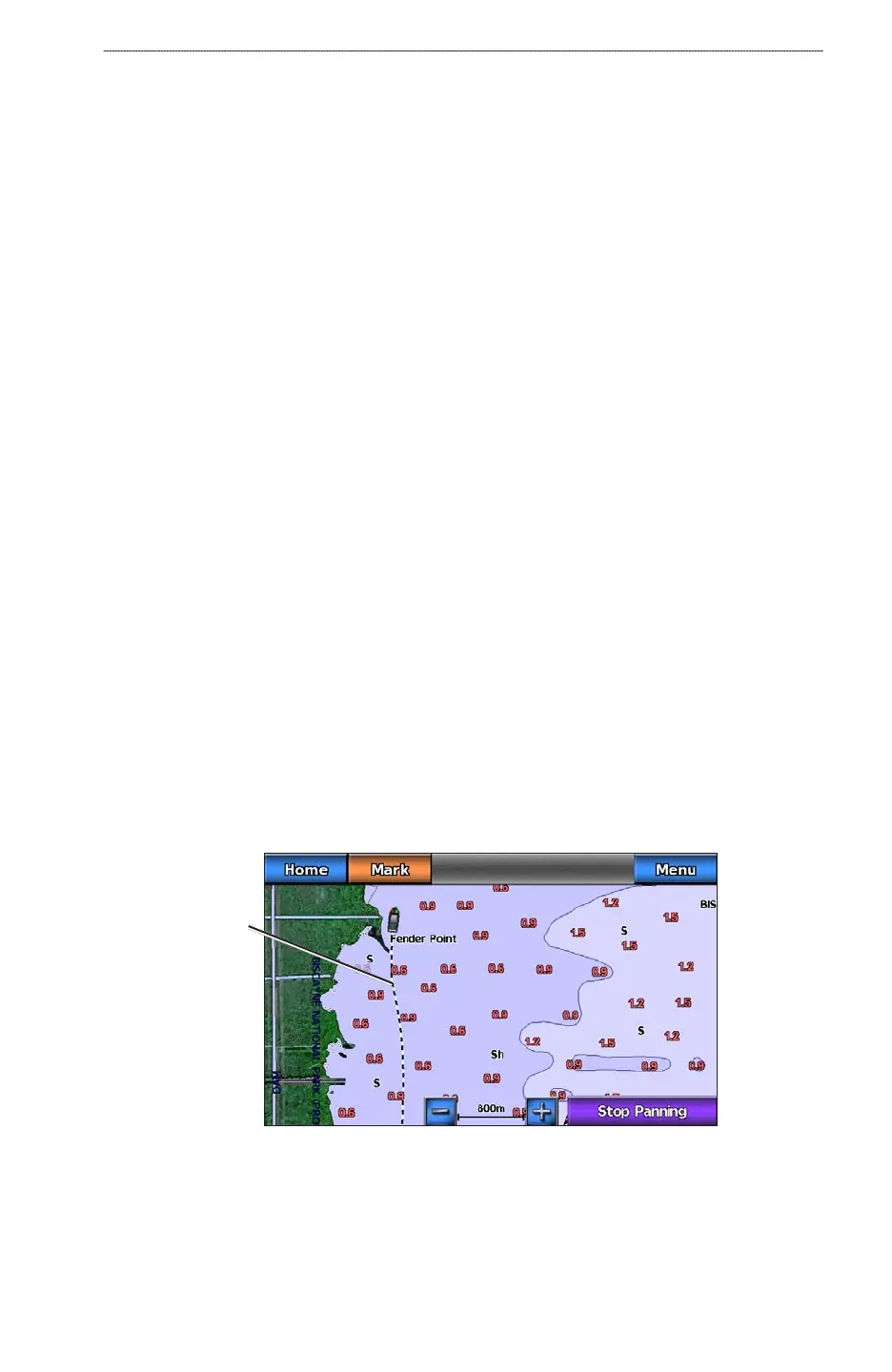
A trailing line on the chart indicates your track.
Track
•
•
•













 To Next Page