72 GPSMAP
®
700 Series Owner’s Manual
Radar
Adjusting Crosstalk Clutter on the Radar Screen
You can reduce the appearance of clutter caused by interference from another nearby radar source.
On is the default value for the crosstalk setting.
NOTE
: Depending upon the radar in use, the crosstalk setting congured for use in one radar mode
may or may not be applied to other radar modes (page 69).
1. From the Home screen, select
Radar.
2. Select
Cruising, Harbor, Offshore, or Sentry mode.
3. Select
Menu > Noise Rejection > Crosstalk > On.
Radar Display Appearance
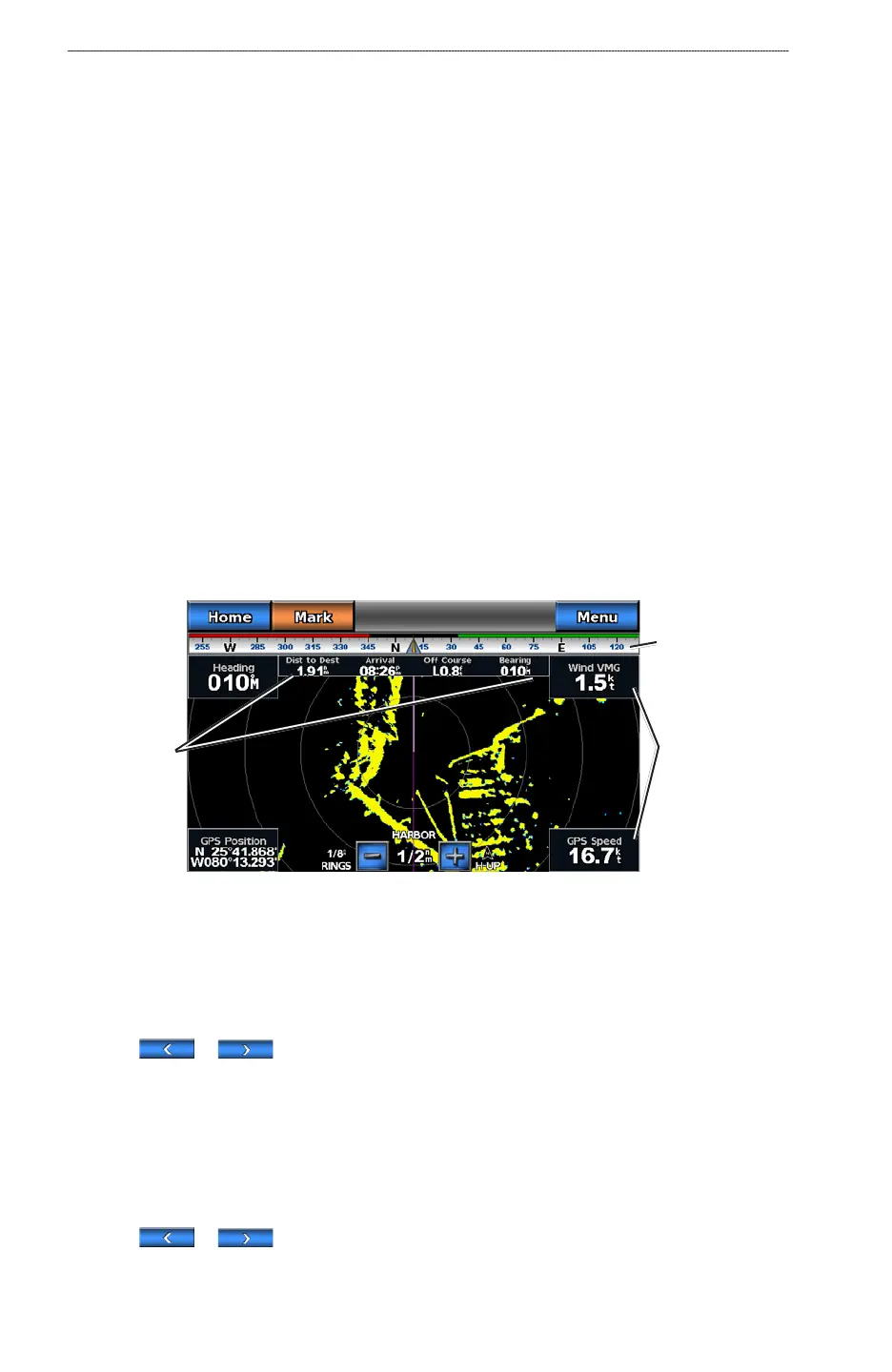
Radar Overlay Numbers
Overlay numbers with data elds can appear on all radar modes, and they provide real-time, at-a-
glance information. When a data overlay for one radar mode is selected, it is applied to the other
radar modes.
Several radar data overlays are available. You can select the data elds to be shown within each data
overlay.
When overlay numbers are displayed on the radar screen, the navigation inset is shown during
navigation. The compass tape can be shown or hidden in each overlay.
Radar with Data Overlay
Data elds
Navigation
inset
Compass tape
Selecting a Data Overlay
1. From the Home screen, select Radar.
2. Select
Cruising, Harbor, Offshore, or Sentry mode.
3. Select
Menu > Radar Setup > Overlay Numbers.
4. Select
or to select a data overlay.
Conguring Data Fields on a Radar
You can select the type of data shown within a data eld.
1. From the Home screen, select
Radar.
2. Select
Cruising, Harbor, Offshore, or Sentry mode.
3. Select
Menu > Radar Setup > Overlay Numbers.
4. Select
or to select a data overlay.













 To Next Page