32 GPSMAP
®
700 Series Owner’s Manual
Navigation
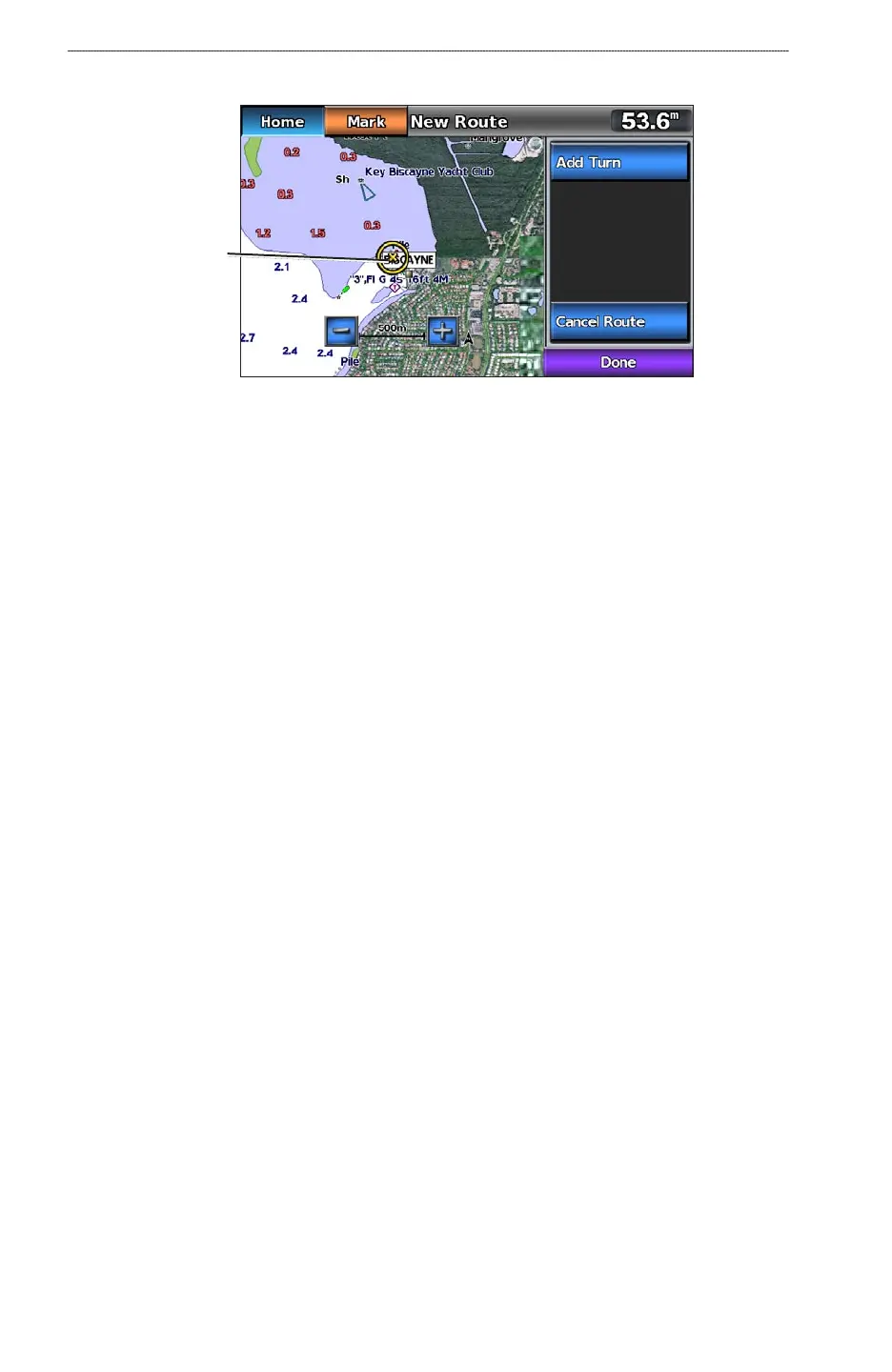
2. Select the starting point of the route.
Starting
point
3. Select Add Turn to mark the starting point of the route.
4. Touch a location on the chart where you want to make the next turn.
5. Select
Add Turn.
The chartplotter marks the position of the turn with a waypoint.
6. If you want to add additional turns, repeat steps 4 and 5.
7. Select the nal destination.
8. Select
Done.
9. If you want to name the route, select
Edit Route > Name. Enter the name.
Viewing a List of Saved Routes
From the Home screen, select Information > User Data > Routes.
Editing a Saved Route
You can change the name of a route, or change the turns the route contains.
1. From the Home screen, select
Information > User Data > Routes.
2. Select the route to edit.
3. Select
Edit Route.
4. Complete an action:
Select Name. Enter the name of the route.
Select Edit Turns > Use Chart. Touch a turn location on the chart.
Select Edit Turns > Use Turn List. Select a waypoint from the list.
5. Select
Done.
Deleting a Saved Route
1. From the Home screen, select Information > User Data > Routes.
2. Select a route.
3. Select
Delete.
Deleting All Saved Routes
From the Home screen, select Information > User Data > Clear User Data > Routes > OK.
•
•
•













 To Next Page