GPSMAP
®
700 Series Owner’s Manual 71
Radar
5. Select Menu > Noise Rejection > Sea Clutter.
6. Select
Up or Down to decrease or increase the appearance of sea clutter until other targets are
clearly visible on the Radar screen.
Clutter caused by sea conditions may still be visible.
Restoring the Default FTC Setting
NOTE: Depending upon the radar in use, the FTC setting congured for use in one radar mode may
or may not be applied to other radar modes (page 69).
1. From the Home screen, select
Radar.
2. Select
Harbor, Offshore, or Sentry mode.
3. Select
Menu > Noise Rejection > FTC > Off.
Restoring the Default Rain Clutter Setting
NOTE: Depending upon the radar in use, the rain clutter setting congured for use in one radar
mode may or may not be applied to other radar modes (page 69).
1. From the Home screen, select
Radar.
2. Select
Cruising, Harbor, Offshore, or Sentry mode.
3. Select
Menu > Noise Rejection > Rain Clutter > Off.
Adjusting Rain Clutter on the Radar Screen
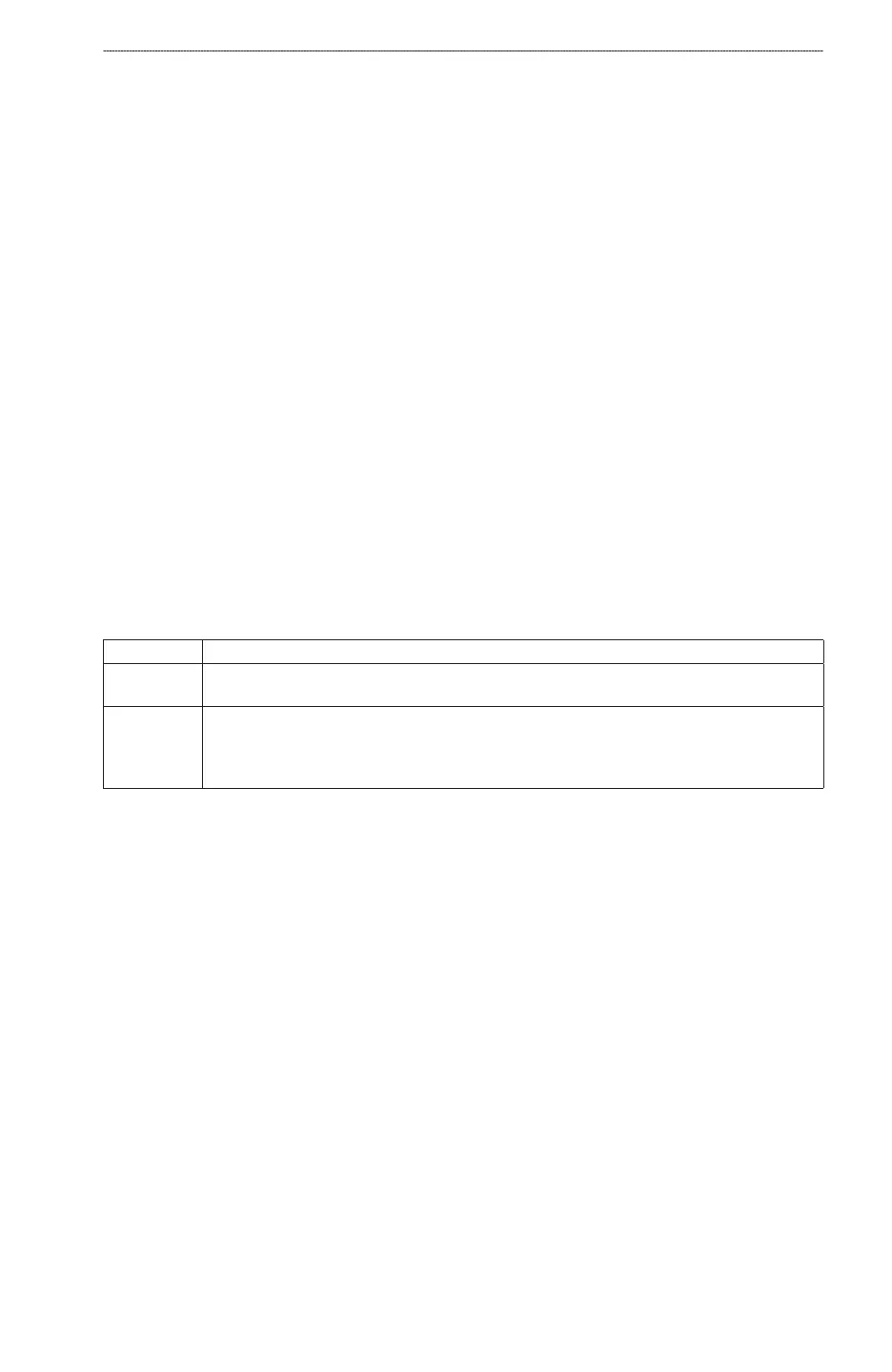
You can adjust the appearance of clutter caused by rain. Reducing the radar range also can minimize
rain clutter (page 60).
Setting Description
FTC This setting affects the appearance of large, hazy masses of clutter caused by rain at any
distance.
Rain Clutter This setting affects the appearance of nearby rain clutter and targets more than it effects
the appearance of distant rain clutter and targets. A higher rain clutter setting reduces
the appearance of clutter caused by nearby rain, but it can also reduce or eliminate the
appearance of nearby targets.
NOTE: Depending upon the radar in use, the rain clutter and FTC settings congured for use in one
radar mode may or may not be applied to other radar modes (page 69).
1. From the Home screen, select
Radar.
2. Select
Cruising, Harbor, Offshore, or Sentry mode.
3. Select
Menu > Noise Rejection > FTC.
4. Complete an action:
Select High, Medium, or Low to decrease or increase the appearance of rain clutter, if using
a GMR
20, 21, 40, 41, 18, 18 HD, 24, 24 HD, 404, or 406 radar. Other targets should remain
clearly visible on the Radar screen.
Select Up or Down to decrease or increase the appearance of rain clutter, if using a GMR 604
xHD, 606 xHD, 1204 xHD, or 1206 xHD radar. Other targets should remain clearly visible on
the Radar screen. If the FTC setting is greater than 50%, consider reducing the radar range.
5. Select
Menu > Noise Rejection > Rain Clutter.
6. Select
Up or Down to decrease or increase the appearance of nearby rain clutter until other
targets are clearly visible on the Radar screen.
Clutter caused by rain may still be visible.
•
•













 To Next Page