page | 106
Using the GAVA Wizard
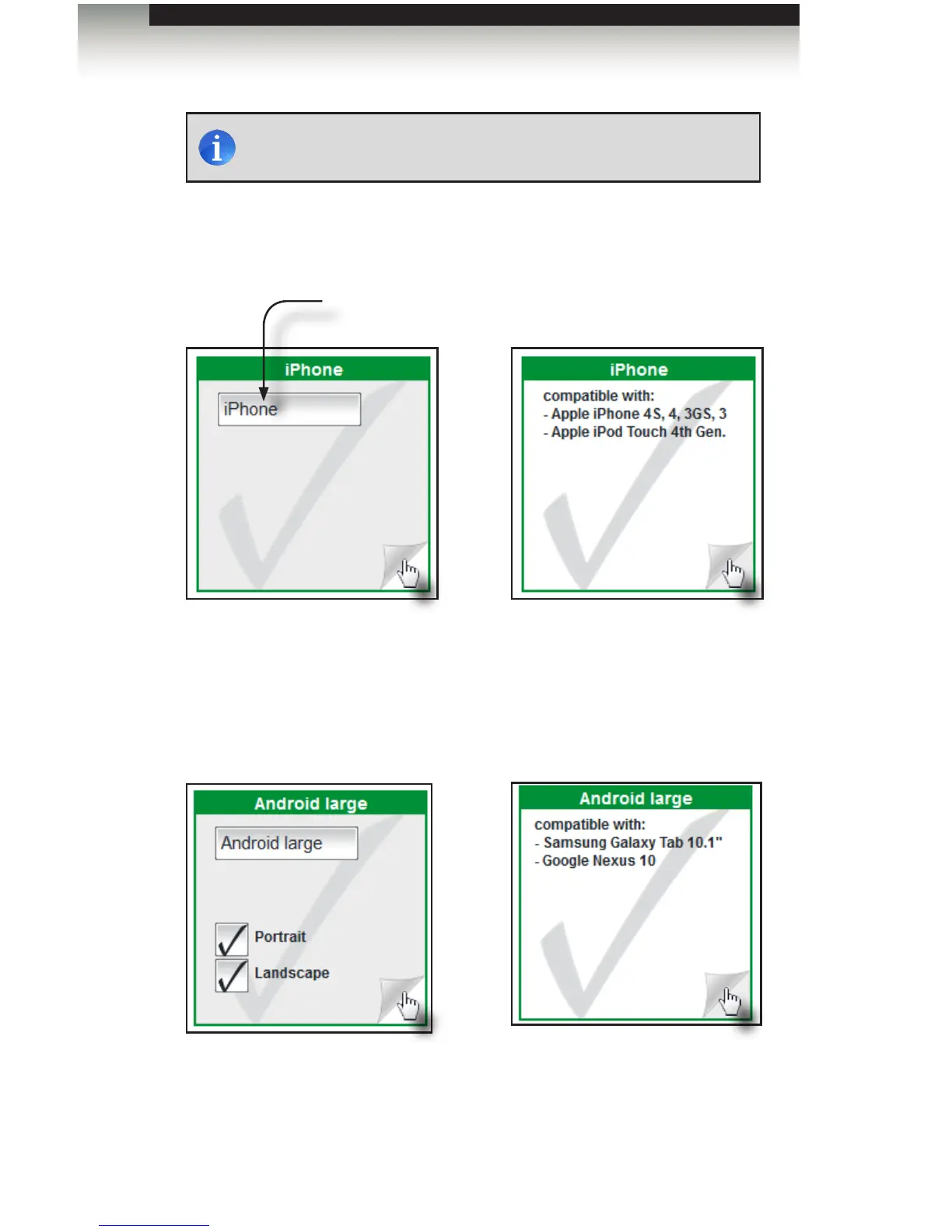
3. Click the “dog-ear” portion of the GUI screen to display device options. For instance,
we can change the name of the GUI-screen to something other than “iPhone”.
Click the “dog ear” portion of the GUI screen icon to return to the previous view.
However, if we click on Android large we can see that in addition to changing the
name, we can either select “Portrait” or “Landscape”. These options allow the GUI to
“t-to-screen” if the device is held vertically or horizontally, respectively.
To disable either “Portrait” and “Landscape” options, click these boxes to remove the
check mark. For now, we will leave both options enabled.
4. Click the Create cong button in the lower-right corner of the screen to begin
generating the GUI. A progress bar will be displayed as the GAVA congures and
uploads the controller data to the PACS / Mini PACS.
NOTE: Multiple GUI screens can be selected / generated by selecting
the desired GUI congurations from GUI-Screens tab.
Generating the GUI
Name eld
Enter the desired name in the box.



 To Next Page